We use cookies to try and give you a better experience in Freshdesk.
You can learn more about what kind of cookies we use, why, and how from our Privacy policy. If you hate cookies, or are just on a diet, you can disable them altogether too. Just note that the Freshdesk service is pretty big on some cookies (we love the choco-chip ones), and some portions of Freshdesk may not work properly if you disable cookies.
We’ll also assume you agree to the way we use cookies and are ok with it as described in our Privacy policy, unless you choose to disable them altogether through your browser.
Before you perform the Night Audit, it is important to complete the following checks to ensure all reservations, payments, and balances for the day are accurate.
1. Check-In and Check-Out Report
Run the Check-In/Check-Out report for the audit date. This helps verify if any checked-out bookings still have pending payments.
Steps
Go to Reports → Reservations -> Check-In / Check-Out and select the custom date.
Review all checked-out bookings.
Click on the Amount Due report for these bookings.
What to verify
Amount Due = 0: Everything is correct.
Amount Due > 0: Guest still owes payment (pending payment).
Amount Due < 0: Guest has overpaid.
If there is a pending or extra amount
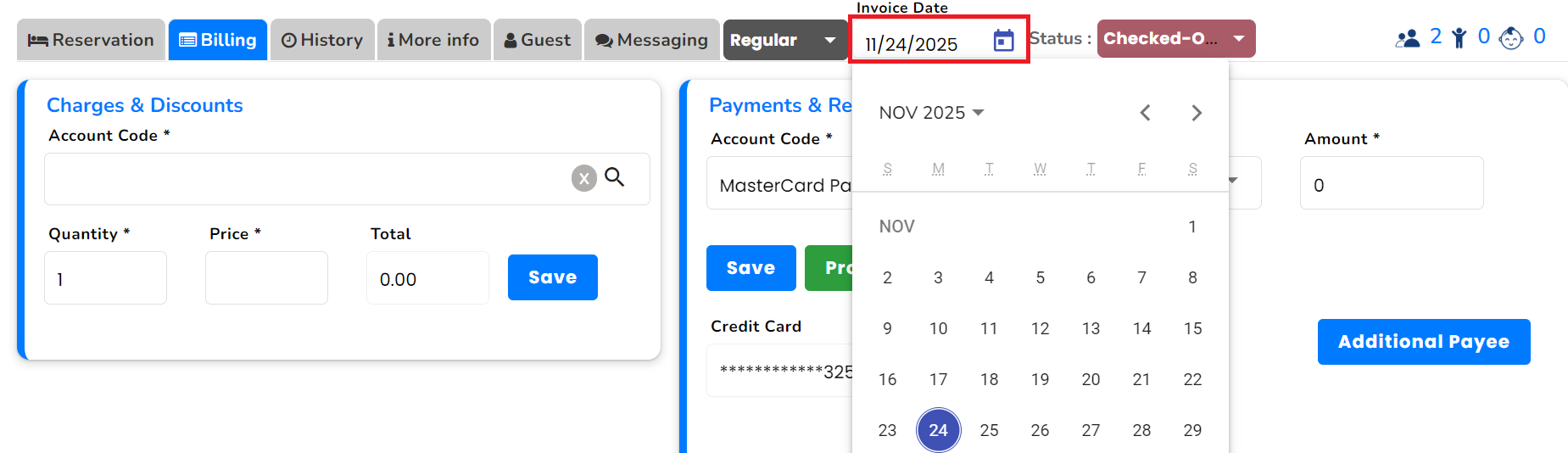
Open the booking.
Go to Billing → choose, Invoice Date.
Add the required payment or process a refund.
Ensure the final amount due becomes 0.
2. Check “Yet to Arrive” / No-Show Reservations
Make sure there are no open arrivals that were missed to check in.
Steps

Go to the Reservation List.
Select the date of the audit.
Choose Show: Yet to Arrive and click Find.
What to verify
The Yet to Arrive list should be empty.
If there are bookings listed:
These are likely No-Show bookings.
Update their status or take necessary action (e.g., mark as cancel, or adjust charges).
3. Run the Night Audit
Once the above checks are clear:
Steps
Navigate to Night Audit.
Click Run Night Audit.
4. Validate Opening & Closing Balance
After the audit runs:
Steps
Open the Night Audit Summary.
Verify:
Opening Balance
Closing Balance
Ensure both balances match your physical cash and system records.
0 Votes
0 Comments
Login or Sign up to post a comment