Overview
The eCheck payment option allows properties to accept electronic check payments for reservations. Before eCheck can be used, it must first be enabled in the payment setup.
This guide explains how to enable eCheck, add an eCheck payment to a reservation, and use eCheck with Easy WebRez (EWR).
1. Enable eCheck in Payment Setup
To make eCheck available in the system:
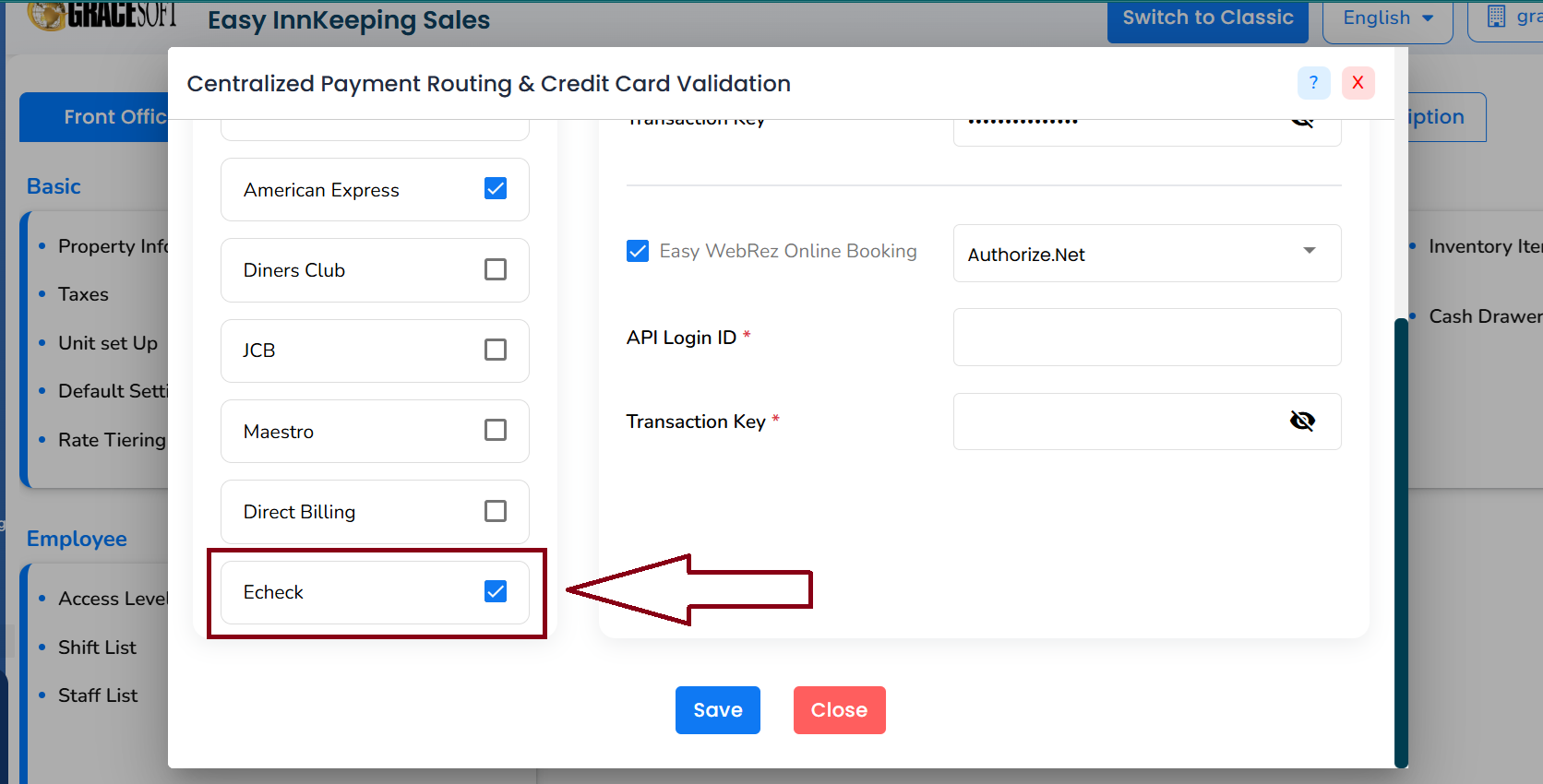
- Go to Setup.
- Open the Credit Card section under Front Office -> Accounts.
- Locate the eCheck option in the available payment methods.
- Select the eCheck checkbox.
- Click Save.
Note: The eCheck option must be enabled before it can be selected on a reservation.
2. Add eCheck to a Reservation
Once eCheck has been enabled, you can add it to a reservation.
- Open the required Reservation.
- Navigate to the Payment Info section.
- Click the Account Code search icon.
- Search for "Echeck Payment (1707)".
- Enter the required eCheck information:
- Name on Account
- Account Number
- Account Type
- Routing Number (ABA Code)
- Bank Name
- Review the payment information.
- Click Save or Save & Close.
The same setup for eCheck configuration will be used with Easy WebRez.
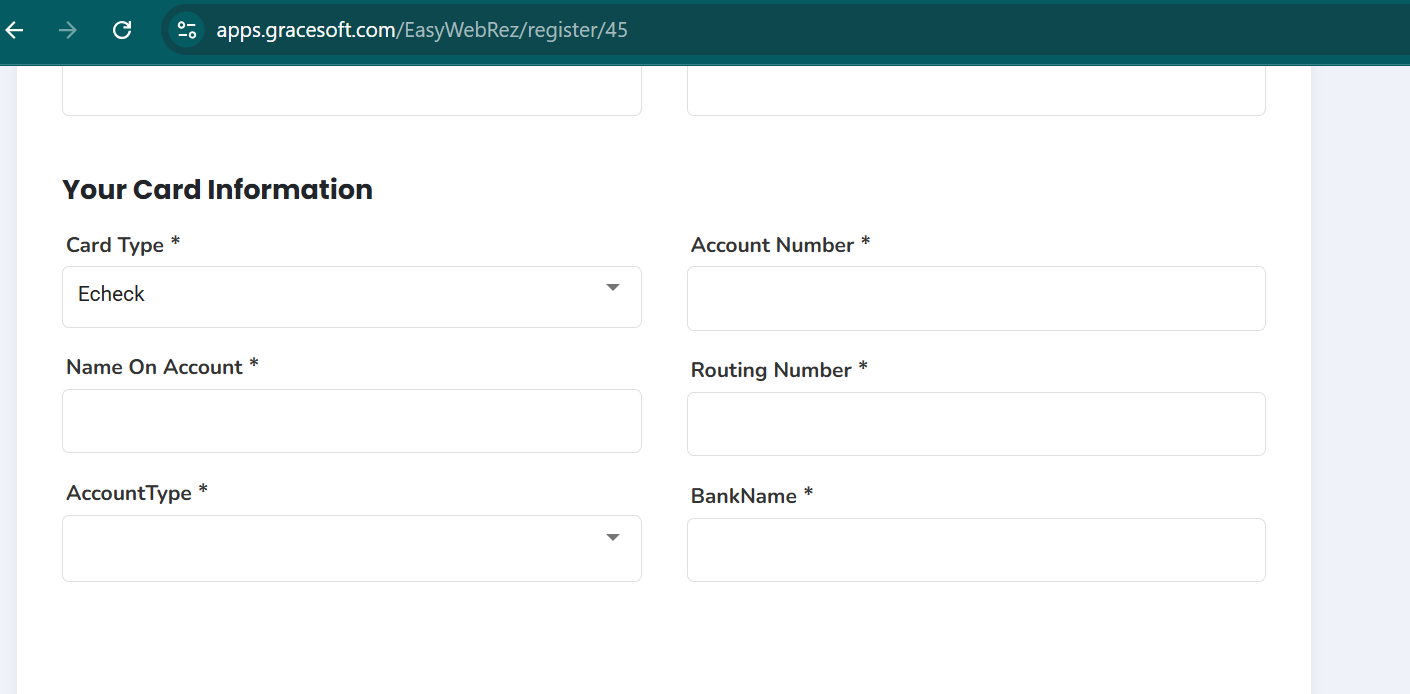
Processing, Void, and Refund follow the same functionality as the existing payment methods.
Was this article helpful?
That’s Great!
Thank you for your feedback
Sorry! We couldn't be helpful
Thank you for your feedback
Feedback sent
We appreciate your effort and will try to fix the article