1. How to Configure BridgePay Credentials
Follow the steps below to configure BridgePay as your payment gateway in Easy InnKeeping PMS and Easy WebRez.
Step 1: Navigate to Credit Card Settings
Log in to Easy InnKeeping PMS.
Go to Setup → Credit Card.
Under Credit Card Validation, locate the payment gateway settings for:
Easy InnKeeping PMS
Easy WebRez Online Booking
Select BridgePay as the payment gateway.
Step 2: Enter BridgePay Credentials
Enter the following information provided by your payment processor: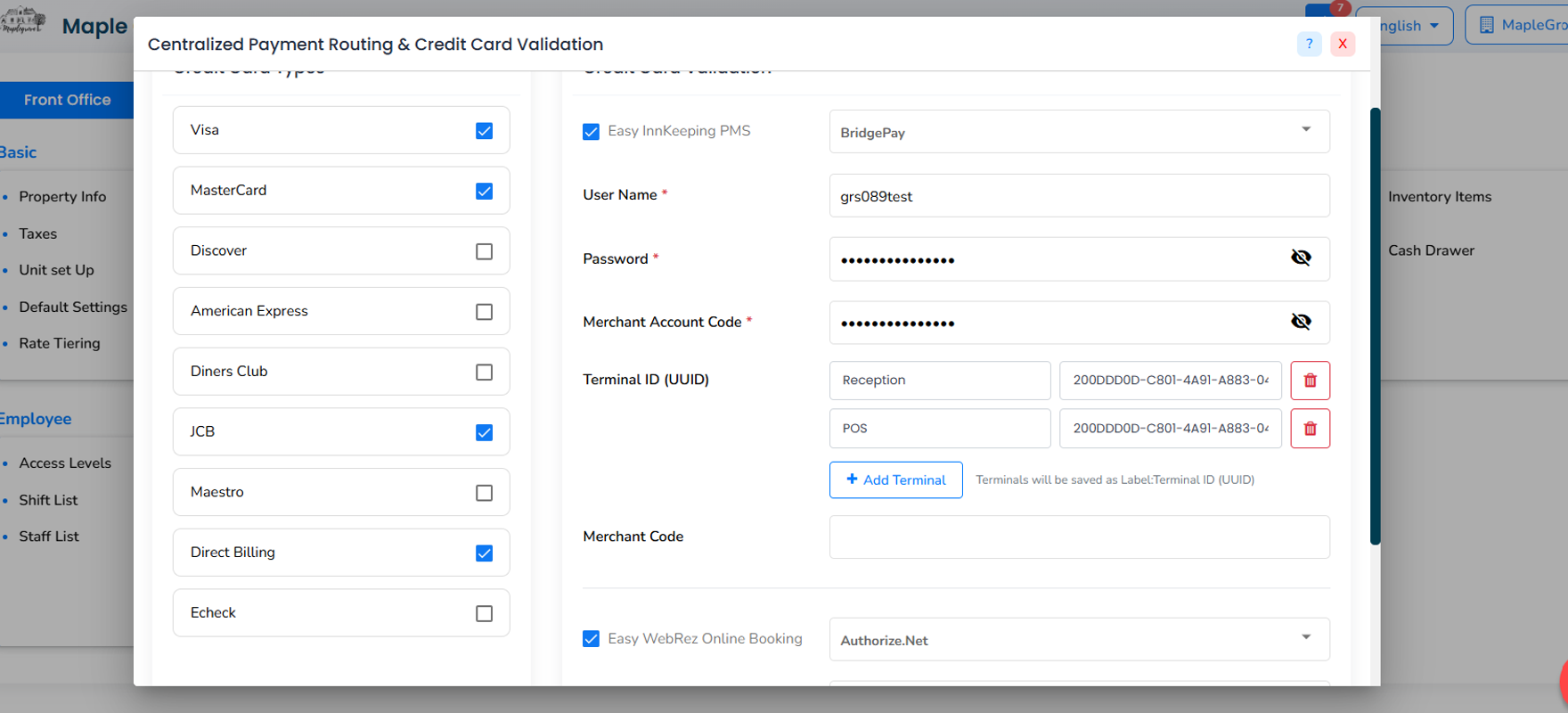
| Field | Description |
|---|---|
| User Name* | BridgePay account username |
| Password* | BridgePay account password |
| Merchant Account Code* | Merchant account code provided by BridgePay |
| Terminal ID (UUID) | Unique identifier assigned to your payment terminal |
| Merchant Code | Merchant code associated with your BridgePay account |
Fields marked with an asterisk () are required.*
Step 3: Configure Multiple Payment Terminals
If your property uses multiple payment devices, you can configure them under the BridgePay settings.
Add a terminal entry.
Enter a Reference Name to identify the device, such as Front Desk 1 or Front Desk 2.
Enter the corresponding Device UUID.
Repeat these steps for each additional payment terminal.
Save your configuration.
Important: To obtain the Device UUID for your payment terminal, contact GraceSoft Support.
2. How to Process a Card Not Present (E-commerce) Transaction
Card Not Present (CNP) transactions allow you to process credit card payments without using a physical payment terminal.
This method is commonly used for online reservations and OTA, where guests provide their credit card information through the booking engine.
Step 1: Open the Reservation
Log in to Easy InnKeeping PMS.
Navigate to Reservations.
Search for and open the reservation for which you want to process a payment.
Step 2: Select the Payment Method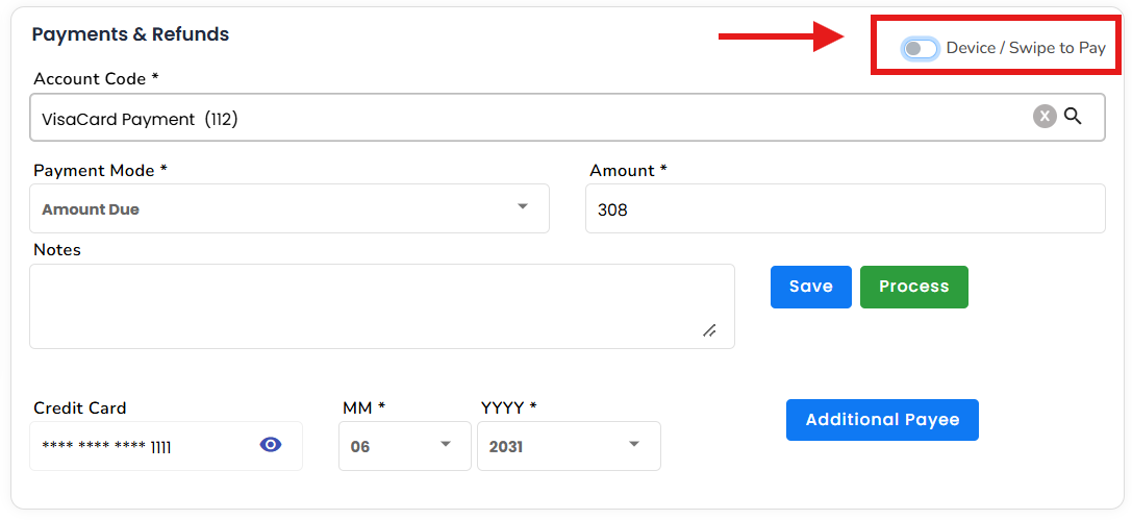
Locate the Payment Info section within the reservation.
Select the appropriate Payment Type.
On the top-right side of the payment section, locate the Device / Swipe to Pay toggle.
Turn the toggle OFF to process a Card Not Present transaction.
Step 3: Enter or Verify Credit Card Details
When the toggle is OFF, the credit card entry fields are displayed.
For reservations received through Easy WebRez, the card details entered by the guest will already be populated where available.
For other reservations, enter the required credit card information.
Step 4: Process the Payment
Navigate to the Billing section.
Verify the payment amount and credit card information.
Click Process to initiate the payment.
Review the transaction result.
Important: When Device / Swipe to Pay is turned OFF, the payment is processed as a Card Not Present transaction without sending a request to a physical payment terminal.
3. How to Process a Card Present (EMV Device) Transaction
Card Present transactions are used when a guest is physically present at the property and makes a payment using a connected payment terminal.
Step 1: Open the Reservation
Log in to Easy InnKeeping PMS.
Open the guest's reservation.
Navigate to the Payment Info section.
Select the appropriate Payment Type.
Step 2: Enable Device Payment
Locate the Device / Swipe to Pay toggle at the top-right of the payment section.
Turn the toggle ON.
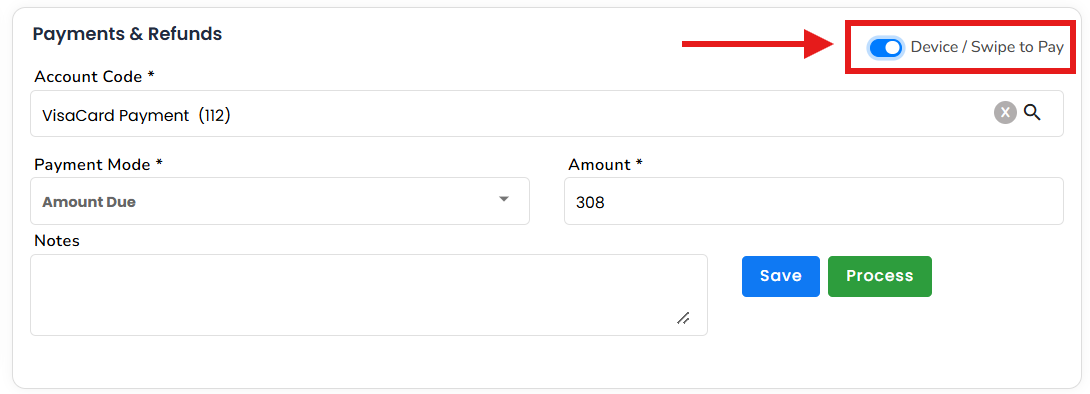
Navigate to Billing and verify the amount to be charged.
Click Process.
Step 3: Select the Payment Device
If multiple devices are configured: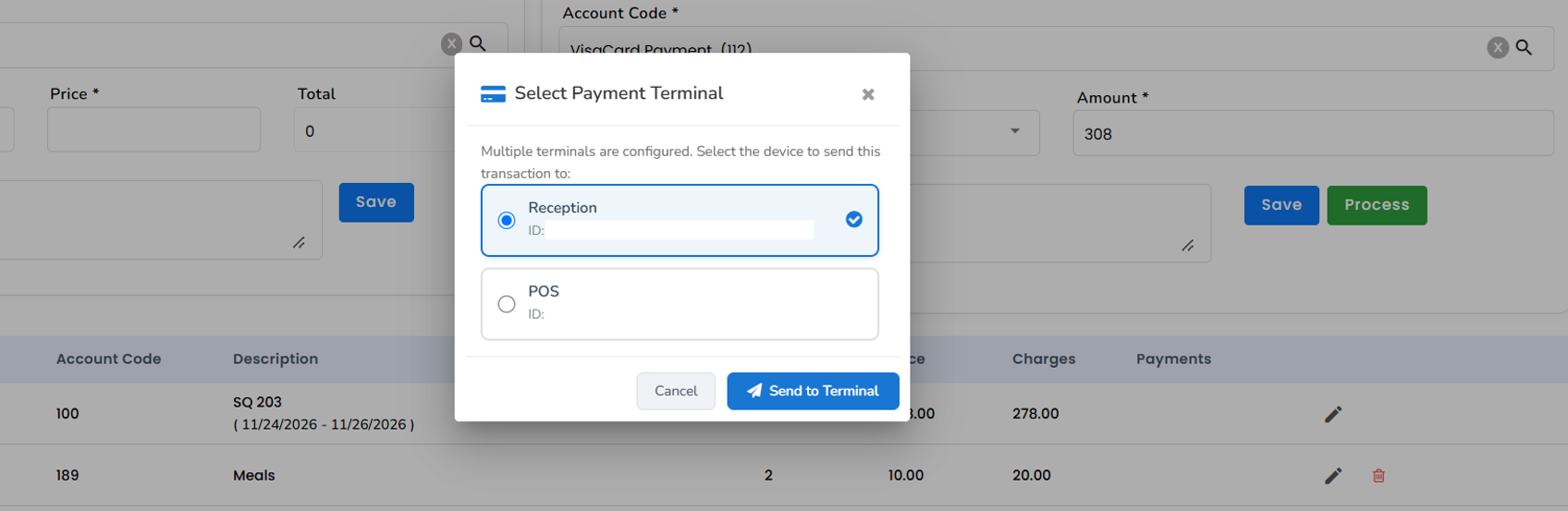
The system displays a list of configured payment terminals.
Select the appropriate device using its Reference Name.
The payment request is sent to the selected device.
If only one device is configured:
The payment request is automatically directed to the configured terminal.
Step 4: Complete the Transaction
A payment prompt appears on the selected payment terminal.
Ask the guest to complete the payment using the supported card-present method.
The device processes the transaction.
Once processing is complete, review the transaction result in Easy InnKeeping PMS.
Important: Keep the Device / Swipe to Pay toggle ON whenever you want to process a transaction using a physical payment terminal.
4. Card Present vs. Card Not Present – Quick Reference
| Feature | Card Not Present | Card Present |
|---|---|---|
| Transaction type | E-commerce / Manual | EMV Device |
| Device / Swipe to Pay | OFF | ON |
| Physical device required | No | Yes |
| Credit card entry | Through payment fields | Through payment terminal |
| Device selection | Not applicable | Required when multiple devices are configured |
| Payment processing | Directly through BridgePay | Through the selected BridgePay terminal |
5. Troubleshooting and Important Notes
- Payment device is not listed
Verify that the terminal has been configured with the correct Reference Name and Device UUID. - Payment request is not reaching the device
Verify that the correct terminal has been selected and that the device is connected and available. - Unable to process a Card Not Present transaction
Confirm that the Device / Swipe to Pay toggle is OFF and verify the payment details and BridgePay configuration. - Unable to process a Card Present transaction
Confirm that the Device / Swipe to Pay toggle is ON and that a valid payment terminal is configured. - Missing Device UUID
Contact GraceSoft Support to obtain the UUID required to configure your payment terminal. - Security reminder
Keep your BridgePay credentials confidential. Do not share passwords or complete credit card details in support tickets or unsecured communications.
6. Need Assistance?
If you experience any issues configuring BridgePay, adding payment terminals, or processing transactions, please contact GraceSoft Support.
Our support team can assist with BridgePay credential configuration, terminal UUID identification, multiple-device setup, and payment processing issues.
Was this article helpful?
That’s Great!
Thank you for your feedback
Sorry! We couldn't be helpful
Thank you for your feedback
Feedback sent
We appreciate your effort and will try to fix the article