Website Builder customers can request admin access to update text and images on their GraceSoft-hosted website.
Websites may include static or dynamic pages. Admin access also includes a Media Library for adding and managing various types of media.
Static Pages would include
- Custom pages
- Property Amenities
- Rooms & Amenities
Media Library
You can use the Media library to upload different formats of media files to your web site pages
- Images
- Audio
- Video
- Documents/PDFs
- Spreadsheets
Dynamic Pages would include
- List of Nearby Attractions
- Schedule of Events
To Edit Static Pages
- Log in using the Admin link provided by GraceSoft.
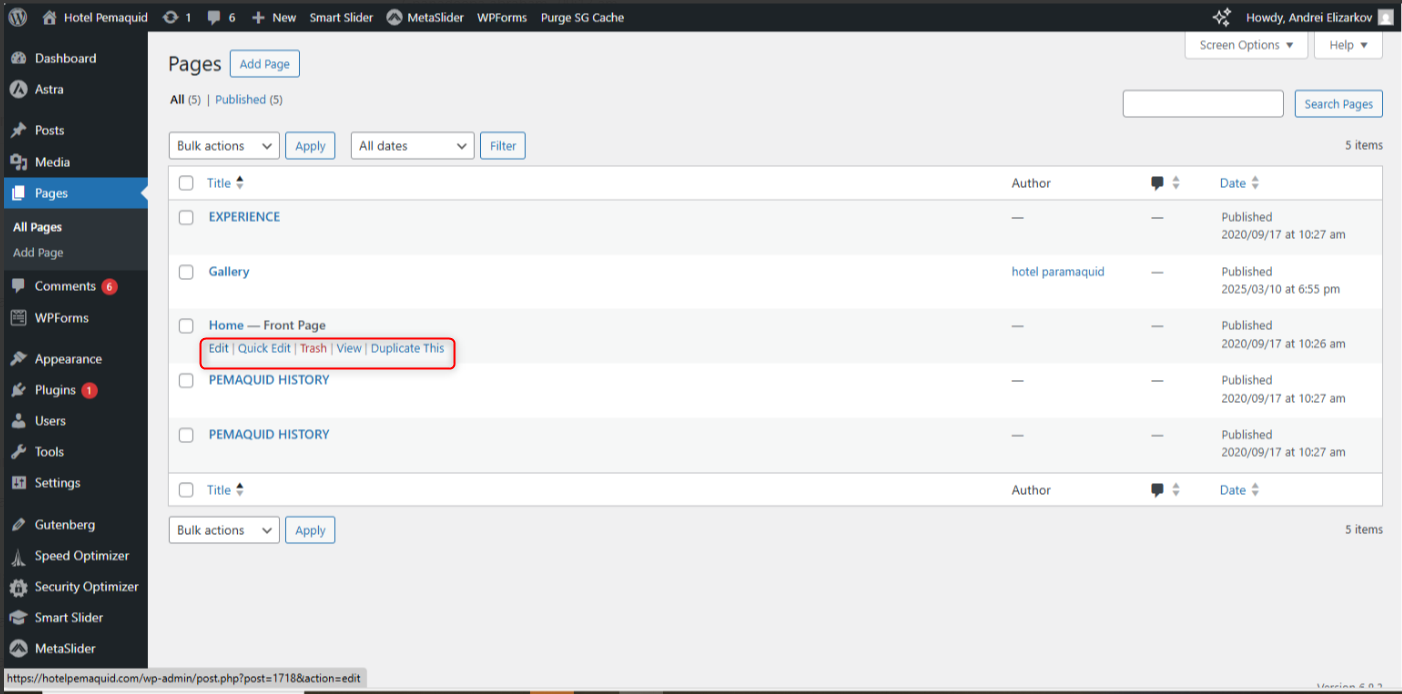
- From the Dashboard, click your Website Name → Visit Site.
- Open the page you want to edit and select Edit with Elementor.
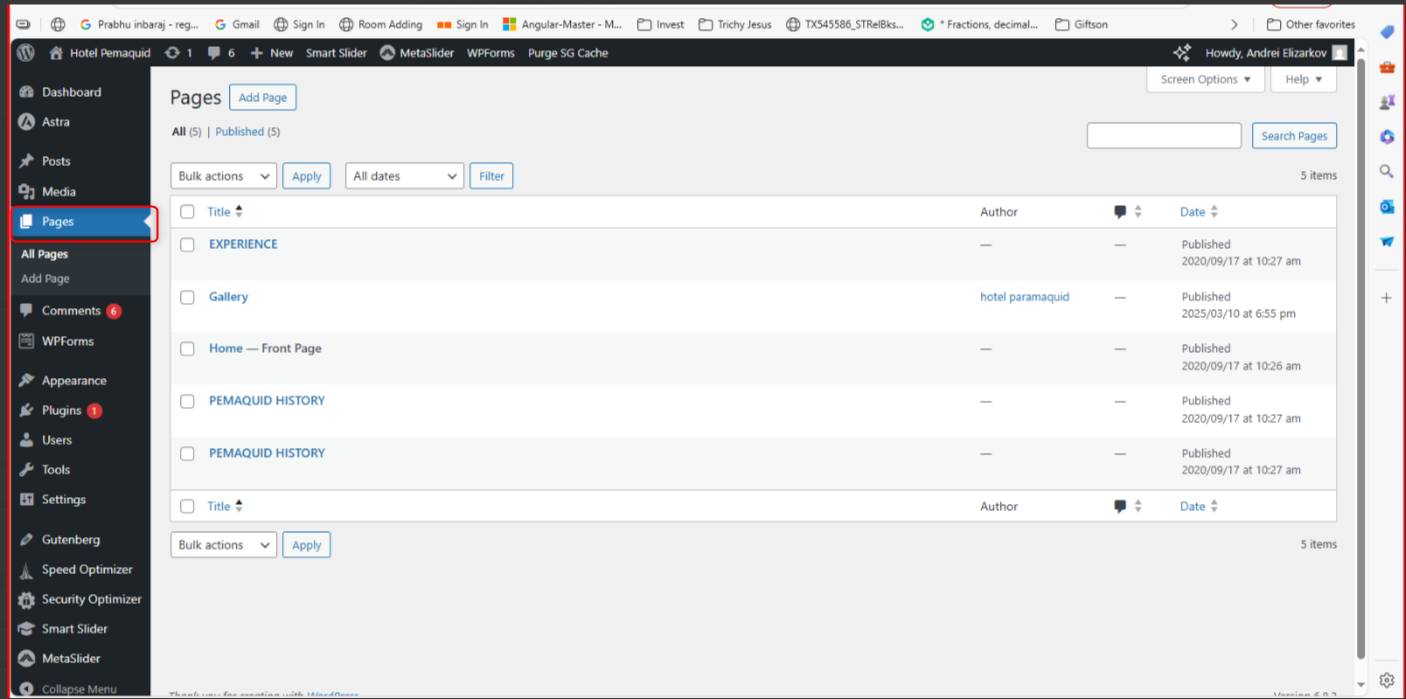
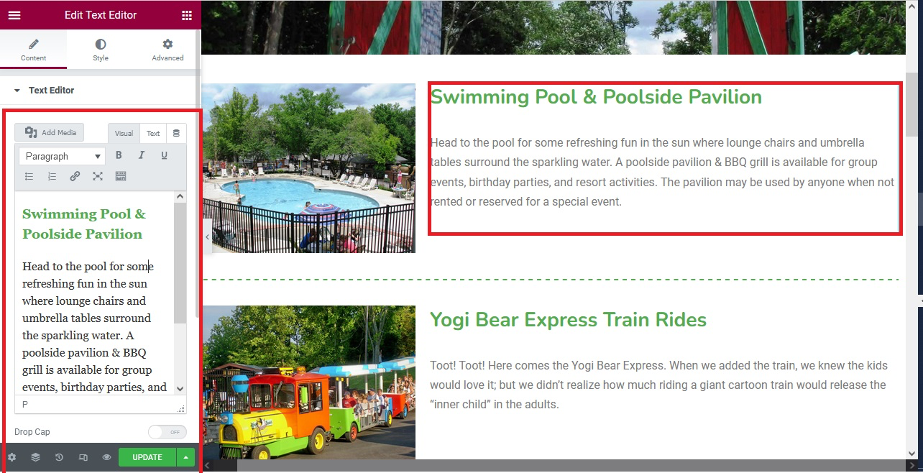
4. Scroll to the section you want to update.
5. Edit text in the Editor box or click the pencil icon to edit an image.
6. Click Publish to save and apply your changes.
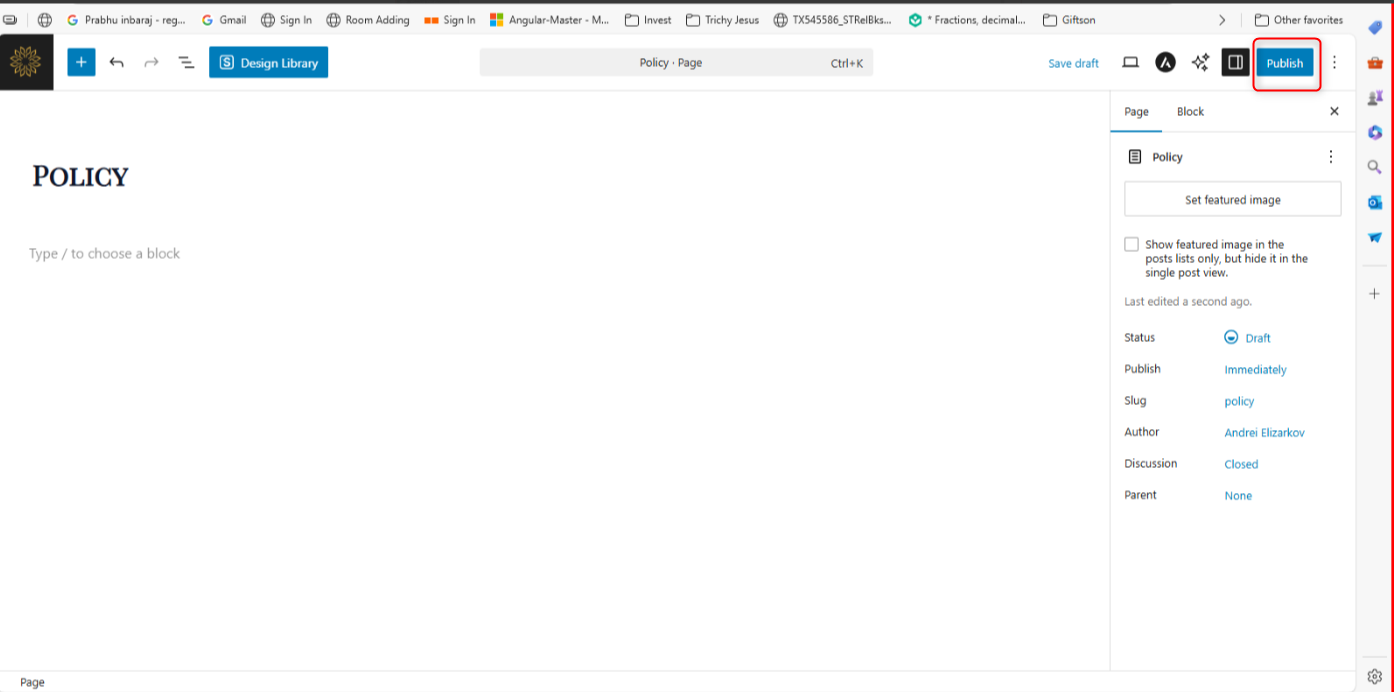
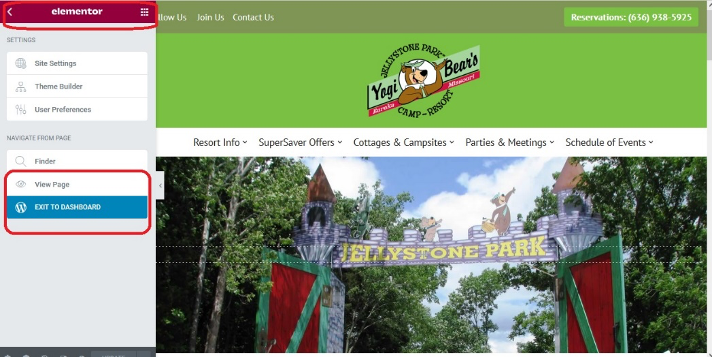
8. Click on MENU bar in top left corner to either VIEW PAGE or Exit Dashboard.
To Add Media
You can use the Media library to upload different formats of media files to your web site pages
- Images
- Audio
- Video
- Documents/PDFs
- Spreadsheets
1.On the Dashboard display click on Media and go to Library to edit, or Add New to upload a new media file
2. Use the Select Files button to select the media file and upload to the Media Library.
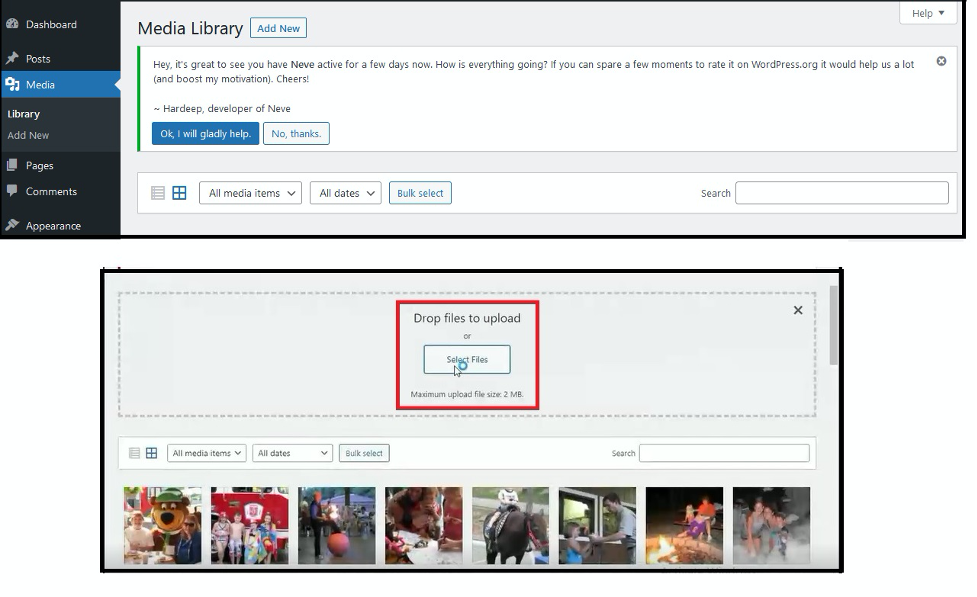
3. Files uploaded to your Media library can be added to individual pages in the Page editor and Event editor.
4. You also have the option to provide an Open or Download link to these media files.
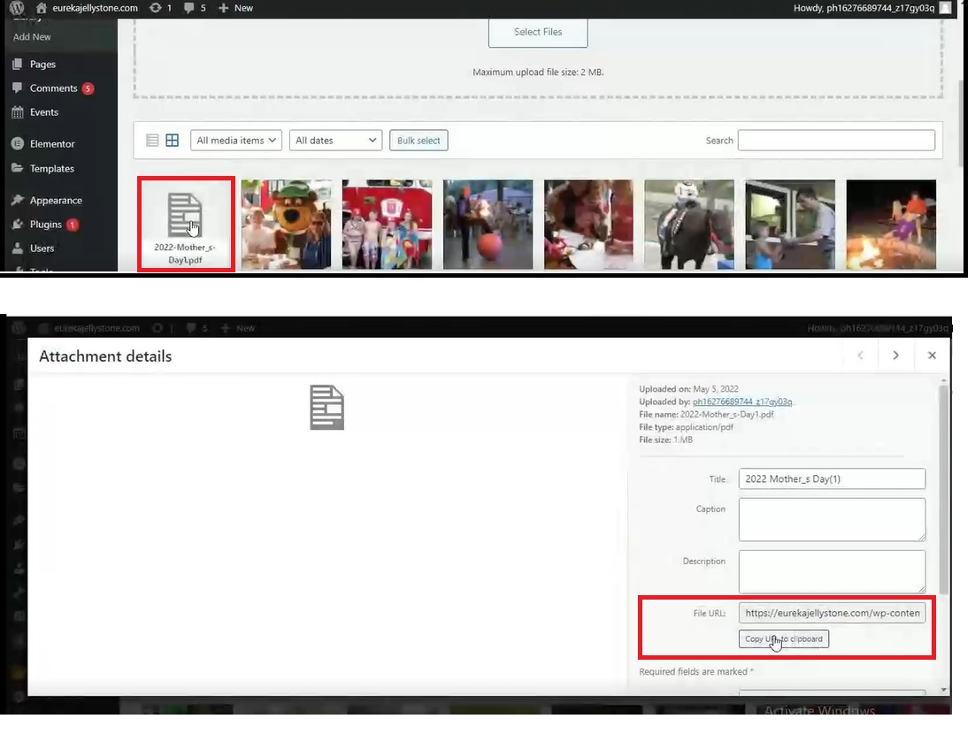
5. To find the LINK for your media file, go the Media Library and click on the media file
6. The media details screen will display, click on Copy URL to clipboard.
To Edit Dynamic Pages (Events, Activities)
1.Login to the Admin link provided by GraceSoft
2.You will see the Dashboard display
3.Click on Events to see list of Event or Activity pages in your web site
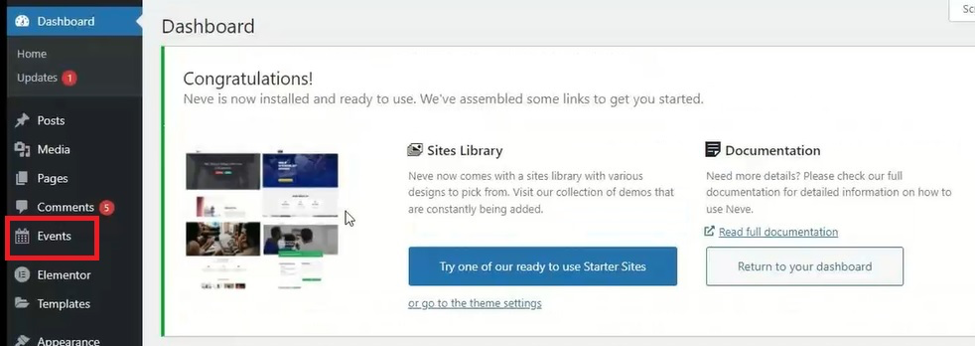
4. When you hover your mouse over any Event title, you will see edit options appear. Click on Edit or Add to add a new event.
5. The Event editor will open.
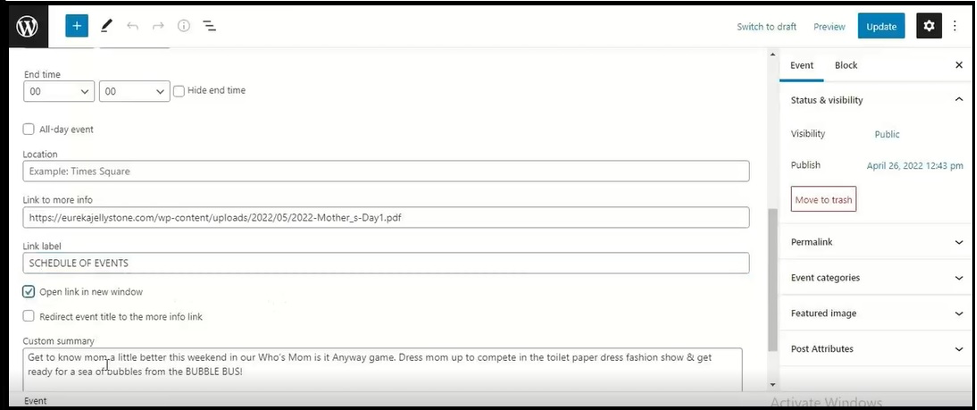
6. Enter Event title, start and end dates and/or times.
7. To add a link to an image or PDF file, enter the full link under Link to more info and create a name for that link under Link Label. If you want the link to open a new page, click on “Open link in new window.”
8. Enter Custom summary to provide a detailed description of the event.
9. Click UPDATE button to submit your changes.