1. What is ADA Accessibility?
ADA (Americans with Disabilities Act) Accessibility helps make the Online Booking Engine easier to use for guests with different accessibility needs, including visual, reading, and navigation difficulties.
The accessibility menu provides various tools that allow guests to adjust the website's appearance and interaction based on their individual preferences.
Who can benefit from ADA Accessibility?
Guests with visual difficulties: Options such as Contrast, Bigger Text, and Screen Reader can help improve the browsing experience.
Guests with reading difficulties: Dyslexia Friendly and Legible Fonts can make text easier to read.
Guests with navigation difficulties: Big Cursor and keyboard-friendly accessibility features can help users navigate the website.
Guests who prefer a customized browsing experience: Options such as Text Spacing, Highlight Links, and Hide Images allow users to adjust the website display.
Note: ADA accessibility tools support a more accessible browsing experience. Enabling the widget alone does not guarantee that a website meets every ADA or accessibility compliance requirement.2. How to Enable ADA Accessibility
Step 1: Navigate to Booking Engine Settings
- Log in to the Easy InnKeeping PMS.
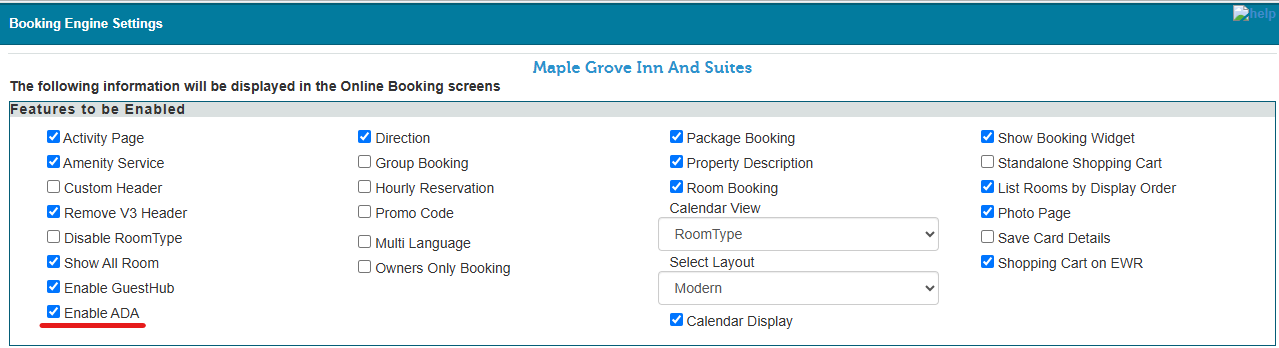
- Navigate to Setup → Web Booking → Booking Engine Settings.
- Select the Enable ADA checkbox.
- Save the changes
Step 2: Access the Accessibility Menu
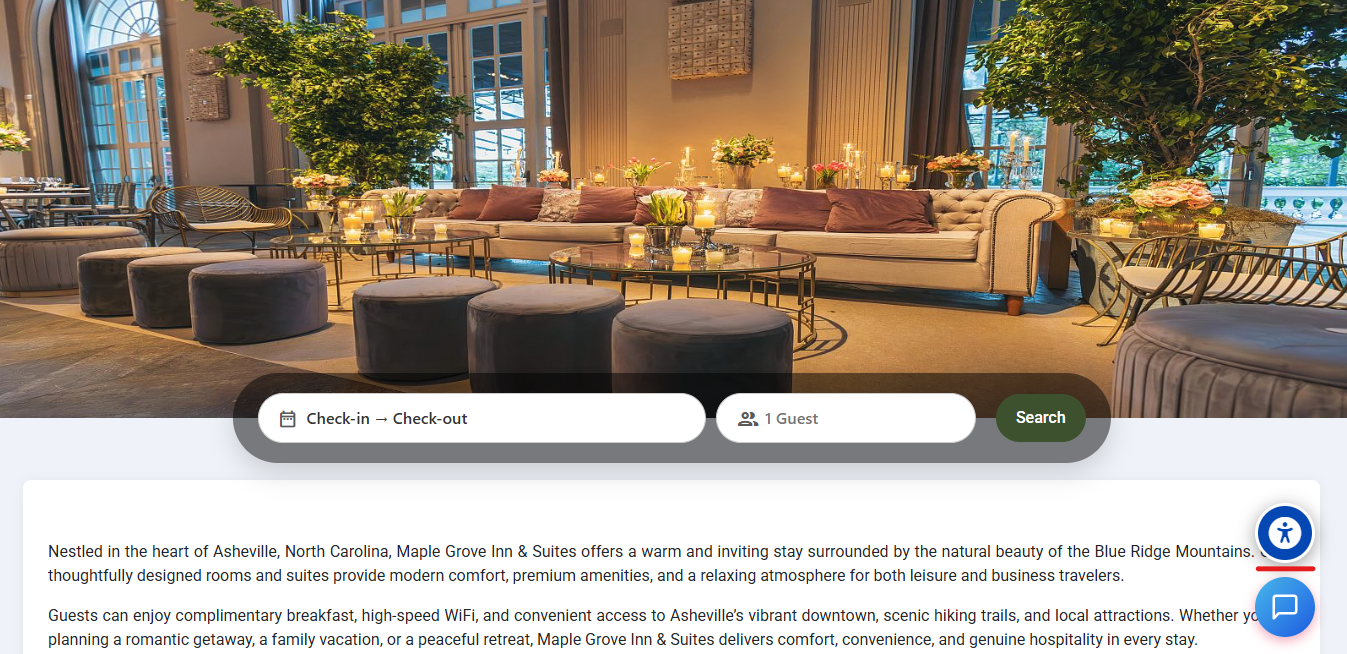
Once ADA is enabled, an Accessibility icon will appear on the Online Booking Engine.
- Open the property's Online Booking Engine.
- Click the Accessibility icon.
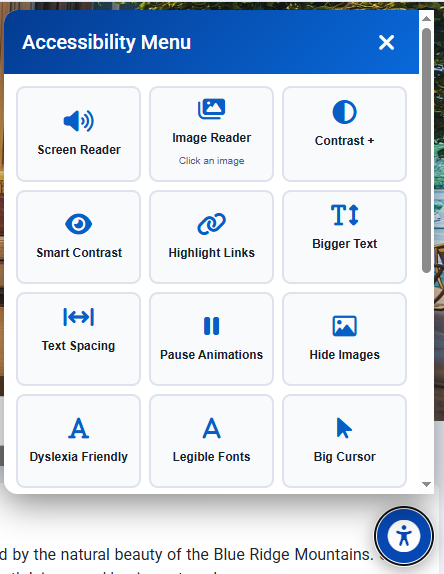
- The Accessibility Menu will open.
- Guests can select the available accessibility options according to their preferences.
3. Accessibility Menu Options
- Screen Reader
Reads the text and other available content on the webpage aloud. Useful for users who have difficulty seeing or reading website content.
- Image Reader
Reads the available image descriptions or alternative text aloud. Useful for users with visual impairments to understand image content.
- Contrast +
Increases the contrast between text and the background. Useful for users who have difficulty distinguishing text from the background.
- Smart Contrast
Automatically adjusts the contrast of website elements to improve visibility and readability. Useful for users with visual difficulties.
- Highlight Links
Highlights links on the webpage so they are easier to identify. Useful for users who have difficulty locating links within the content.
- Bigger Text
Increases the size of text displayed on the webpage. Useful for users who have difficulty reading small text.
- Text Spacing
Increases the spacing between letters, words, and lines of text. Useful for users who need more space between text elements for easier reading.
- Pause Animations
Stops or pauses moving, animated, or automatically changing elements on the webpage. Useful for users who are distracted or affected by moving content.
- Hide Images
Hides images displayed on the webpage. Useful for users who prefer a text-focused view or need to reduce visual distractions.
- Dyslexia Friendly
Applies text and spacing adjustments designed to make content easier to read. Useful for users with dyslexia or reading difficulties.
- Legible Fonts
Changes the website text to a more readable font style. Useful for users who find certain fonts difficult to read.
- Big Cursor
Increases the size of the mouse cursor so it is easier to see and locate. Useful for users who have difficulty tracking or identifying the cursor.
- Reading Guide
The Reading Guide helps users follow the content they are reading by highlighting or guiding the current line of text. This can make it easier for users to read long pages without losing their place.
- Reading Mask
The Reading Mask places a focused reading area over the page while dimming the surrounding content. This helps users concentrate on a specific section of text and reduces visual distractions.
- Tooltips
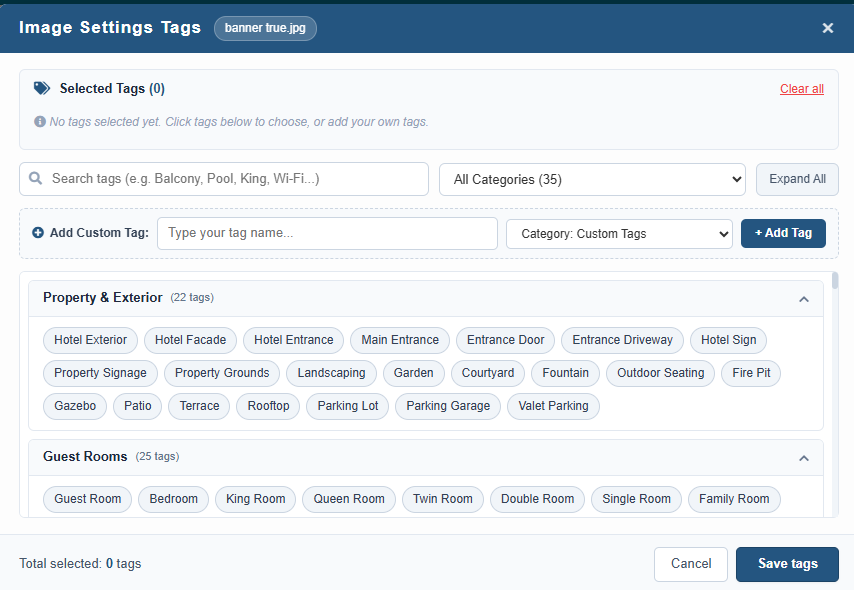
Tooltips display additional text when the user moves the cursor over an image or other supported element.
For example, in Setup → Web Booking → Image Settings, when adding a Background Image, you can use the Add Tag option. The system provides default tags such as Hotel, Interior, Exterior, etc. You can also enter custom text and save it.
Once the tooltip/tag is added, when the user moves the cursor over the image on the Online Booking Engine, the associated text will be displayed.
- Line Height
Allows users to increase or decrease the spacing between lines of text, making content easier to read.
- Text Align
Allows users to adjust the alignment of text, such as:
- Left
- Center
- Right
- Justified
- Saturation
Allows users to adjust the intensity of colors displayed on the website. This can help users who have difficulty viewing highly saturated colors.
- Dictionary
Provides dictionary assistance for website content, allowing users to look up the meaning of words they may not understand.
Was this article helpful?
That’s Great!
Thank you for your feedback
Sorry! We couldn't be helpful
Thank you for your feedback
Feedback sent
We appreciate your effort and will try to fix the article