Stand-Alone Shopping Cart is used to let guests purchase inventory items/add-ons separately, without making a room reservation.
For example:
- Spa services
- Breakfast
- Airport transfers
- Activities
- Merchandise
- Other hotel services or add-ons
The Master Group is used to organize these inventory items into categories. For example, you can create a group called Spa Services and assign a suitable icon to it.
Create a Master Group
- Go to Setup → Front Office → Inventory Items.
- Click Add Master Group.
- Enter the Master Group Name.
- Select an Icon for the Master Group.
- Save the Master Group
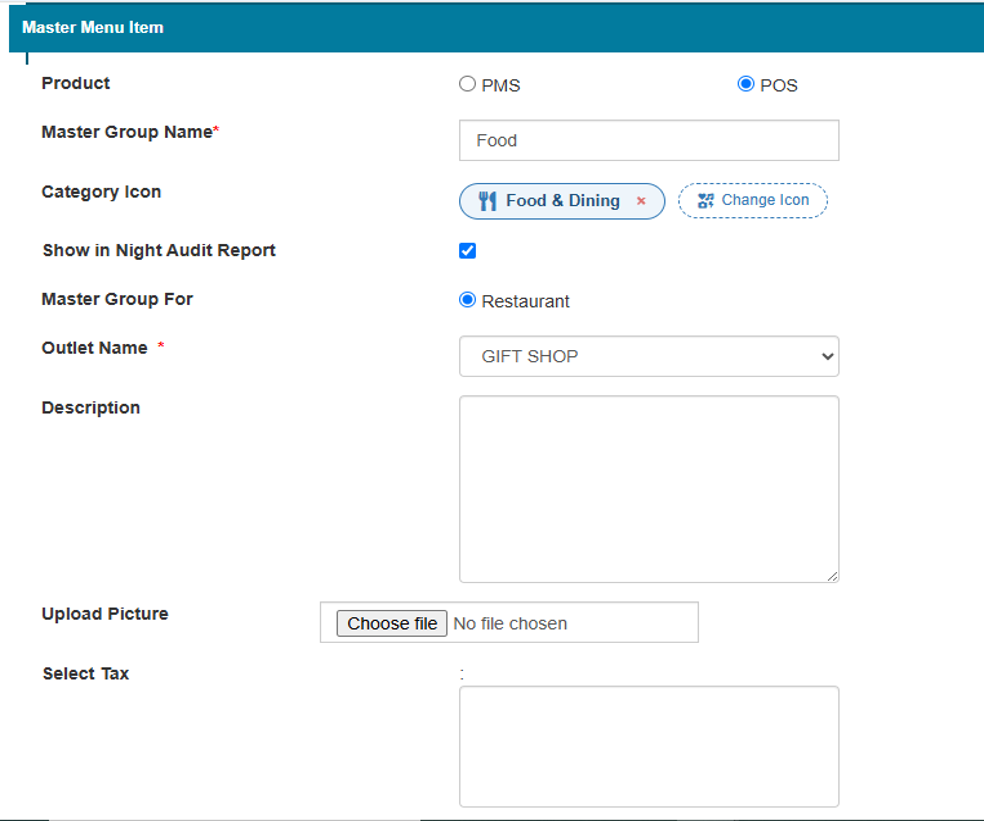
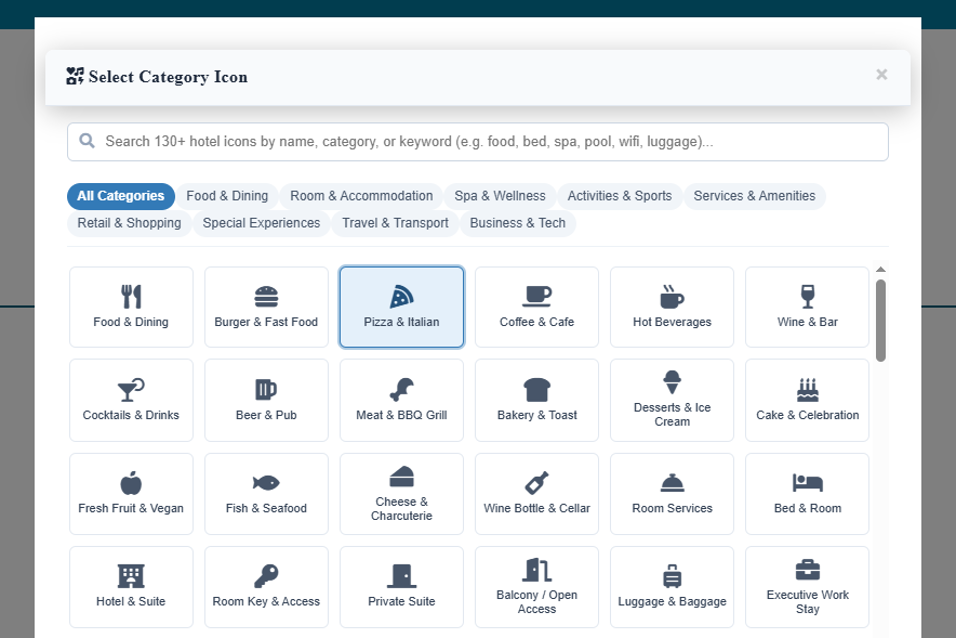
Create a Sub-Category
- Once the Master Group is created, click the Eye icon next to the Master Group.
- Click Add to create a Sub-Category.
- Enter the Sub-Category Name.
- Select an Icon for the Sub-Category.
- Save the Sub-Category.
Add Items to a Sub-Category
- Once the Sub-Category is created, click the Eye icon next to the Sub-Category.
- Click Add to add an item.
- Enter the Item Name.
- Upload the Item Image.
- Enter the Amount and other required item details.
- Save the item.
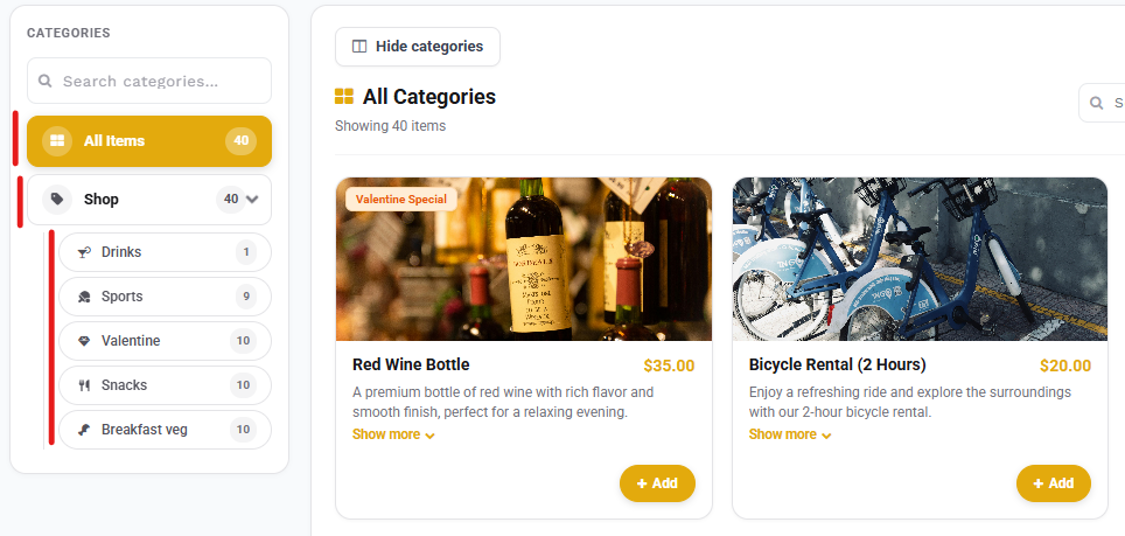
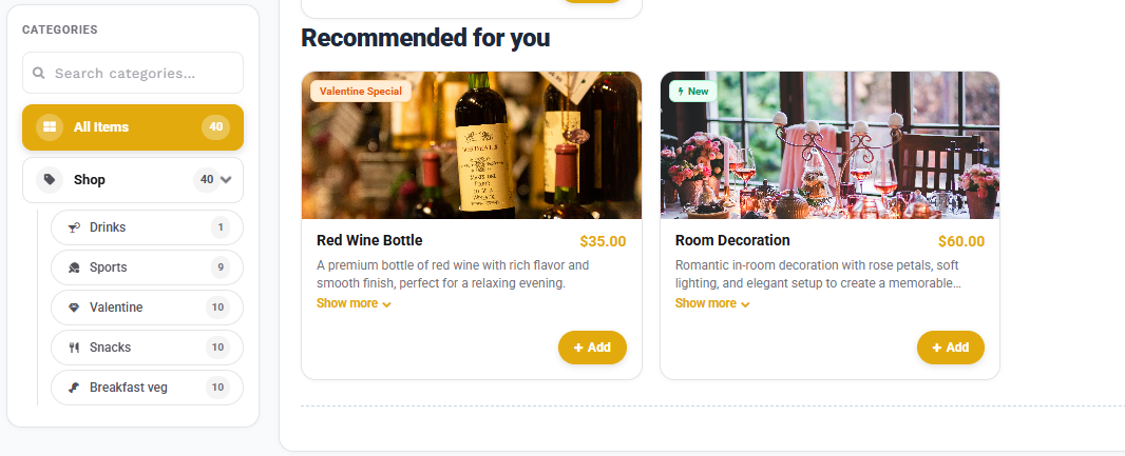
Master Group and Sub-Category icons will be displayed on the left side of the Shopping Cart.
Guests can use these icons to navigate between the available categories and view the items under each category.
Item Options
- Apply to Shopping Cart: Enable this option to make the item visible in the Stand-Alone Shopping Cart.
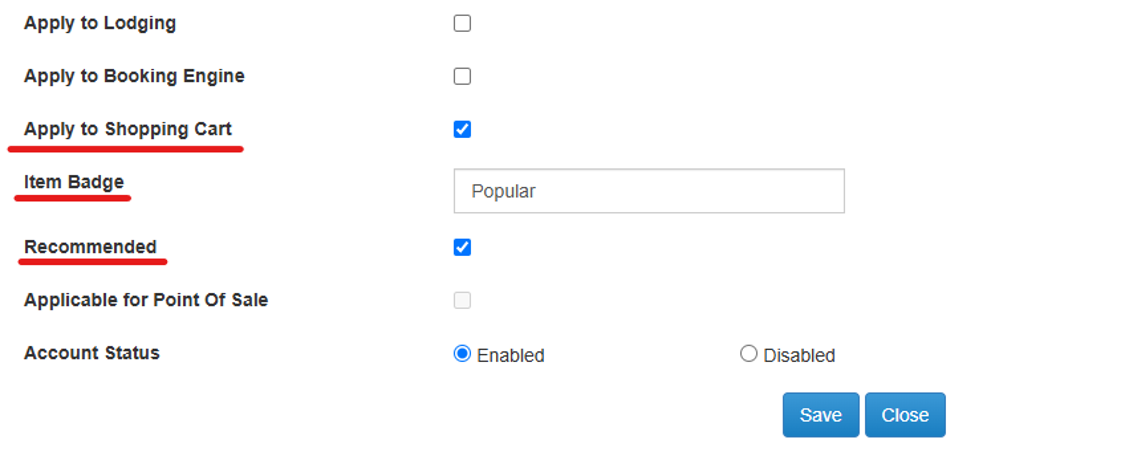
- Item Badge: Use this option to highlight an item with a badge, such as New or Popular.
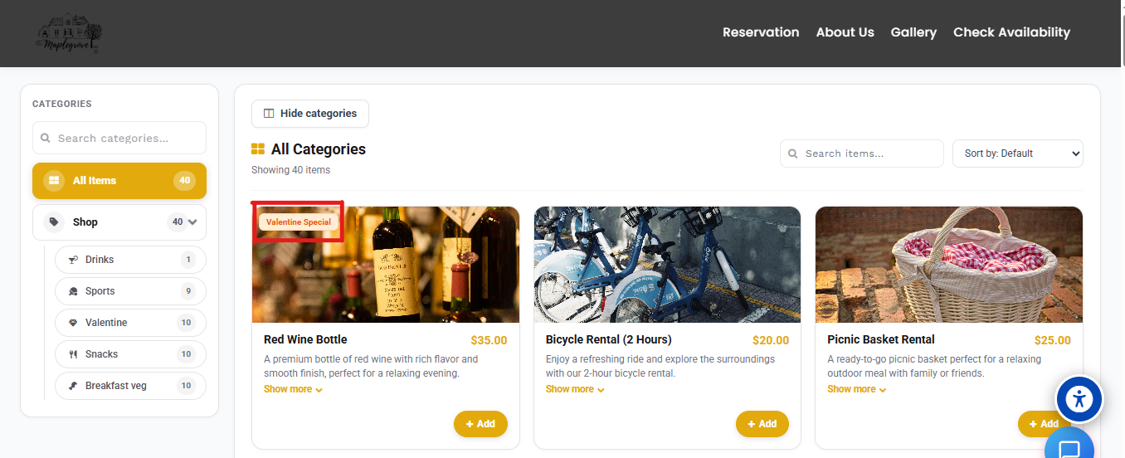
- Recommended: Enable this option to display the item under the Recommended for You section in the Shopping Cart.
Access the Stand-Alone Shopping Cart
The Stand-Alone Shopping Cart has a dedicated link that can be shared with guests. Guests can use this link to browse the available items and purchase the items they need without making a room reservation.
Guests can:
- Open the Shopping Cart link.
- Browse the available Master Groups and Sub-Categories.
- Select the required items.
- Add items to the shopping cart.
- Complete the purchase.
Enable Shopping Cart on the Online Booking Engine
To display the Shopping Cart within the Online Booking Engine:
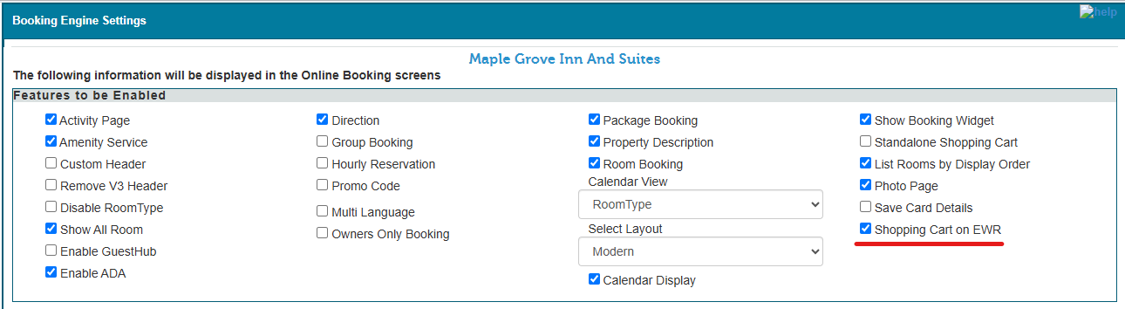
- Go to Setup → Web Booking → Booking Engine Settings.
- Enable Shopping Cart on EWR.
- Save the settings.
Once enabled, guests can add Shopping Cart items while making a room reservation through the Online Booking Engine. This allows guests to purchase additional items along with their booking.
Was this article helpful?
That’s Great!
Thank you for your feedback
Sorry! We couldn't be helpful
Thank you for your feedback
Feedback sent
We appreciate your effort and will try to fix the article