Derived Rates (Parent & Child Rates) – Functionality
Derived rates allow hotels to set up one parent rate and then create child rates that automatically calculate pricing for different guest categories (Adult, Child, Infant). This ensures consistent pricing and automatic rate calculation during reservations.
1. Creating the Parent Rate
Path:
Setup → Front Office → Rate Setup
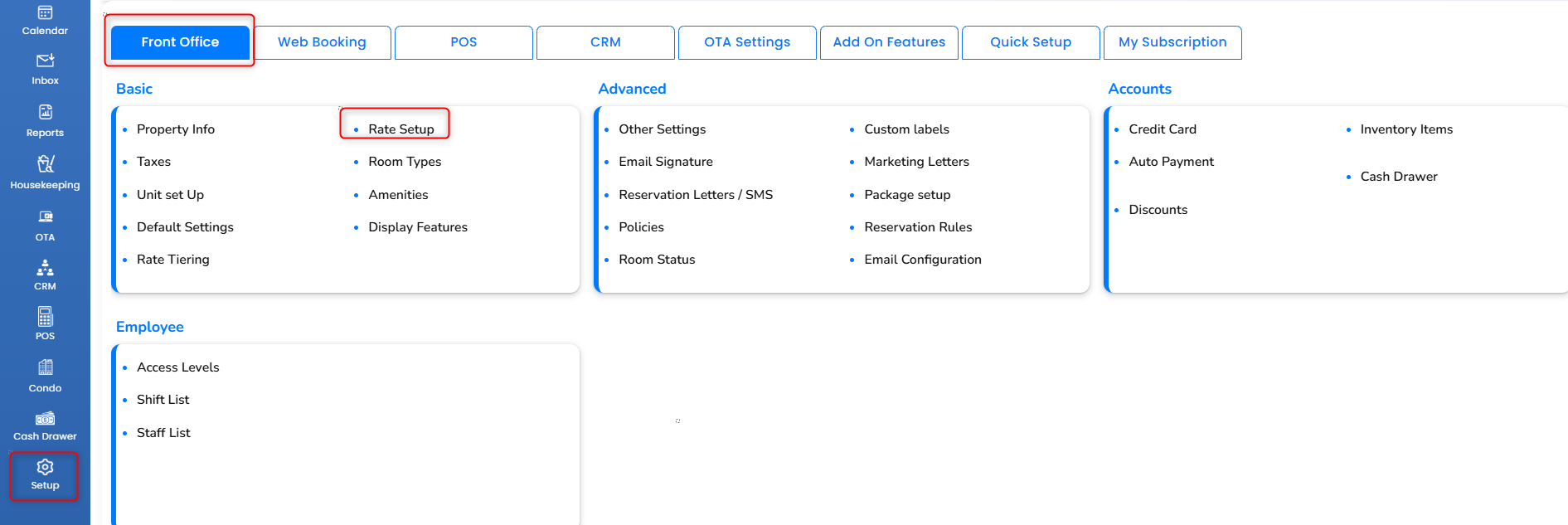
Click “Add Regular Rate.”
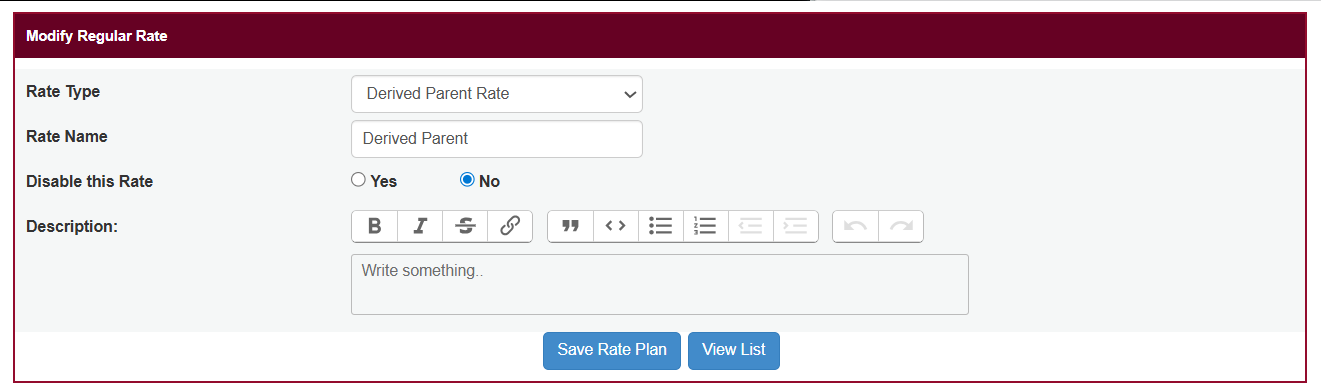
Under Rate Type, select “Derived Parent Rate.”
Enter the Parent Rate Name (example: “Family Package Rate”).
Save the changes.
This parent rate acts as the base to which child category rates will be linked.
2. Creating the Child Rates
Repeat the following steps for Adult, Child, and Infant categories.
Path:
Setup → Front Office → Rate Setup
Click “Add Regular Rate.”
Under Rate Type, select “Derived Child Rate.”
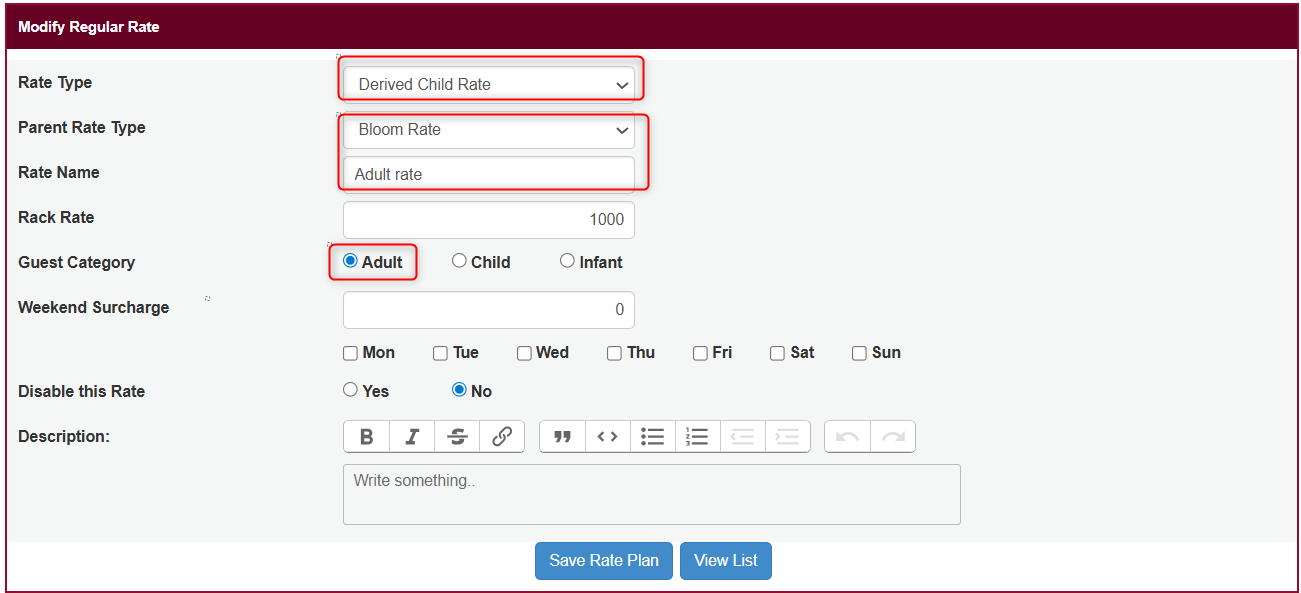
In Parent Rate Type, choose the Parent Rate created earlier.
Enter the Child Rate Name (e.g., “Adult Rate”).
Choose the Guest Category (Adult / Child / Infant).
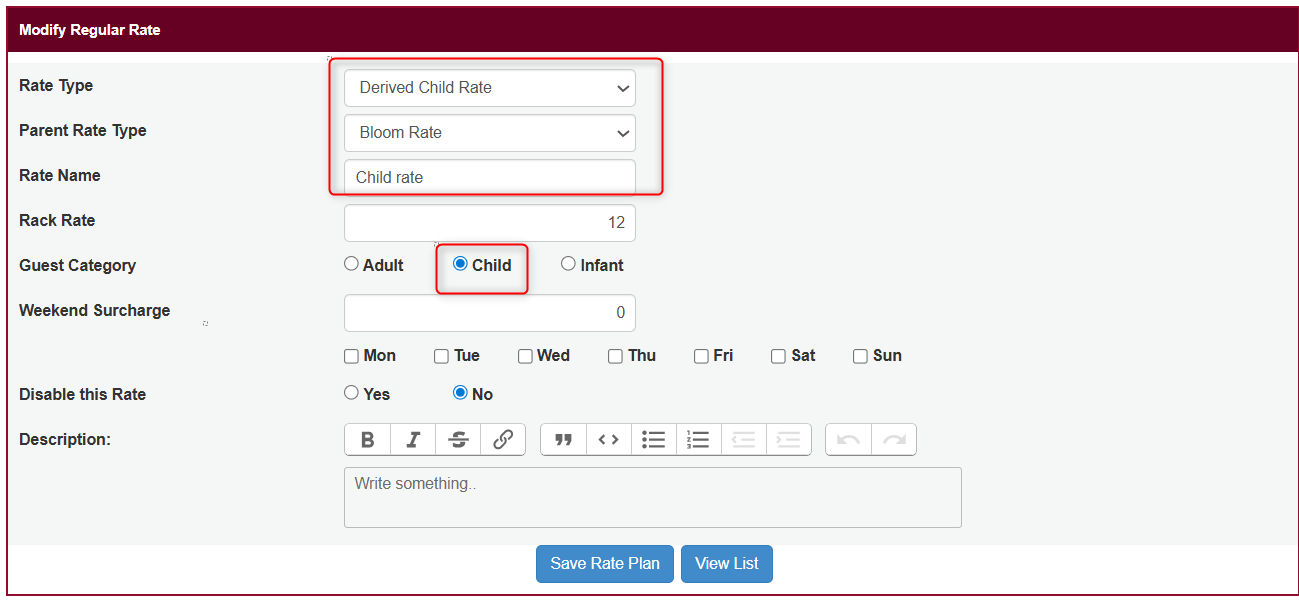
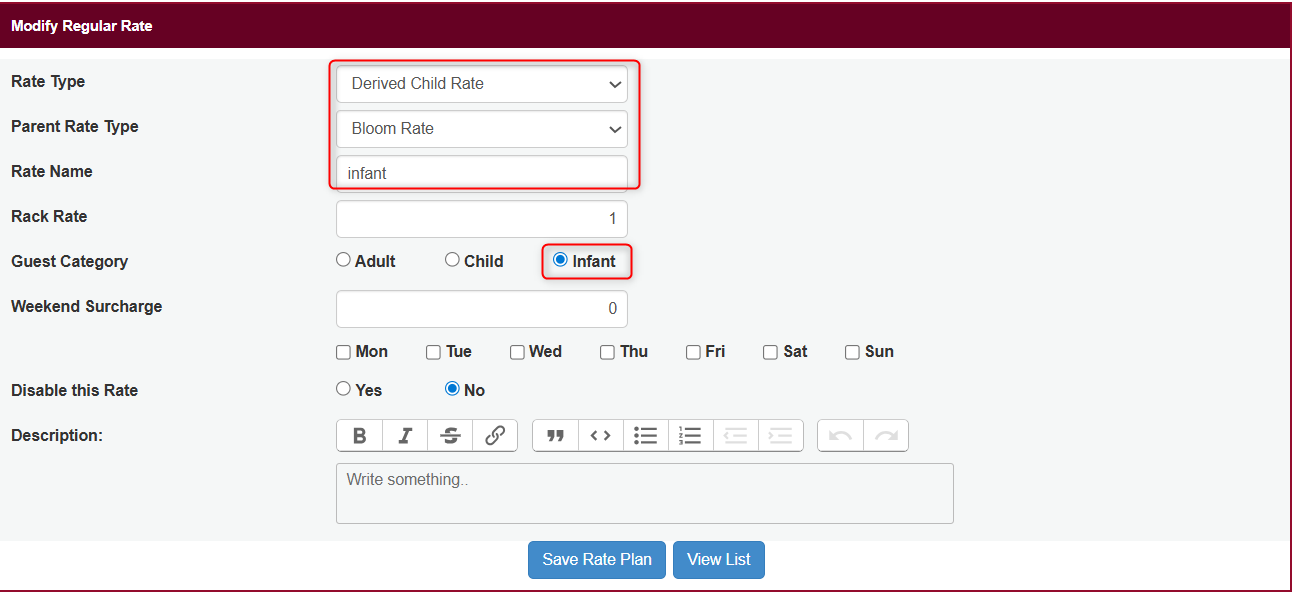
Select Weekend Surcharge if applicable.
Save the changes.
The Child Rates are now mathematically linked to the Parent Rate.
Whenever the Parent Rate value changes, the Child Rate values update automatically.
3. Viewing Parent & Child Rates
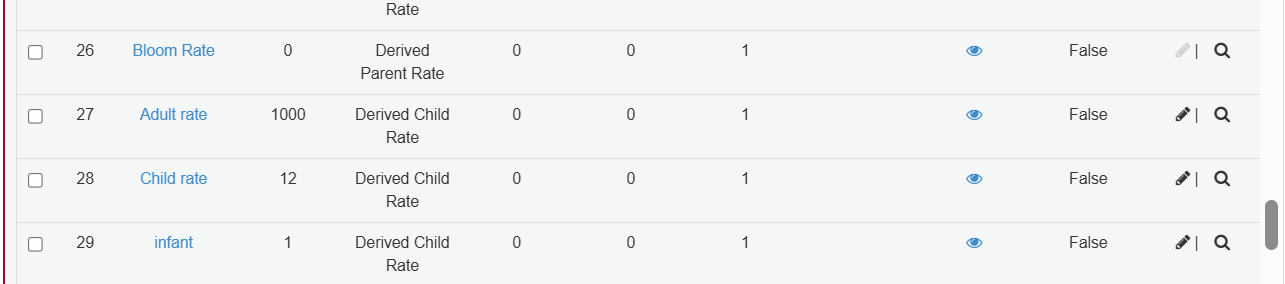
After setup, the Rate Setup section will display:
Parent Rate
All linked Child Rates (Adult / Child / Infant)
This confirms the derived rate structure is active.
4. Assigning Derived Rates to Room Types
Path:
Setup → Front Office → Room Types
Open a Room Type.
Assign the Derived Parent Rate to that room type.
Save the changes.
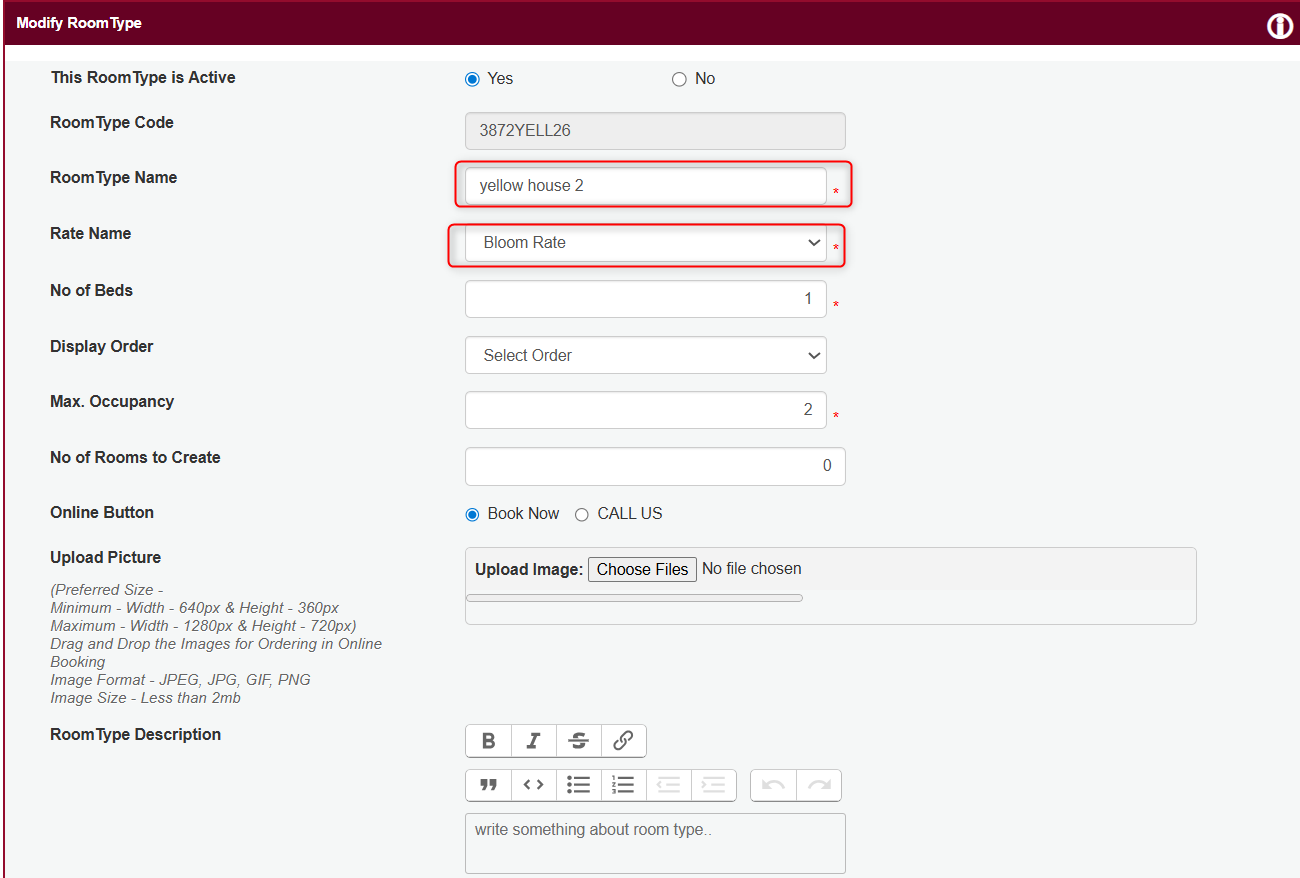
Now every reservation for that room type can use the derived rate setup.
5. How Derived Rates Work During a Reservation
Create a new reservation.
Select the dates and room type.
Choose the Derived Rate from the rate dropdown.
When the derived rate is selected:
The “No. of Guest” field becomes editable.
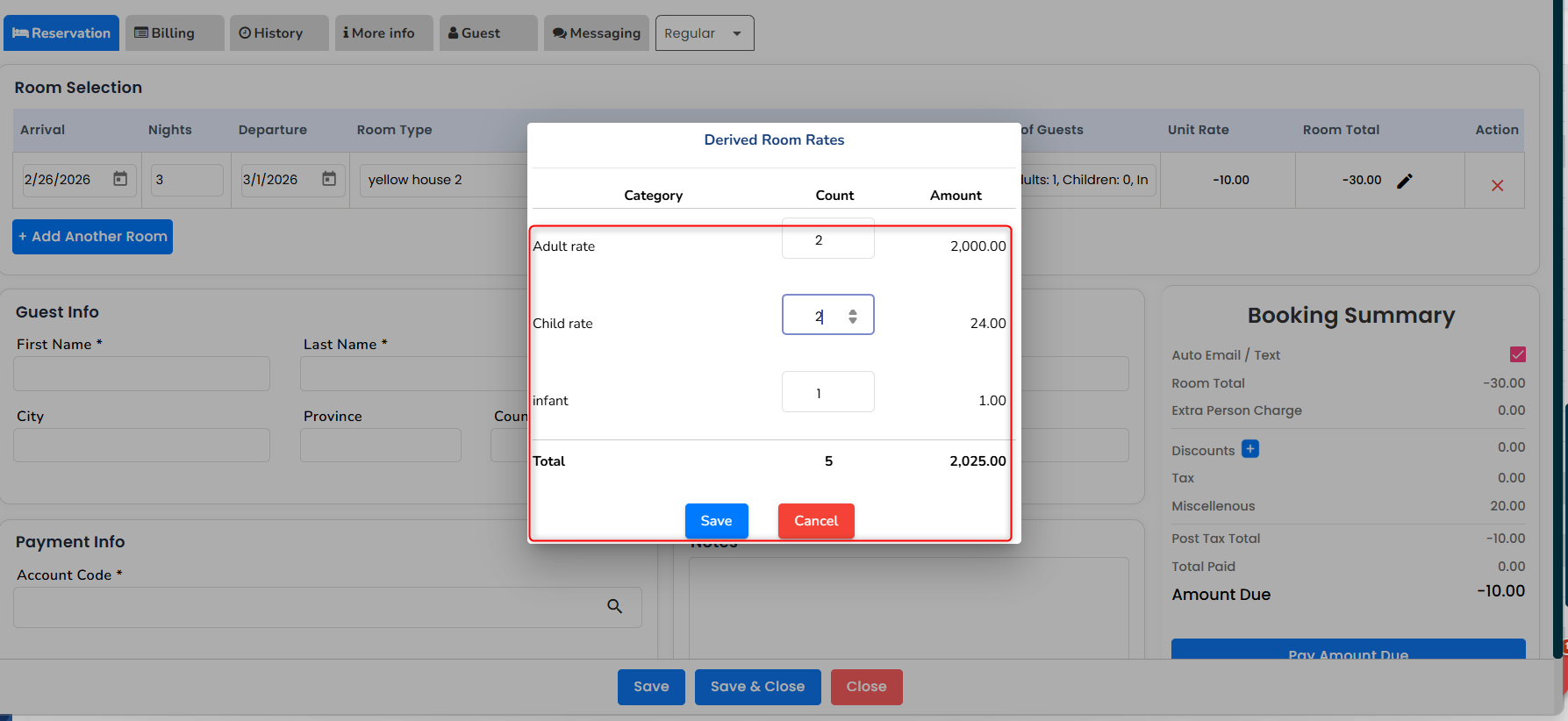
Click on “No. of Guest” and a “Derived Room Rates” dialog opens.
In the dialog:
Enter number of Adults
Enter number of Children
Enter number of Infants
The system automatically:
- Pulls the predefined Adult, Child, Infant rates from the Derived Child Rates
Multiplies each rate by the quantity
Calculates the total room rate for the reservation - After entering the numbers, click Save.
- The reservation will now display the total derived rate amount.
How to Add a Seasonal Derived Rate
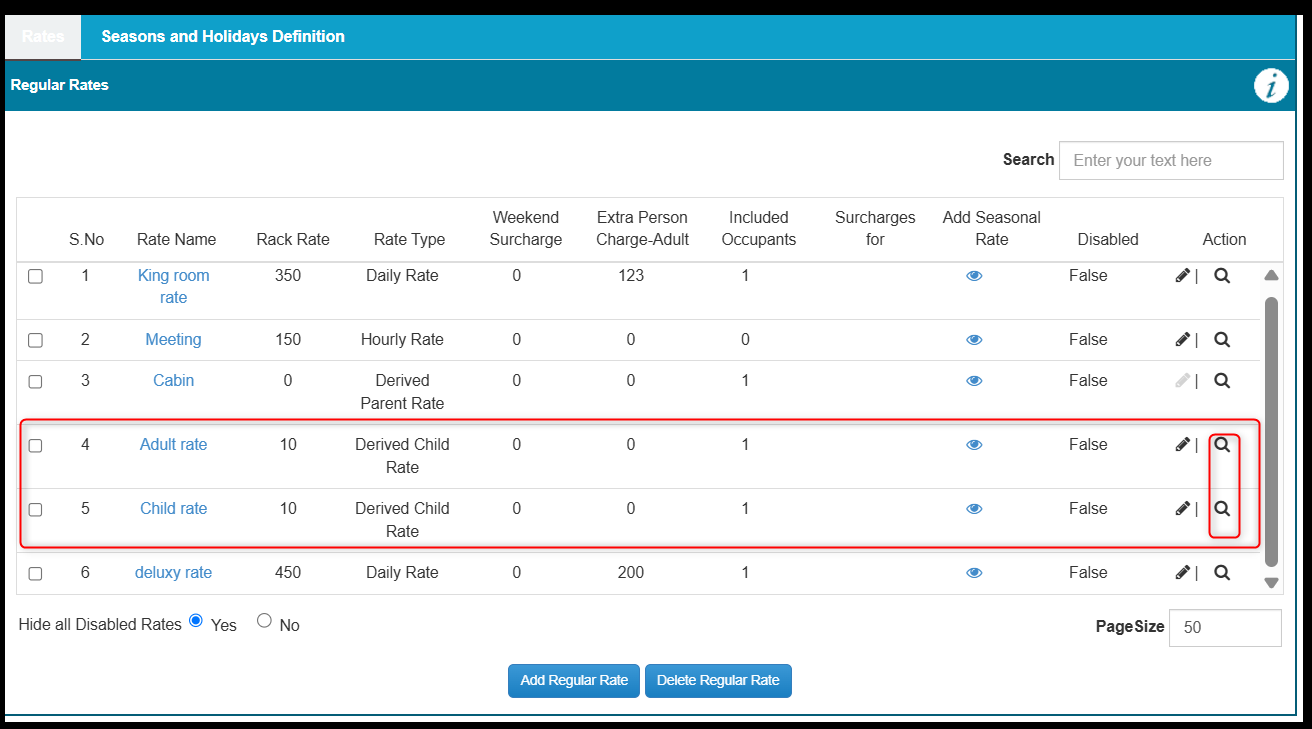
- Navigate to Rates and select the child rate assigned to the parent rate.
- Click the Magnifying Glass icon next to the child rate to open the next page.
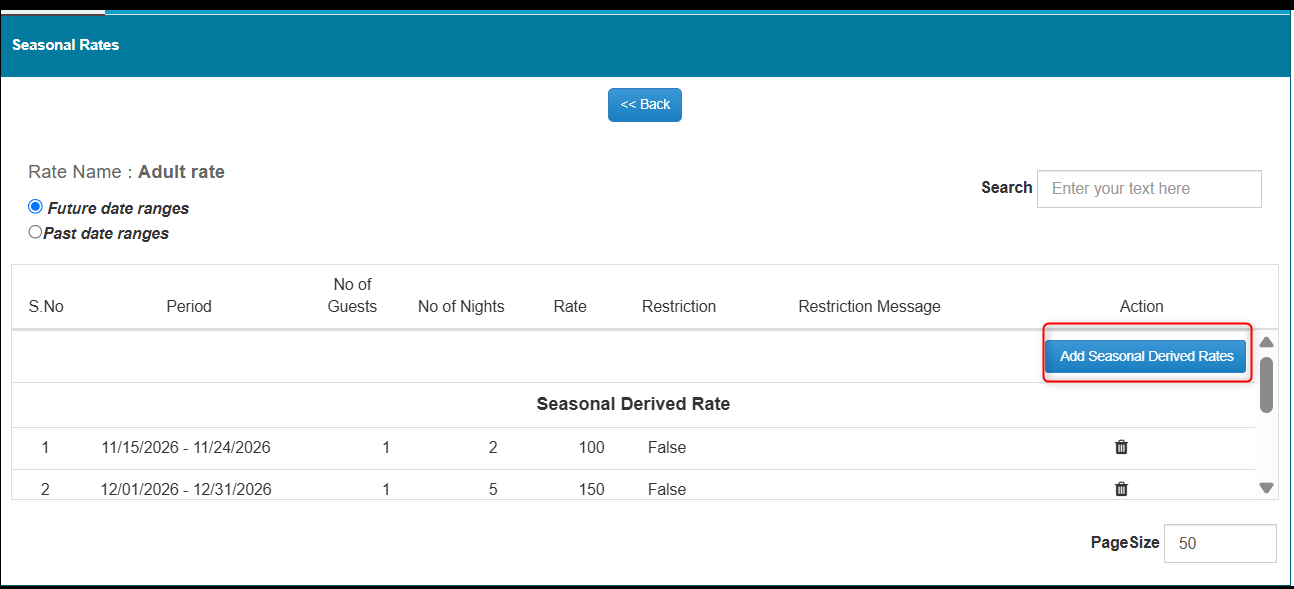
- Click the Add Seasonal Derived Rate button.
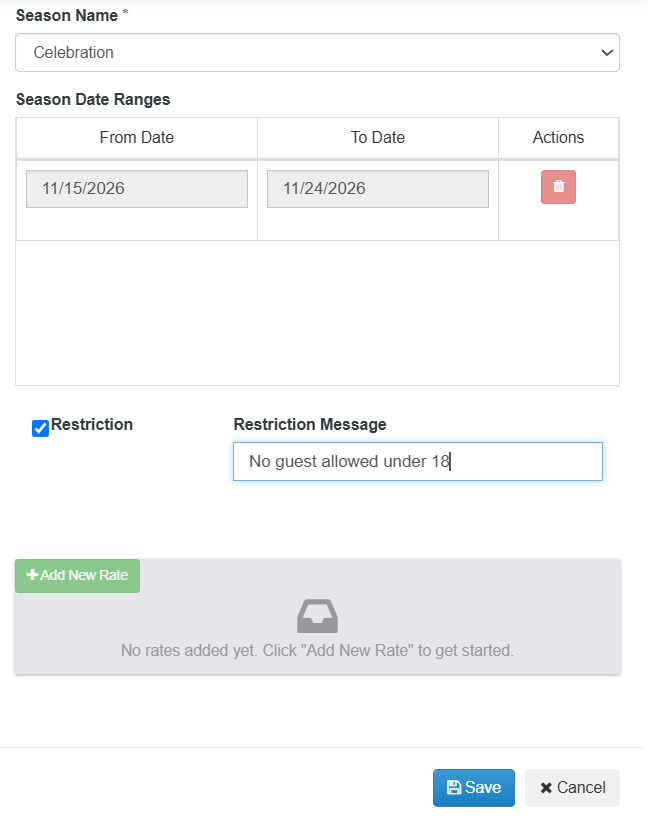
- A pop-up window will appear, displaying the seasons already created in the system in a drop-down list.
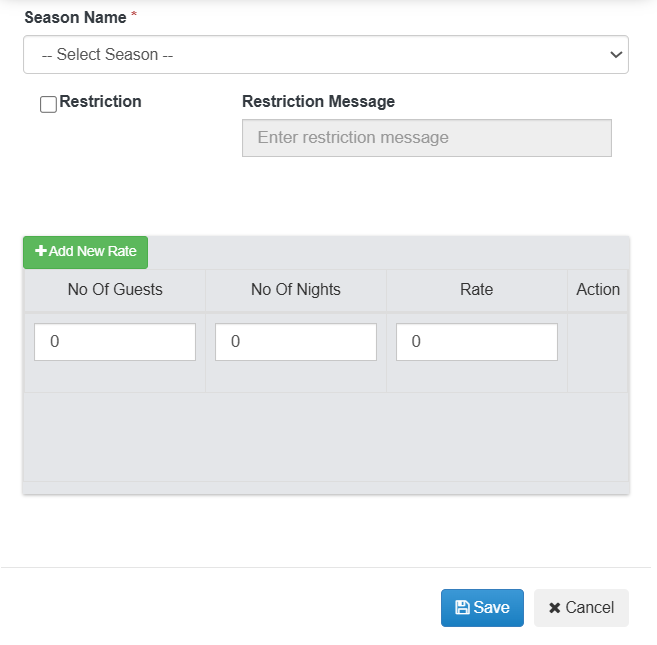
- Select the season for which you want to add the derived rate.
- Click the Add New Rate button. The following fields will appear:
- No. of Guests: Enter the number of guests.
- No. of Nights: Enter the number of nights.
- Rate: Enter the rate for the specified number of guests and nights.
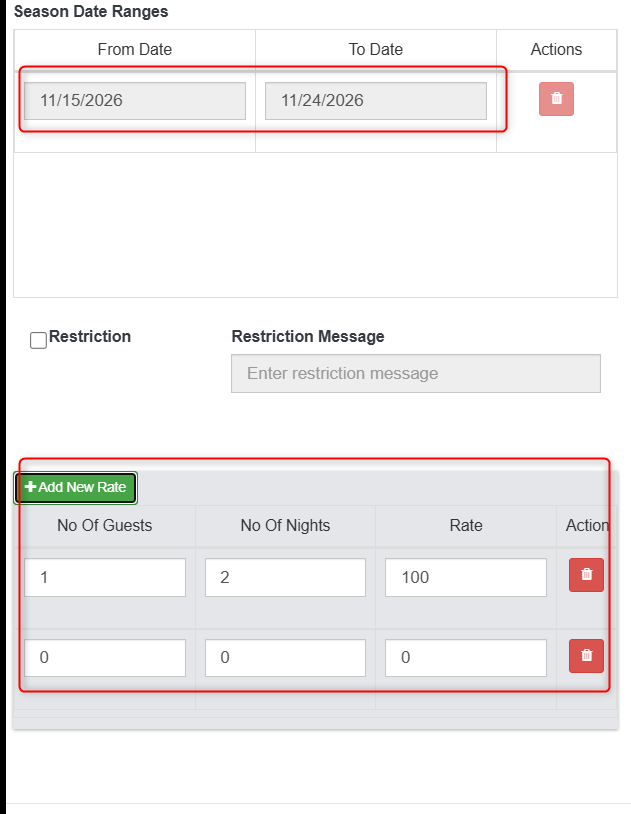
- If you need to add multiple rate combinations, click Add New Rate again and enter the required details.
- After entering all the required details, click Save to save the seasonal derived rate.
How to Apply a Seasonal Restriction
- Enable the Restriction checkbox to restrict bookings for the selected season.
- Enter the required message in the Restriction Message field.
- Save the changes.
When a guest tries to make a booking for the restricted season, the system will display the restriction message entered in this field.
Was this article helpful?
That’s Great!
Thank you for your feedback
Sorry! We couldn't be helpful
Thank you for your feedback
Feedback sent
We appreciate your effort and will try to fix the article