How to Add Seasons
- Go to Setup.
- Navigate to Front Office → Rate Setup.
- Click on Seasons & Holiday Definitions.
- Click the Add Season button.
- Select the Start Date and End Date for the season.
- Enter a Season Name.
- Verify the details.
- Click Save to create the season.
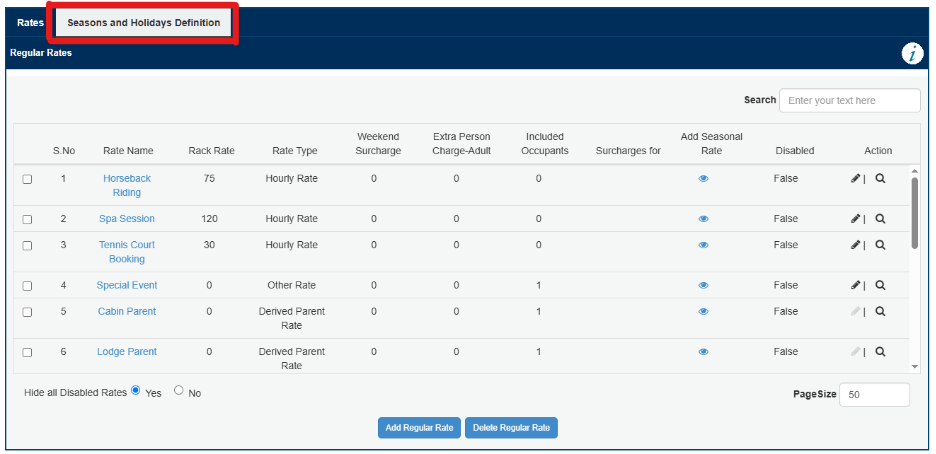

How to Create a Seasonal Derived Rate
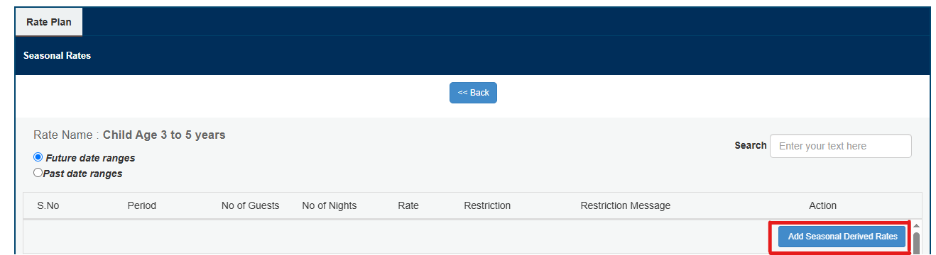
- Navigate to the rate for which you want to create a seasonal derived rate.
- Click the Magnifying Glass icon next to the rate.
- Click Add Seasonal Derived Rate.
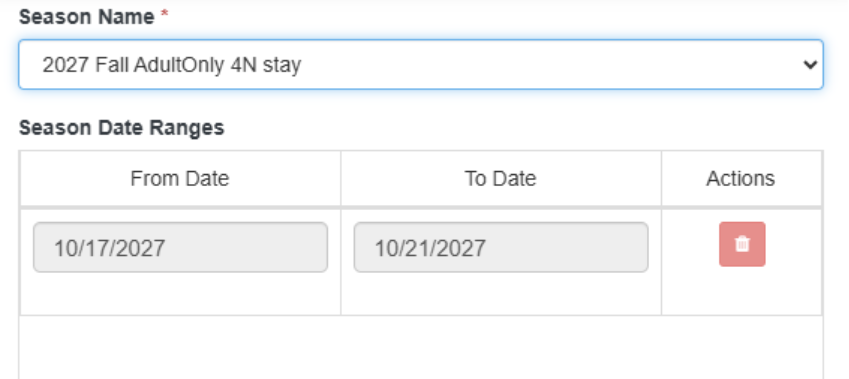
- From the Season drop-down list, select the required season.
- In the Add New Rate section, enter the following details:
No. of Guests
No. of Nights
Rate
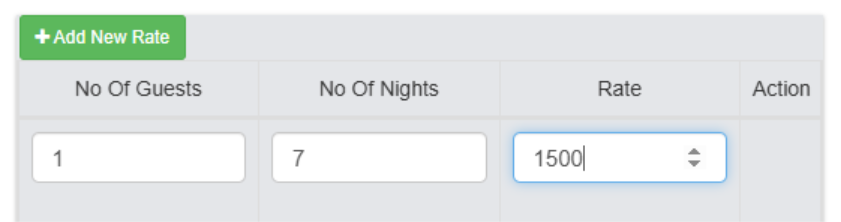
To add multiple rate records, click + Add New Rate. Each click creates a new row where you can enter additional guest, night, and rate combinations.
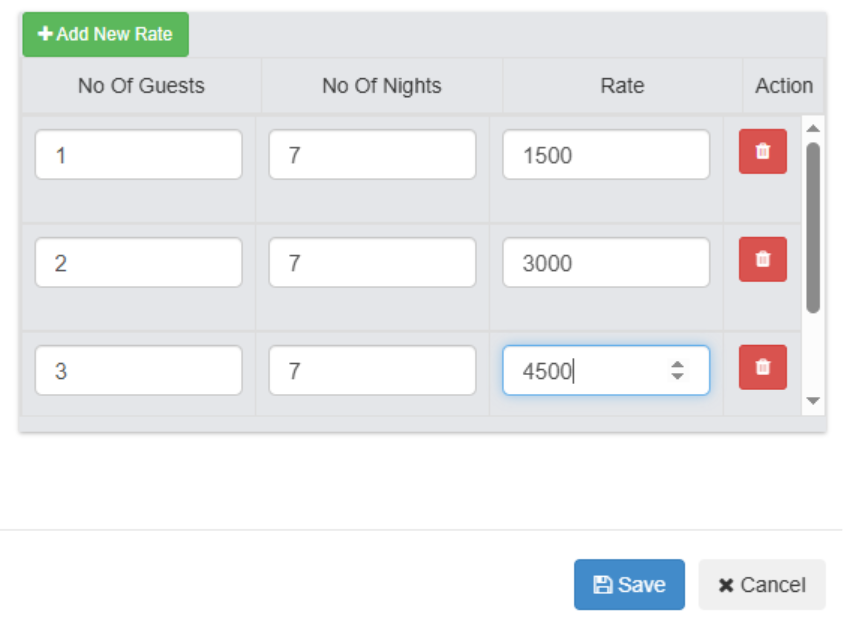
After entering all the required records, click Save. All the newly added records will be saved at the same time.
Example:
If you need to create rates for 10 different guest/night combinations, click + Add New Rate until you have the required number of rows, enter the details for each row, and then click Save.
Important Note
If you save multiple new records at the same time, they are treated as a single batch. Deleting one of those newly saved records will delete all records that were saved together.
Was this article helpful?
That’s Great!
Thank you for your feedback
Sorry! We couldn't be helpful
Thank you for your feedback
Feedback sent
We appreciate your effort and will try to fix the article