Notifications - Overview
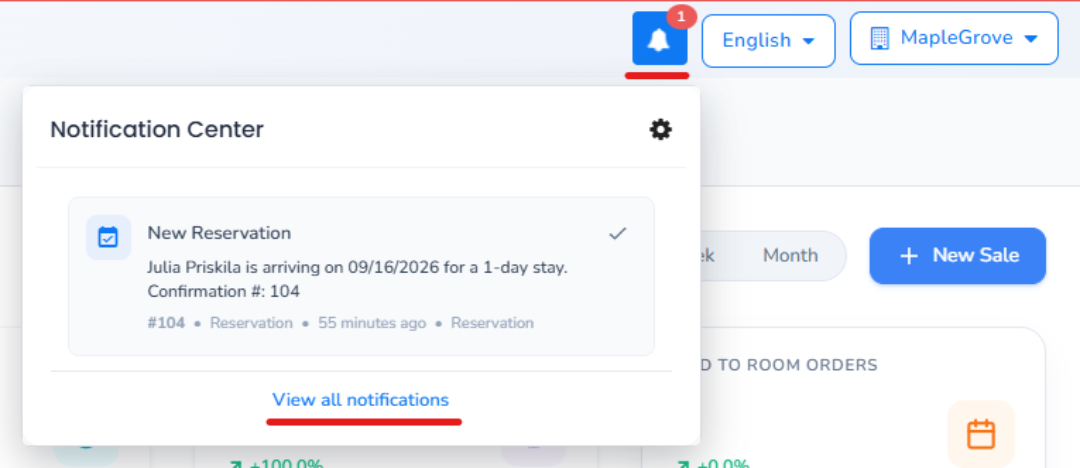
The Notifications feature allows you to view and manage system notifications directly from the PMS. The Notification Bell is located in the top-right corner of the screen.
Click the Notification Bell to open a popup displaying your recent notifications. To view the complete list of notifications, click View All Notifications.
Key Benefits
- View recent notifications from anywhere in the PMS.
- Access all notifications from a single screen.
- Easily identify unread notifications.
- Mark individual notifications or all notifications as read.
- Filter notifications to view All or Unread notifications.
How to View Notifications
- Log in to the PMS.
- Click the Notification Bell in the top-right corner of the screen.
- A notification popup will display your recent notifications.
- Click View All Notifications to open the full notification screen.
How to Filter Notifications
On the notification screen:
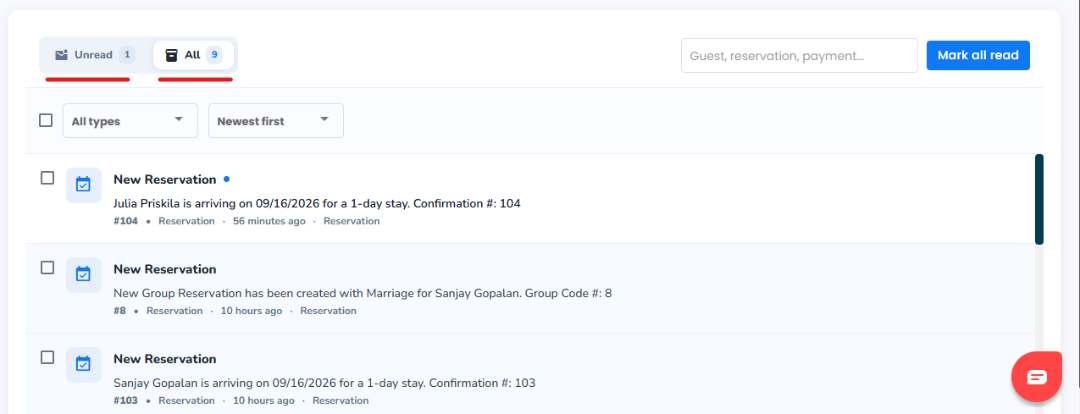
- Click All to view all notifications, including read and unread notifications.
- Click Unread to view only notifications that have not yet been read.
How to Mark Notifications as Read
You can mark notifications as read from the notification screen.
- To mark an individual notification as read, select the notification.
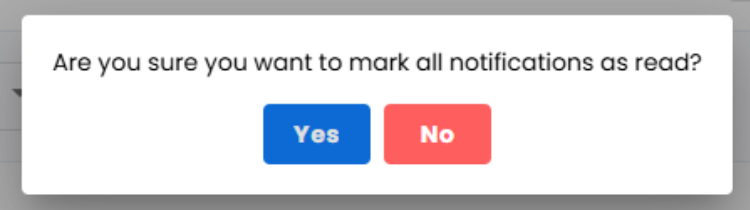
- To mark all notifications as read, click Mark All as Read.
Was this article helpful?
That’s Great!
Thank you for your feedback
Sorry! We couldn't be helpful
Thank you for your feedback
Feedback sent
We appreciate your effort and will try to fix the article