CRM Quotation
The Quotation feature allows you to create and send customized quotations to leads directly from the CRM.
Leads are guests who have already made a booking but have not checked in yet. Their stay is scheduled for a future date, so they are still considered leads until they become customers.
Access the Quotation Screen
- Go to CRM > Leads.
- The Leads page will display all available leads.
- Each lead will have a Form icon on the left side.

- Click the Form icon for the required lead to open the Quotation page.
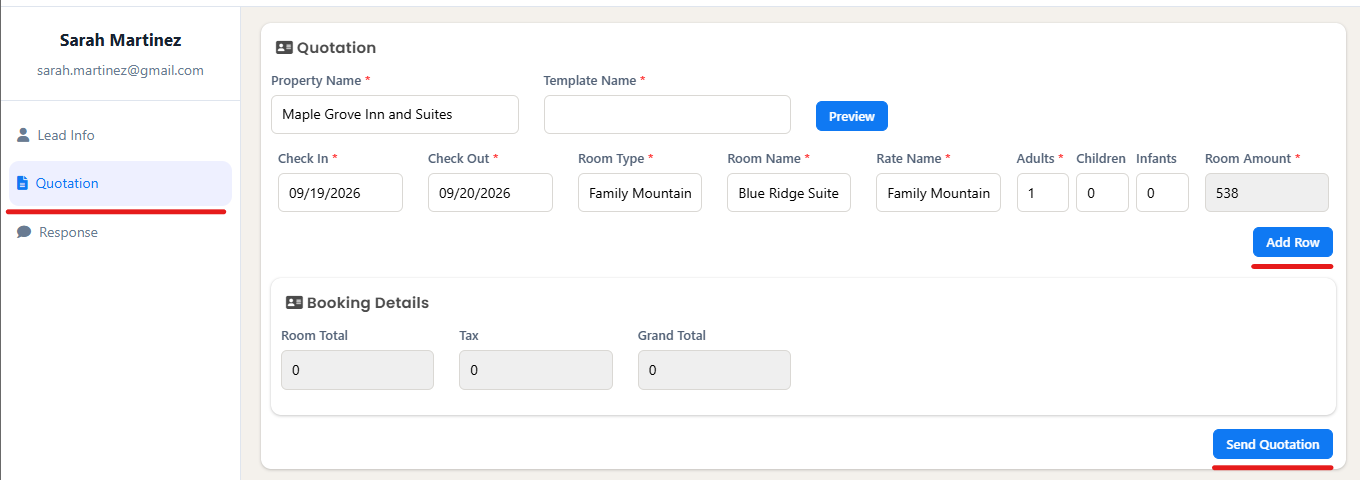
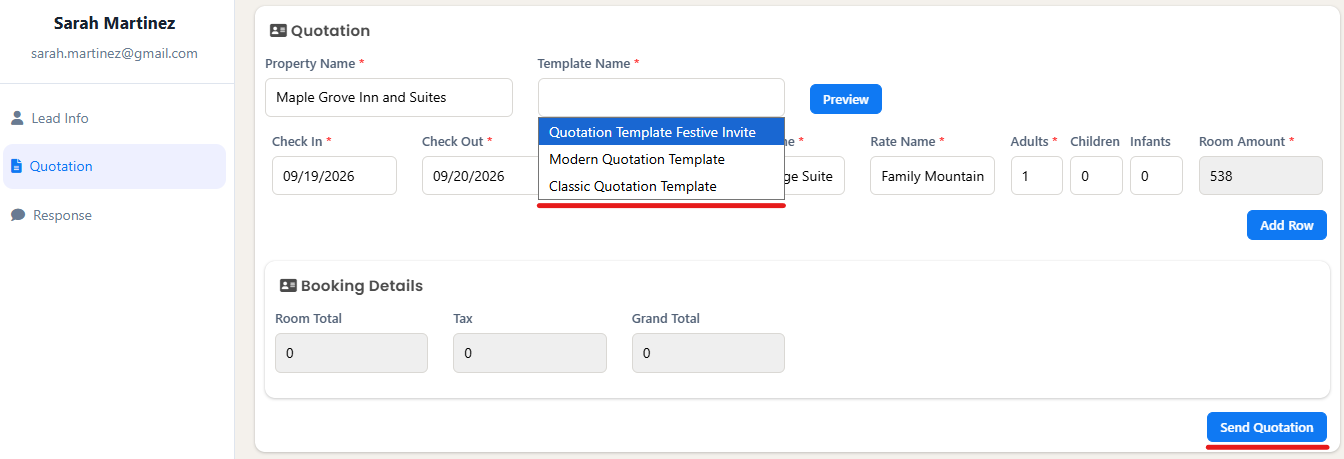
- On the Quotation page, enter or select the required details:
Property Name
Template Name - choose template
Check-in and Check-out dates
Room Type
Room Name
Rate Name
Number of Adults, Children, and Infants
Room Amount
- Click Add Row if you need to add another room.
- The Booking Details section displays the Room Total, Tax, and Grand Total.
- Click Preview to review the quotation.
- Click Send Quotation to send the quotation to the selected lead.
Create a Custom Quotation Template
If you need to create a new quotation template:
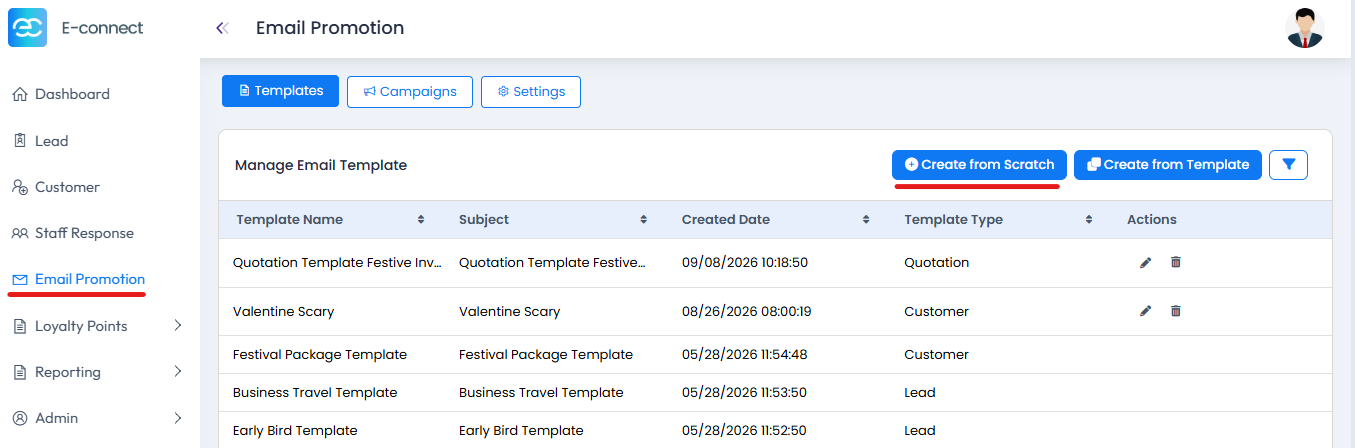
- Go to Email Promotions.
- You can create an email in two ways:
- Create from Scratch – Create a new quotation email from the beginning.The editor provides different content elements, such as Heading, Text/Paragraph, Image, Button, and other available elements. You can drag and drop these elements into the template and customize them based on your requirements.
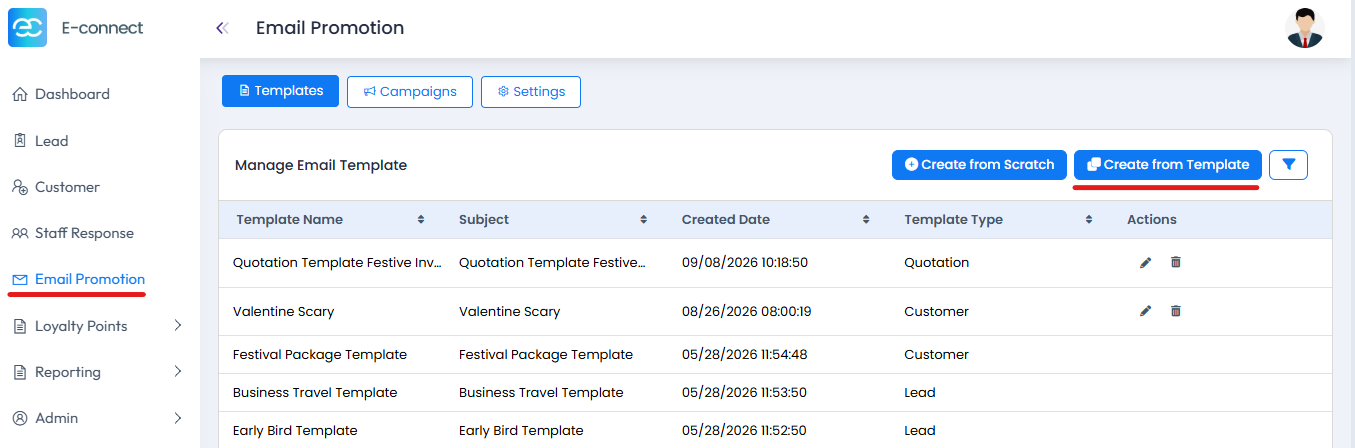
- Create from Template – Select one of the available default templates and customize its content.
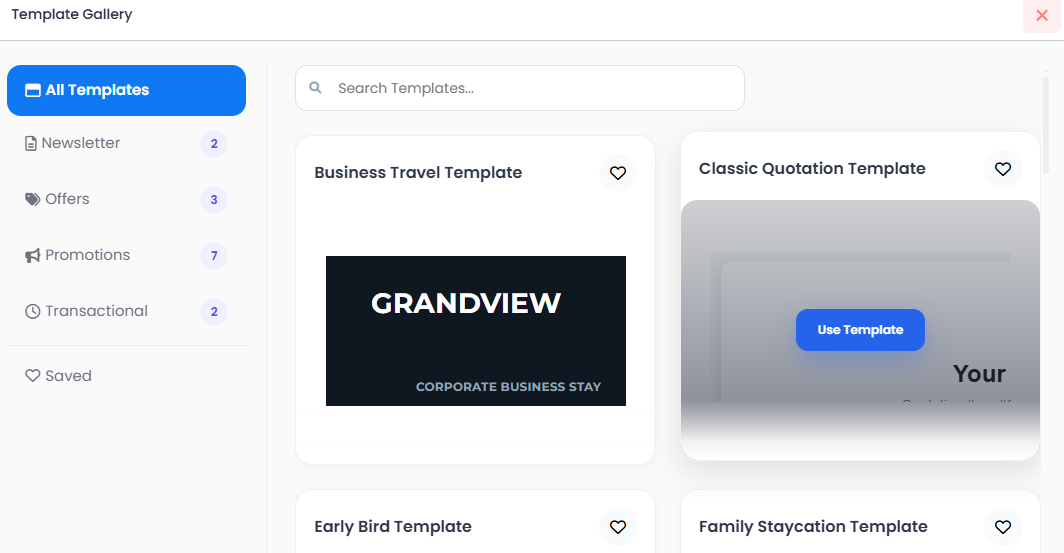
- Create from Scratch – Create a new quotation email from the beginning.The editor provides different content elements, such as Heading, Text/Paragraph, Image, Button, and other available elements. You can drag and drop these elements into the template and customize them based on your requirements.
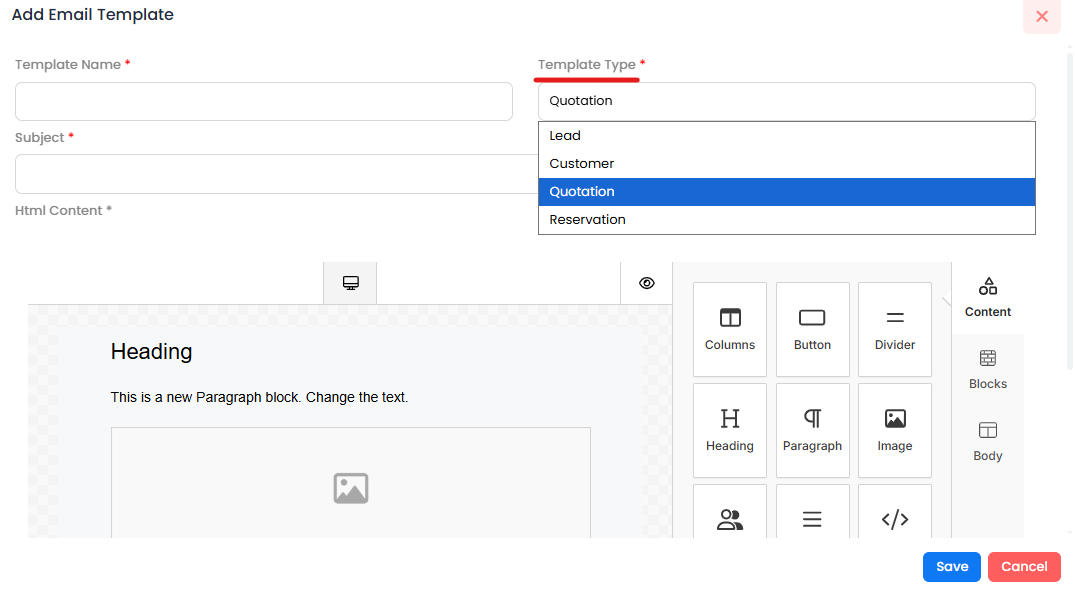
- When creating a new quotation template, select Quotation as the Template Type
- Selecting the Quotation template type ensures that the appropriate quotation merge tags are available.
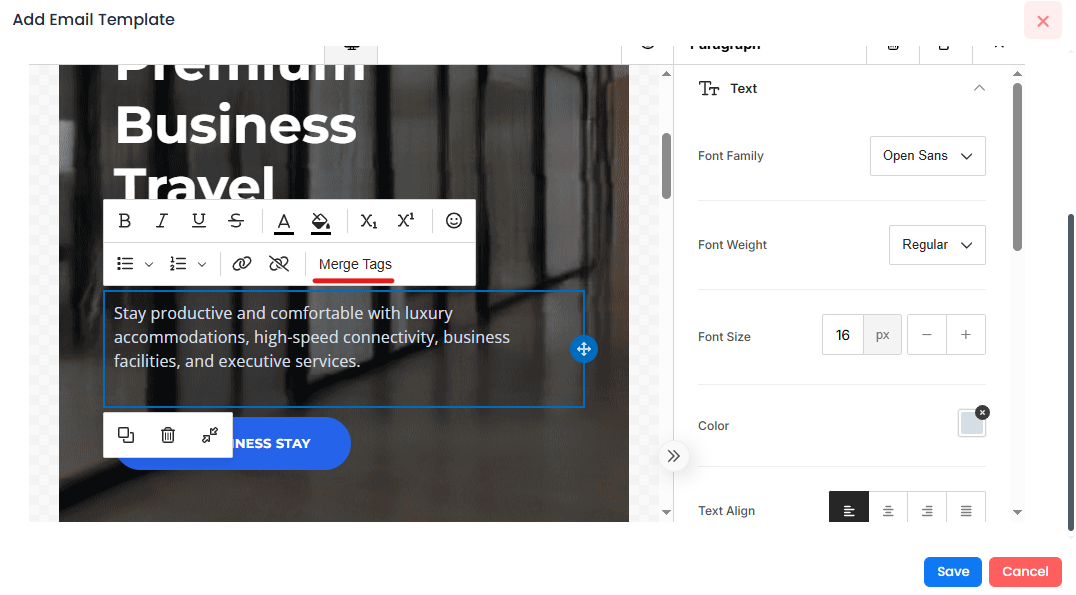
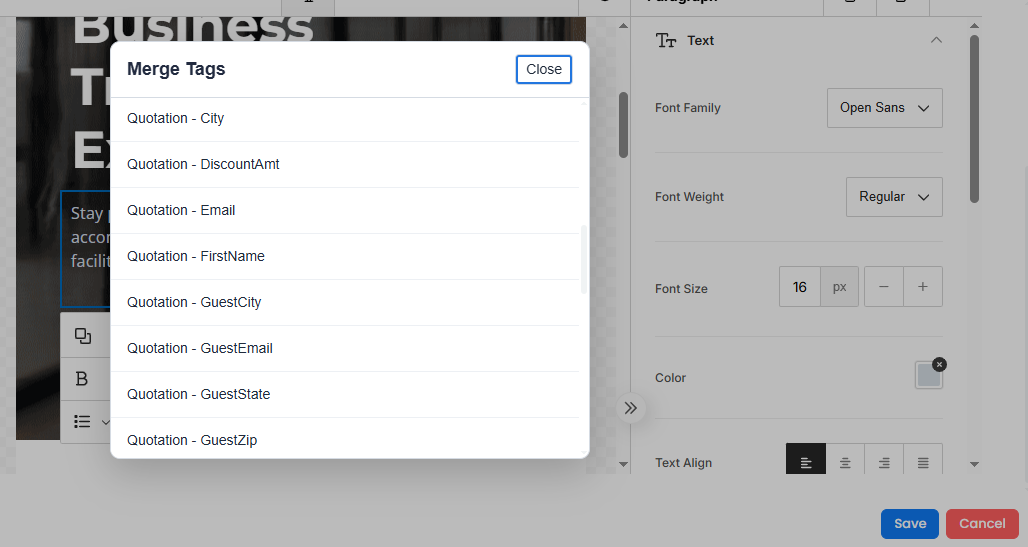
- You can use merge tags such as:
- Quotation First Name
- Quotation Last Name
- Quotation City
- Other quotation-related fields
- Customize the content as required and save the template.
The saved quotation template can then be selected from the Quotation page when sending a quotation to a lead.
Was this article helpful?
That’s Great!
Thank you for your feedback
Sorry! We couldn't be helpful
Thank you for your feedback
Feedback sent
We appreciate your effort and will try to fix the article