CRM – Email Campaign
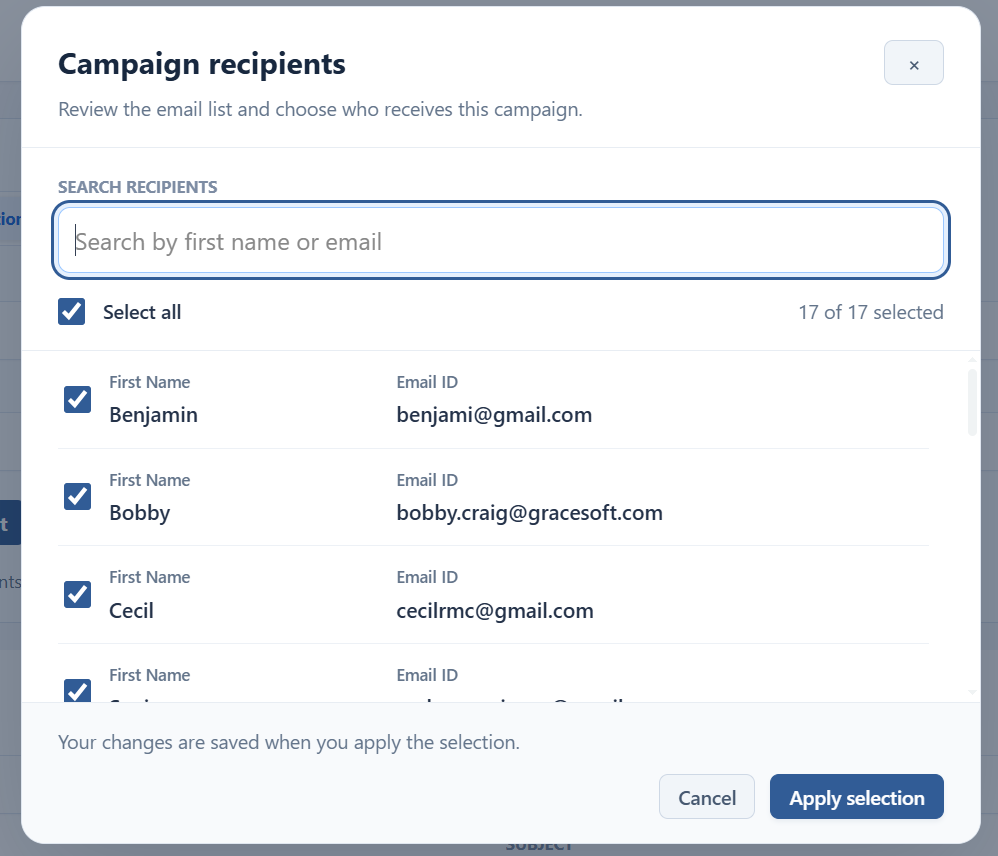
Email Campaign is used to send promotional or customized emails to a selected group of Leads, Customers, or Guests with reservations based on specific conditions.
For example, if you want to send an email only to guests who are arriving on a particular date, you can create a reservation campaign and set the Arrival Date as the condition.
1.Create an Email Template
Go to CRM → Email Promotion → Templates.
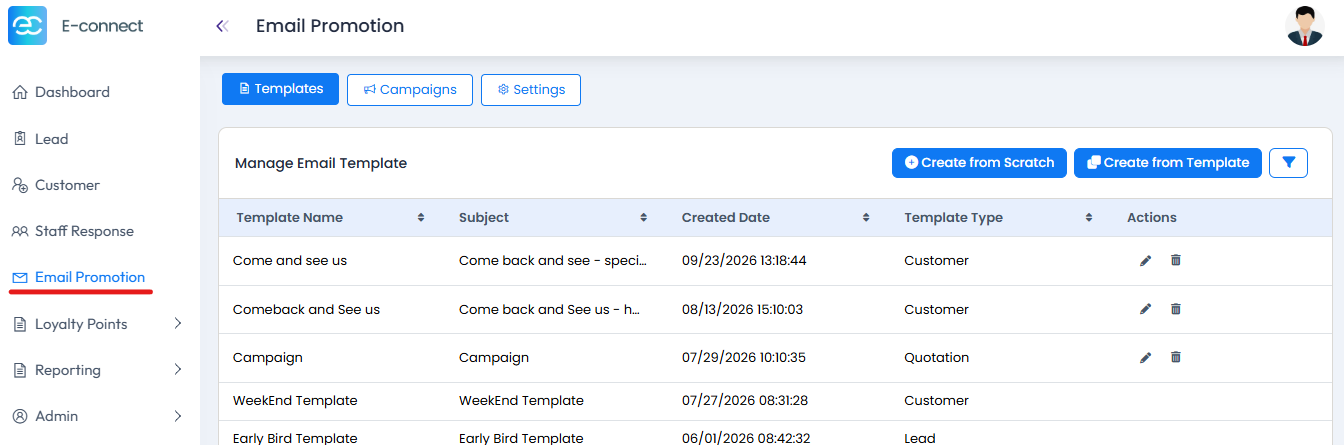
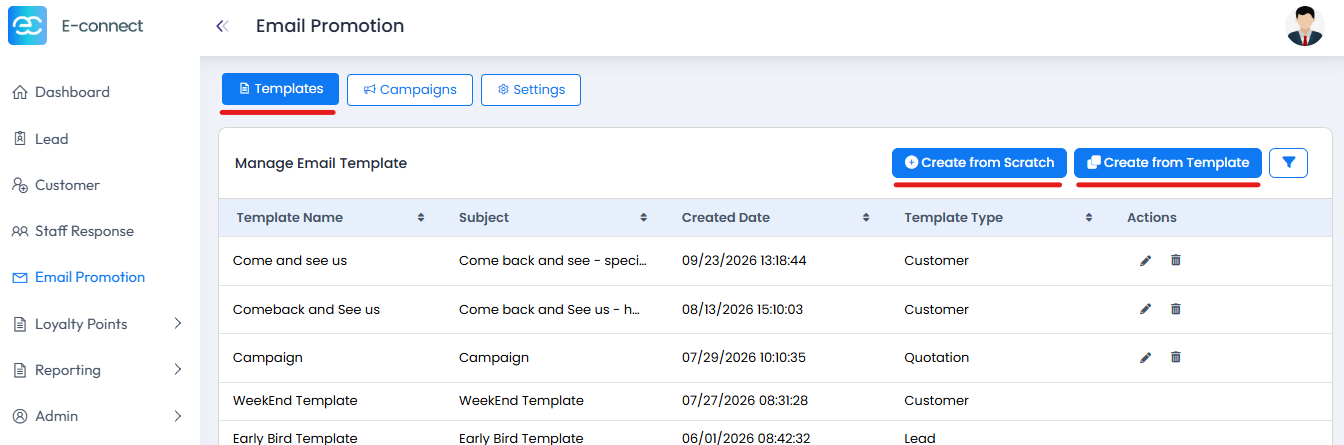
Here, you can create an email template in two ways:
- Create a new template from scratch using the email editor.
- Use one of the available default templates and customize it as needed.
- Types of Letters: Lead, Customer, Reservation and Quotation.
- Leads: Get the fields based on the Lead List
- Customer: Get the fields based on the Customer List
- Reservation: Use the pre-available items from the Reservation
- Quotation: Use the pre-available items from the Quotation
- Types of Letters: Lead, Customer, Reservation and Quotation.
Once the template is ready, it can be selected when creating the campaign.
2. Create a Campaign
Go to the Campaign tab and click Add / Create Campaign.
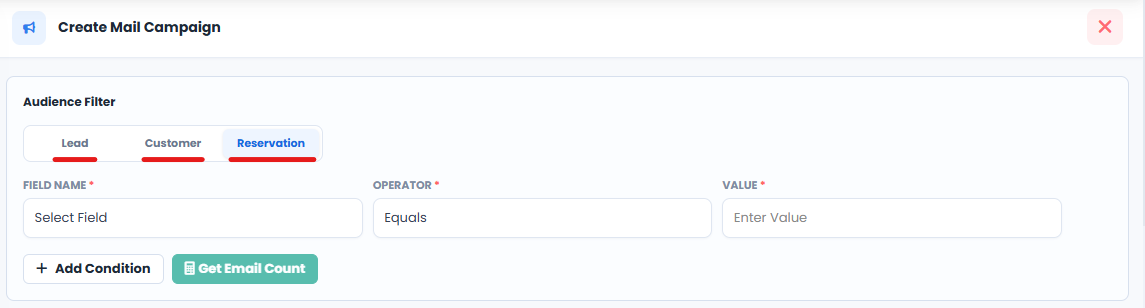
Select the type of campaign based on who should receive the email:
- Lead – Send the email to selected leads.
- Customer – Send the email to selected customers.
- Reservation – Send the email only to guests with reservations that match the specified conditions
3. Create a Reservation Campaign
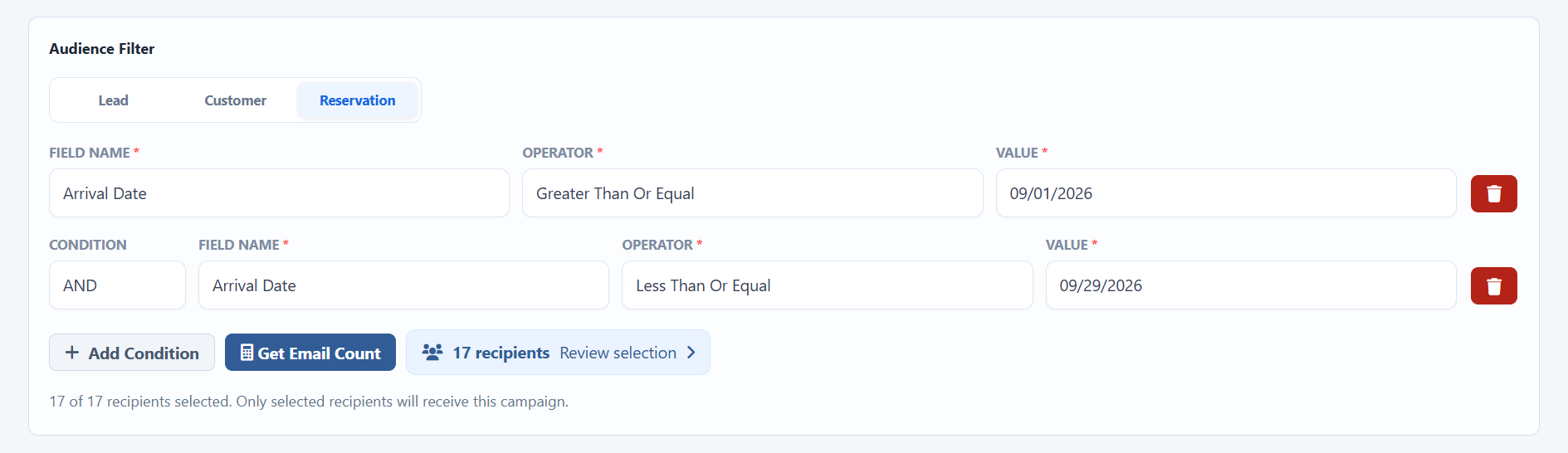
For example, if you want to send an email only to guests arriving on a specific date:
- Select Reservation as the campaign type.
- Under Conditions, select the required field.
- For Field Name, select Arrival Date.
- For Operator, select Greater than date.
- In Value, select the from arrival date.
- Add an And condition for the second line select Lesser than date.
- In Value, select the end arrival date.
This will ensure the campaign targets reservations matching the selected arrival date.
4.Add Campaign Details
Enter the Campaign Name.
If you already created an email template:
- Select the required Template.
- Enter the Subject.

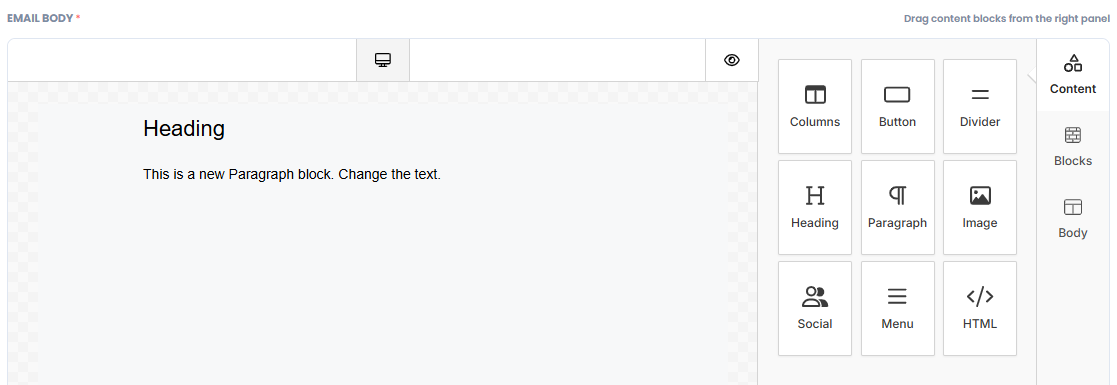
If you don't have a template, you can create the email directly within the campaign. Use the Email Body section at the bottom and drag and drop the required elements to build the email in the desired format.
Once all the required details and conditions are configured, click Create Campaign to create the campaign.
How to Configure Email
The Email Configuration settings allow you to configure the email provider used to send email promotions from the CRM.
Steps to Configure Email
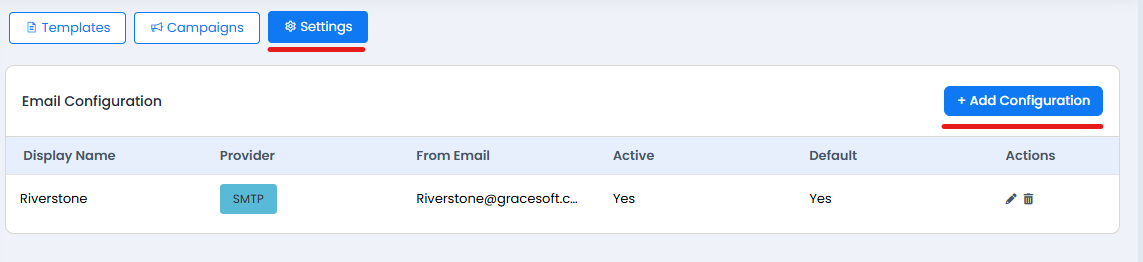
- Go to Email Promotion > Settings.
- Click Add Configuration.
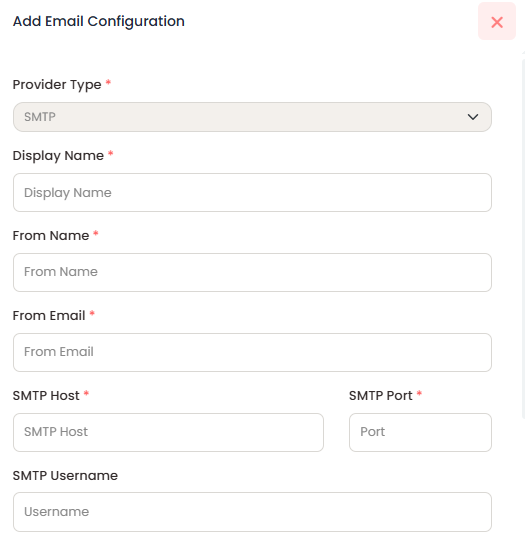
- Select the required Provider Type:
- SMTP
- SendGrid
- Postmark
- Enter the required email configuration details, including:
- Display Name
- From Name
- From Email
- SMTP Host
- Other provider-specific details as required.
- Enable the Active option.
- Click Save Configuration.
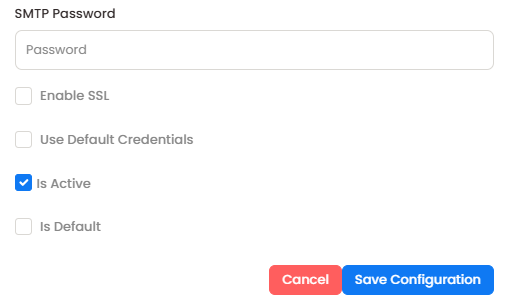
Once the configuration is saved, the email provider will be configured and can be used to send email promotions.
Was this article helpful?
That’s Great!
Thank you for your feedback
Sorry! We couldn't be helpful
Thank you for your feedback
Feedback sent
We appreciate your effort and will try to fix the article