Additional Guest – Overview
The Additional Guest feature allows you to add and manage multiple guests within a single reservation. In addition to the primary guest, you can add the First Name, Last Name, and Email Address of other guests staying under the same reservation.
This feature is useful for reservations where multiple guests are staying together, as it allows you to maintain the details of each guest without creating separate reservations.
Note: This feature is available only on PMS.
And this feature is available only for CRM users.
Key Benefits
- Manage multiple guests: Add multiple guests to the same reservation.
- Capture guest details: Store the first name, last name, and email address of each additional guest.
- Keep guest information organized: Maintain all guests under their respective reservation.
- Simplify reservation management: Avoid creating separate reservations when multiple guests are staying together.
- Improve guest records: Keep more complete and accurate guest information for the reservation.
Additional Guest – How to Use
Enable Additional Guest
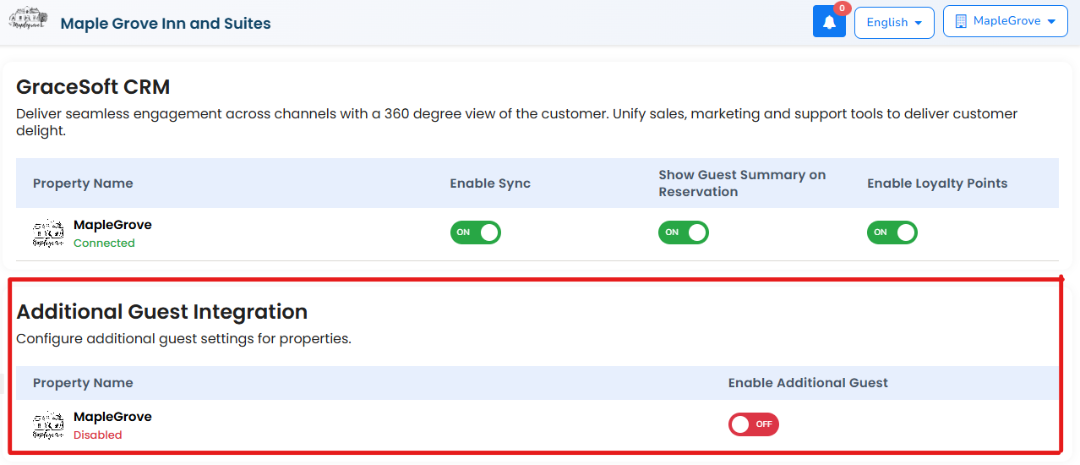
Before adding additional guests to a reservation, the Additional Guest feature must be enabled for the property.
- Go to Setup > CRM > CRM Config.
- Locate the Additional Guest Integration section.
- Turn on Enable Additional Guest for the required property.
Once enabled, the Add Additional Guest option will be available when managing reservations.
Add an Additional Guest to a Reservation
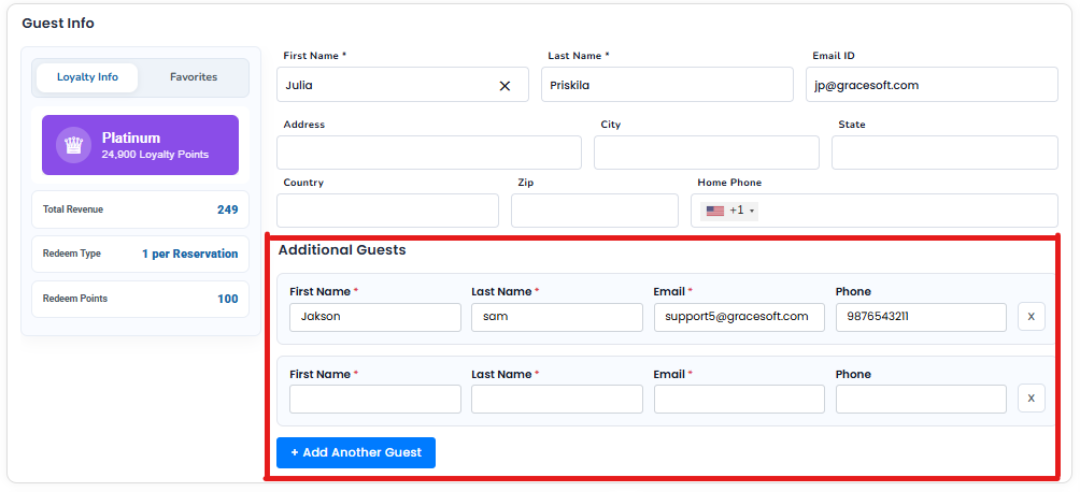
The Add Additional Guest feature allows you to add the details of other guests staying under the same reservation.
- Open the required reservation.
- Click Add Additional Guest.
- Enter the additional guest's:
First Name
Last Name
Email
Phone Number - Save the guest details.
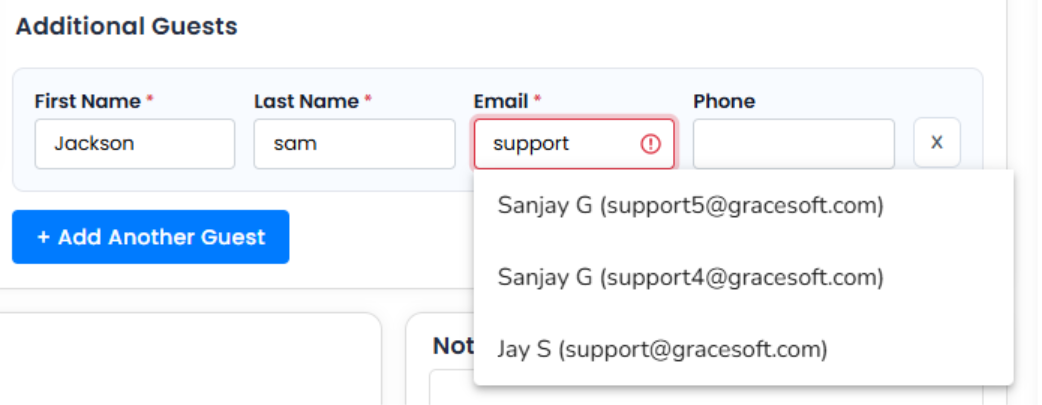
If the guest already exists in the system, their existing guest details will be displayed in the guest information pop-up.
Guest Count Validation
The system checks the number of guests against the maximum occupancy of the selected rooms.
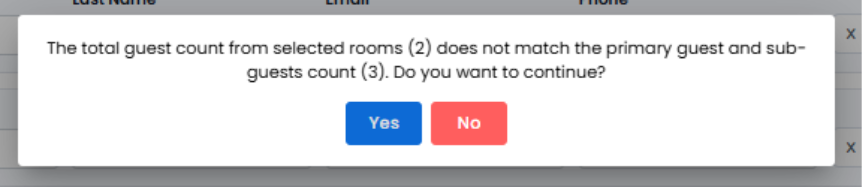
For example, if the selected room allows a maximum of 2 guests, but the reservation contains 1 primary guest + 2 additional guests, the system will display a pop-up message:
The total guest count from selected rooms (2) does not match the primary guest and sub-guests count (3). Do you want to continue?
- Click Yes to continue and save the additional guests.
- Click No to cancel the action without saving.
View Additional Guests in CRM
Additional guests added to a reservation can also be tracked in CRM.
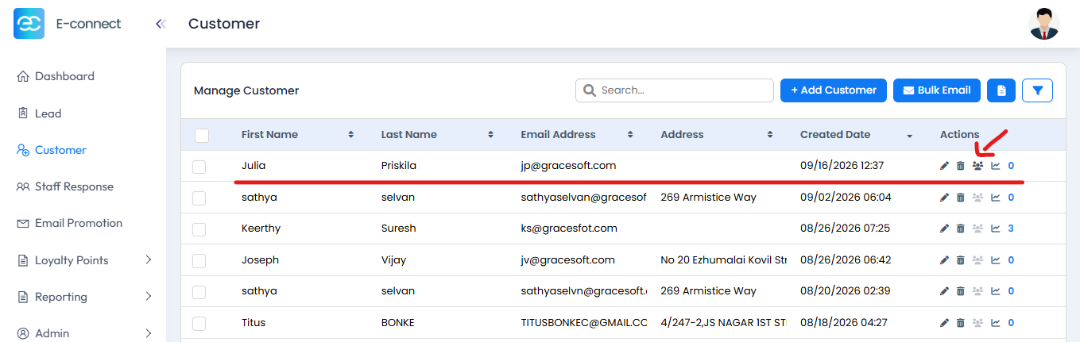
- Go to CRM from the side menu.
- Select Customer.
- Open the required guest record.
- Click the Guest icon on the right side.
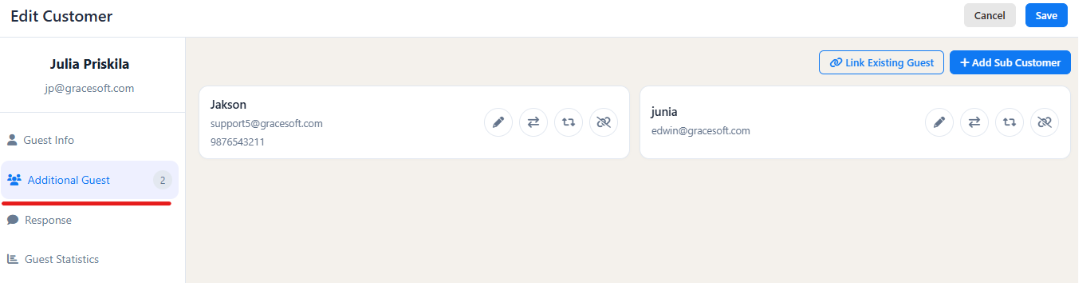
- The Additional Guest section will open.
This section displays the additional guests associated with the guest record.
Change the Primary Guest
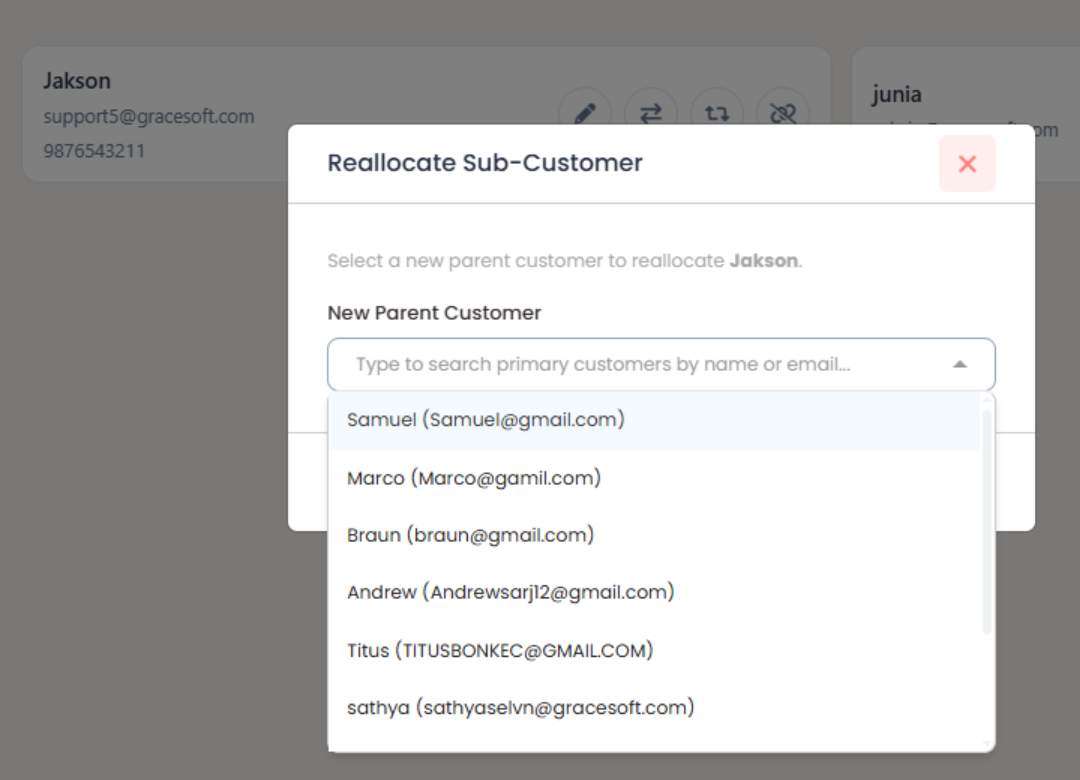
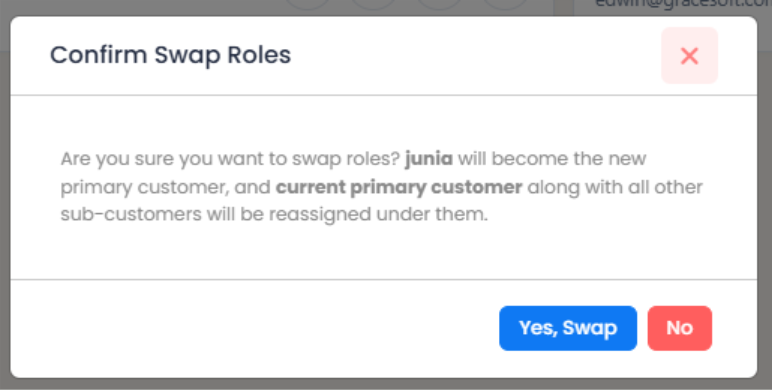
From the Additional Guest section, an additional guest can also be changed to the Primary Guest.
You can use the available Reallocate or Swap with Primary options to change the guest assignment when required.
Was this article helpful?
That’s Great!
Thank you for your feedback
Sorry! We couldn't be helpful
Thank you for your feedback
Feedback sent
We appreciate your effort and will try to fix the article