Connect Google Hotels Ads and manage campaigns
This guide shows property administrators how to connect a Google Ads account in GraceSoft, approve the manager account request, and create a Google Hotel Ads campaign. Follow the account connection steps before opening Campaign List.
In GraceSoft, open Setup → Add On Features → Google Hotel Ads. The screenshots below use a test property and sample campaign; enter your own Google Ads account and approved campaign settings.
Connect your Google Ads account
1. Enter the account ID
Select Google Hotel Ads. In the Google Hotel Ads Connection window, enter your Google Ads account ID and select Connect. Use the customer ID for the account you intend to link.
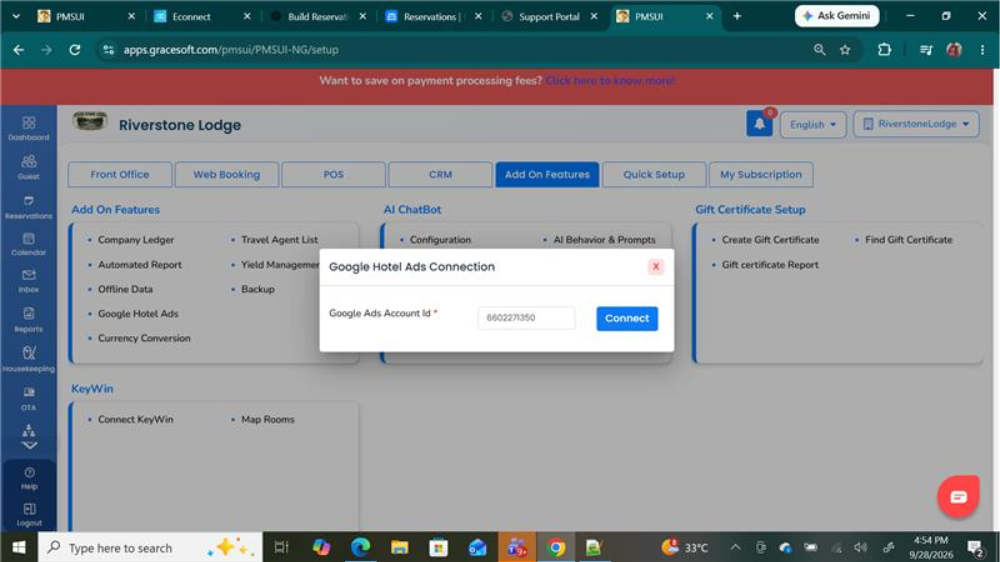
Figure 1Google Hotel Ads Connection in Setup → Add On Features
2. Accept the manager access request
Open the email sent to the address associated with your Google Ads account and select Accept Request. Verify that the manager account is the one GraceSoft provided. If you do not recognize it, contact support@gracesoft.com before accepting.
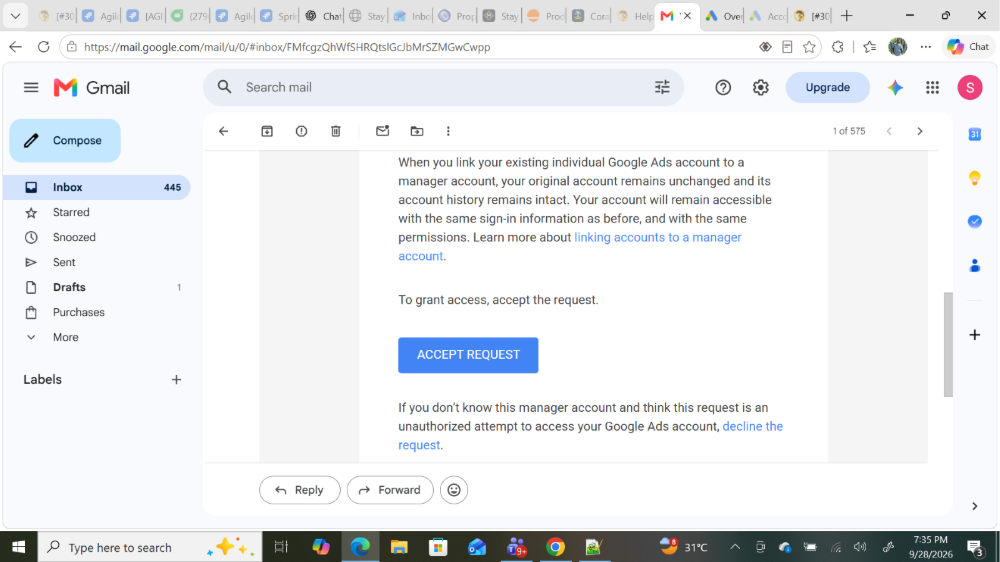
Figure 2 Manager account invitation in email
You can also review the pending request in Google Ads under Admin → Access and security → Managers. Select Accept for the verified request.
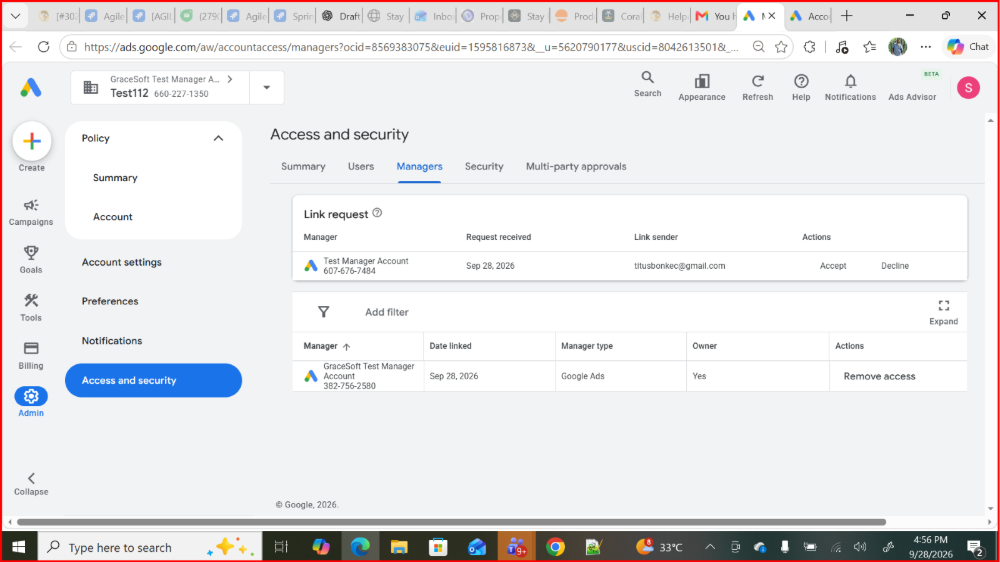
Figure 3 Pending link request on the Managers tab
3. Complete Google verification
If Google asks you to confirm your identity, select Confirm and complete the account verification prompts. Return to the Managers tab to finish or check the request.
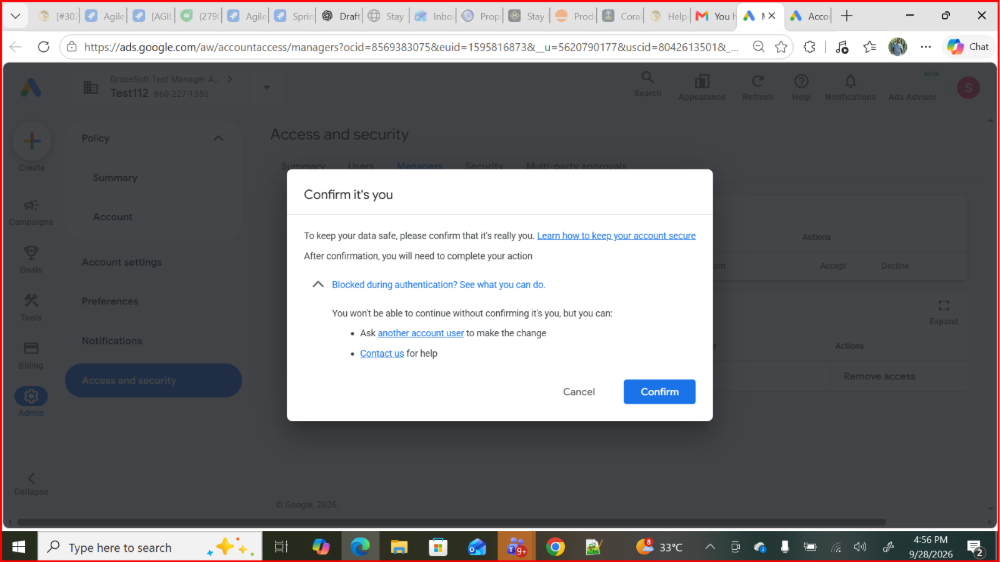
Figure 4 Google identity confirmation prompt
The request should disappear from Link request and the manager should appear in the linked managers list. This confirms that Google Ads accepted the account link.
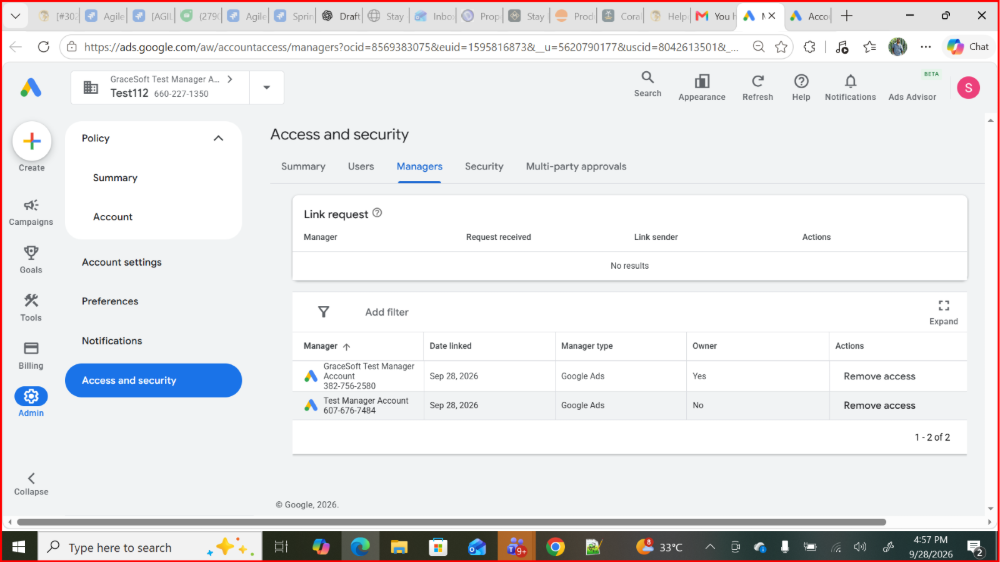
Figure 5 Linked manager visible after acceptance
4. Check the connection in GraceSoft
Return to Setup → Add On Features → Google Hotel Ads. Reopen the connection window and confirm that Connection Status shows Connected. The window also displays the connected customer ID and a Manage Campaign button. If it is still pending, check the account ID and manager request in Google Ads.
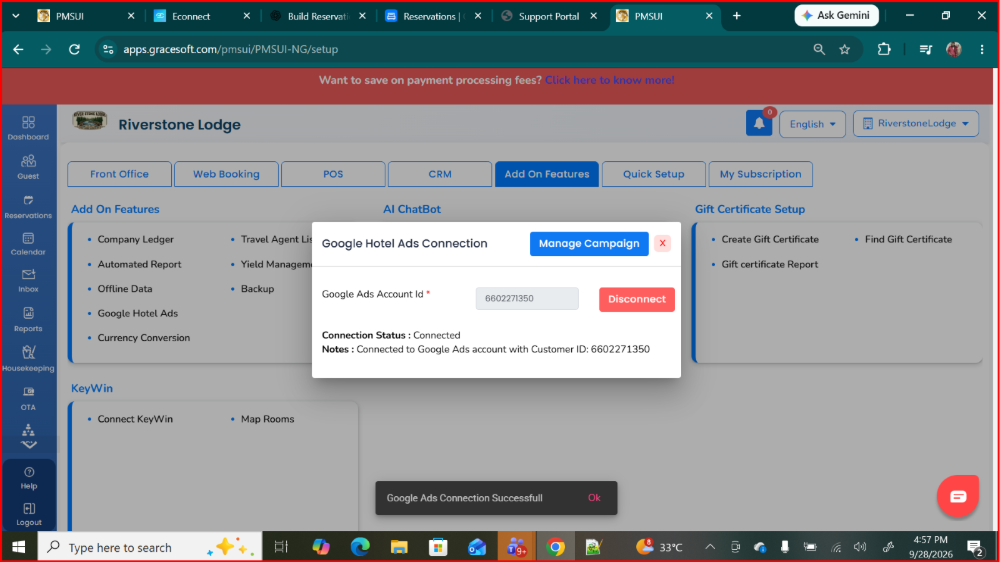
Figure 6 Connected status in GraceSoft
Create a campaign
5. Open Campaign List
From the connected account window, select Manage Campaign. A new account may show No records found. Select Add New Campaign to begin.
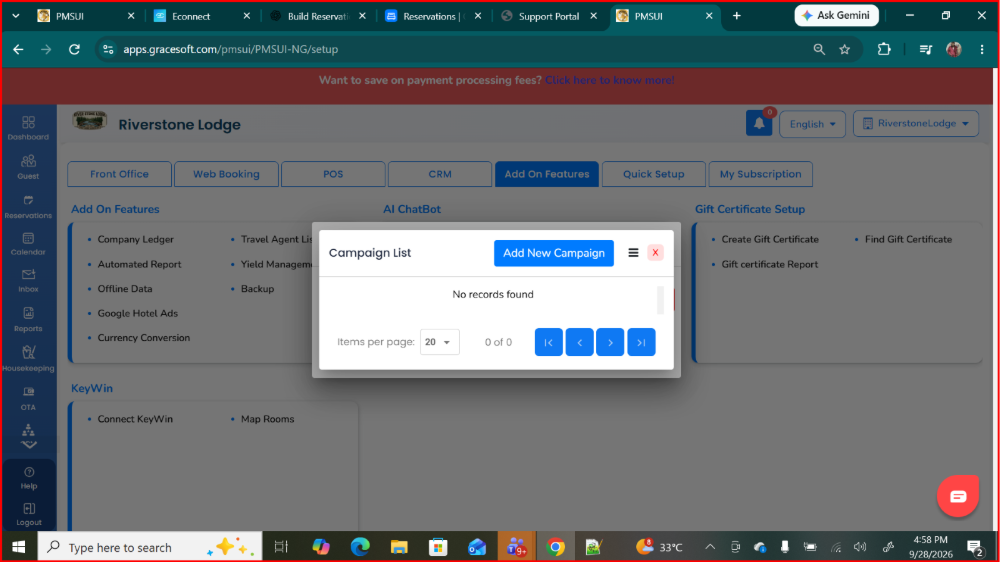
Figure 7 Empty Campaign List with Add New Campaign
6. Enter campaign settings
Complete the required fields in Add Campaign, then select Create. Review the dates and spending controls before saving; the values shown in the image are examples only.
- Campaign Name: a recognizable name for staff to identify the campaign.
- Start Date and End Date: the intended campaign period.
- Daily Budget: the amount your property approves for daily campaign spending.
- Bid Percentage and Max Bid Limit: enter the approved bid settings for your campaign.
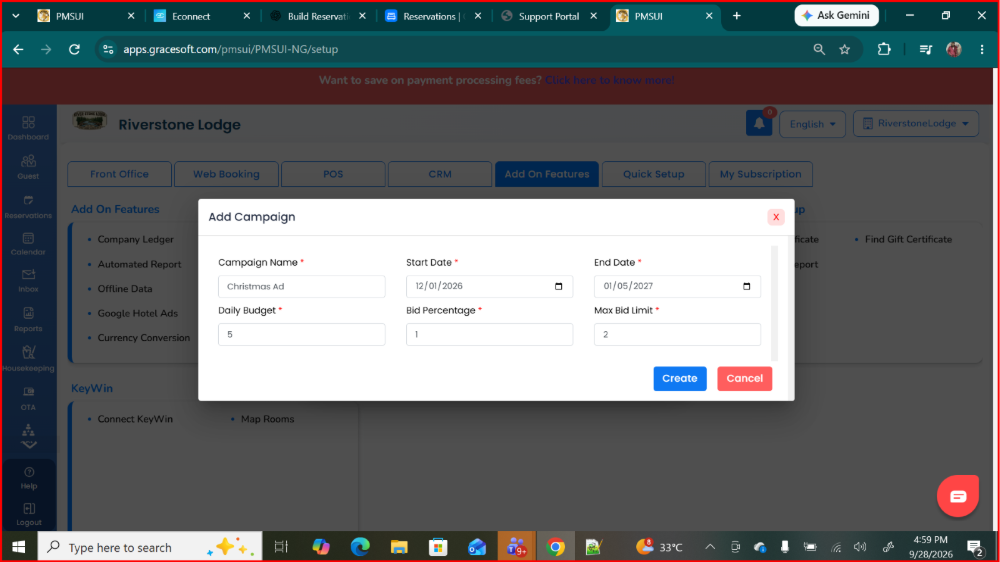
Figure 8 Add Campaign form and required fields
Review and monitor the campaign
7. Review Campaign List
After creation, the campaign appears in Campaign List with its status, budget, bid limit, performance columns, and action icons. The example shows an enabled campaign with zero initial activity. Use the available actions to edit, pause, or delete a campaign as appropriate.
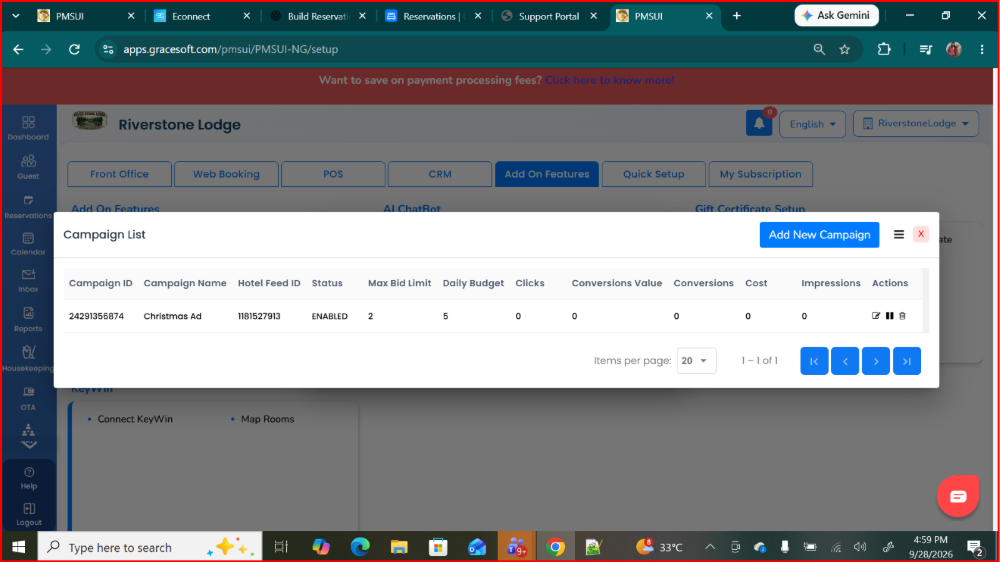
Figure 9 Newly created campaign in GraceSoft
8. Verify in Google Ads
Sign in to the linked Google Ads account and check that the campaign appears in the campaign selector. Performance information can be reviewed there as reporting becomes available.
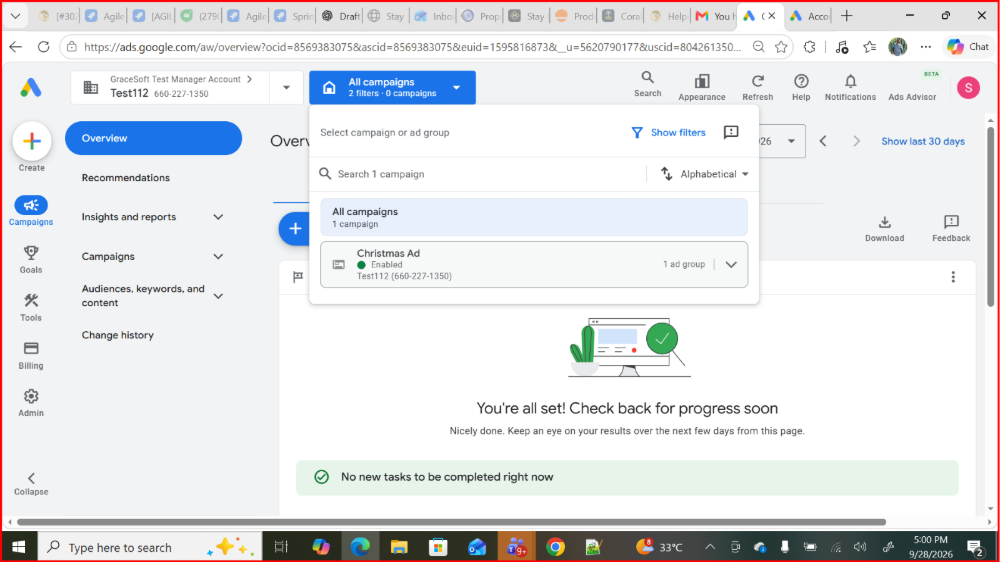
Figure 10 Campaign visible in Google Ads
Was this article helpful?
That’s Great!
Thank you for your feedback
Sorry! We couldn't be helpful
Thank you for your feedback
Feedback sent
We appreciate your effort and will try to fix the article