Close Out - Cash Out Report
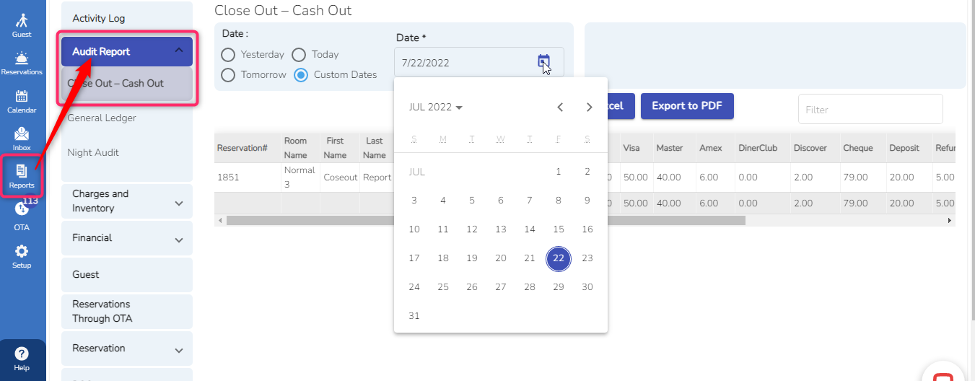
The Closeout – Cash Out report displays all payments, deposits, and refunds processed on a specific day, categorized by payment type, such as Cash, Credit Card, Check, and Other payment types.
Note: This report can be viewed for one day at a time. Transactions are displayed based on the invoice date.
Steps to Access the Report
In the left pane, click the Report icon.
Select Audit.
Choose Closeout – Cash Out.
Select the date for which you want to view the report.
Click Show to generate the report.
General Ledger Daily Report
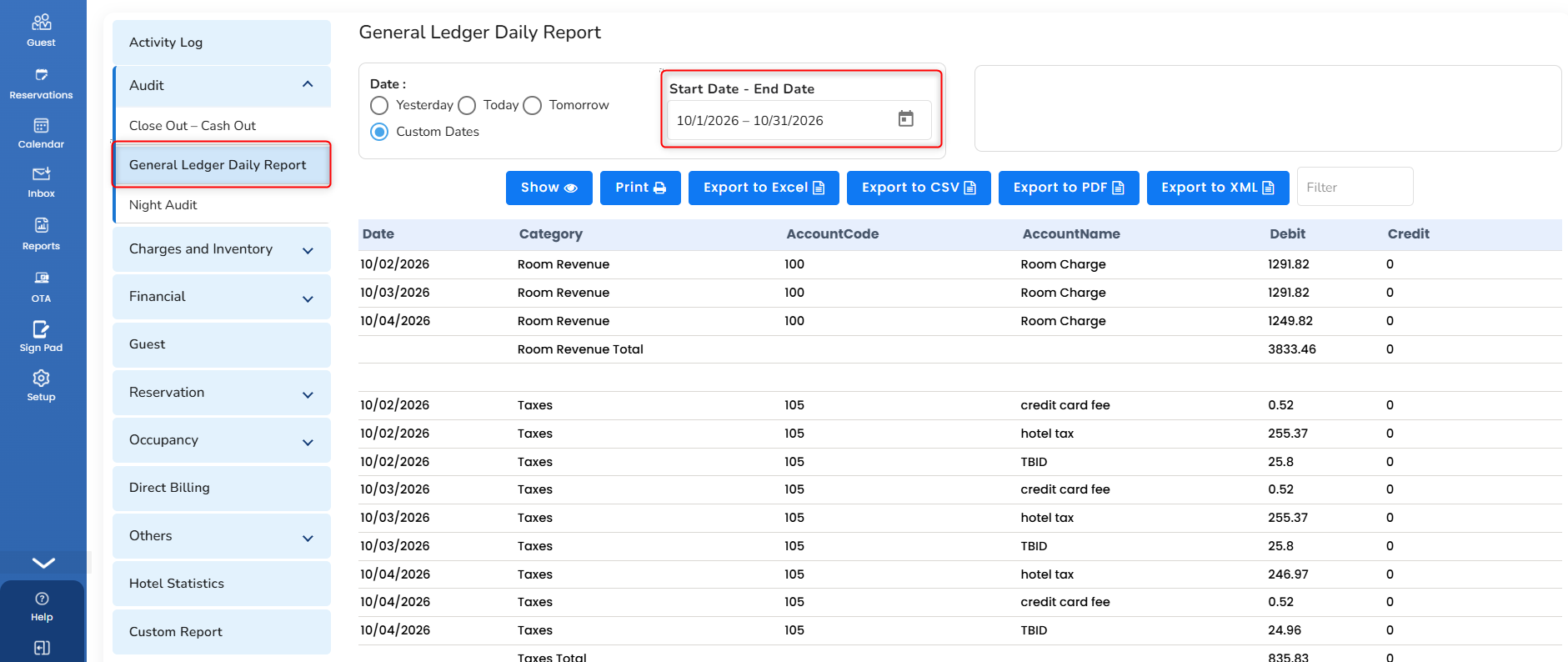
This report generates a list of transactions with a description for each item within a selected period. The report is based on the invoice date and can be imported into accounting software such as QuickBooks.
To access the report:
In the left pane, click the Report icon.
Select Audit.
Choose General Ledger Daily Report.
Night Audit
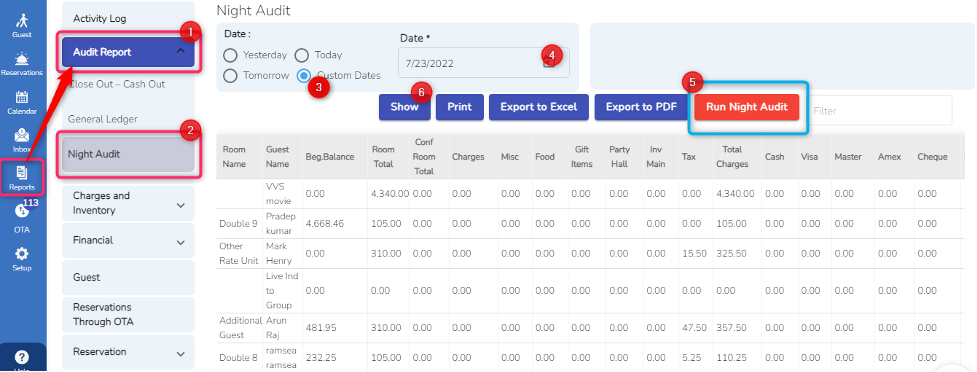
Night Audit Report displays all transactions (charges and payments), beginning and closing balance for a particular day. This report is usually generated every night at the close of operations to determine the income generated for the day.
1.To access it, in the left pane, click on the Report icon.
2. Choose Audit and then Night Audit.
How to Run Night Audit Manually
A night audit report is generated, only after an administrator or manager at the property has determined that all transactions have been completed for the day. Before the Night Audit Report can be displayed, an administrator or manager must first “Run Night Audit”
- Choose the custom dates and enter the date on which the night audit should be generated.
- Click on the Run Night Audit button.
- Click the Show button to view the generated report.
- If the night audit is already generated then just choose the date to view and click on the Show button.
Was this article helpful?
That’s Great!
Thank you for your feedback
Sorry! We couldn't be helpful
Thank you for your feedback
Feedback sent
We appreciate your effort and will try to fix the article