Point of Sale (POS)
POS Dashboard
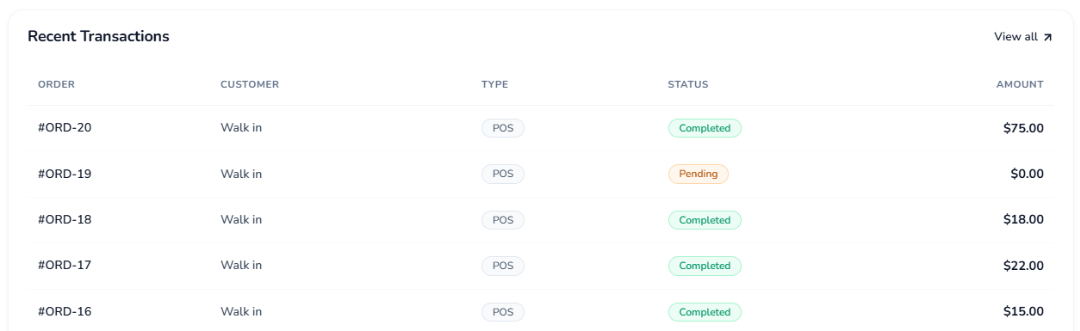
The POS Dashboard provides a quick overview of sales activity for the selected reporting period. Use the time-period filter to view performance and compare it with the corresponding previous period.
- Today: Displays today’s sales activity compared with the previous day.
- Weekly: Displays sales activity for the last 7 days compared with the preceding 7 days.
- Monthly: Displays sales activity for the last 30 days compared with the preceding 30 days.
The dashboard helps users quickly review and monitor POS activities for the selected period.
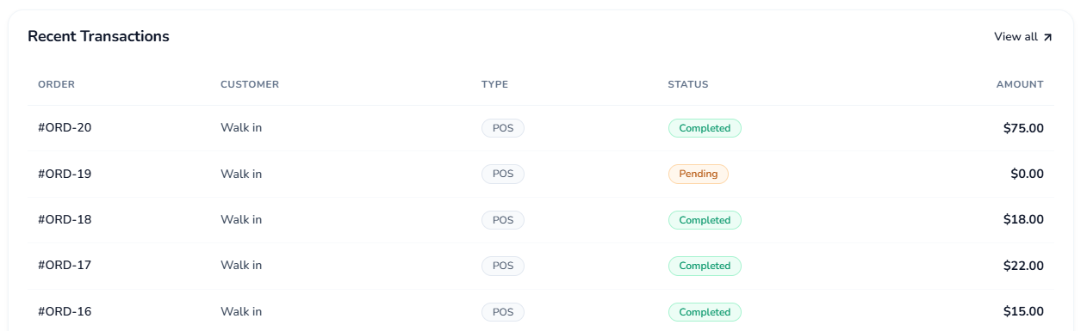
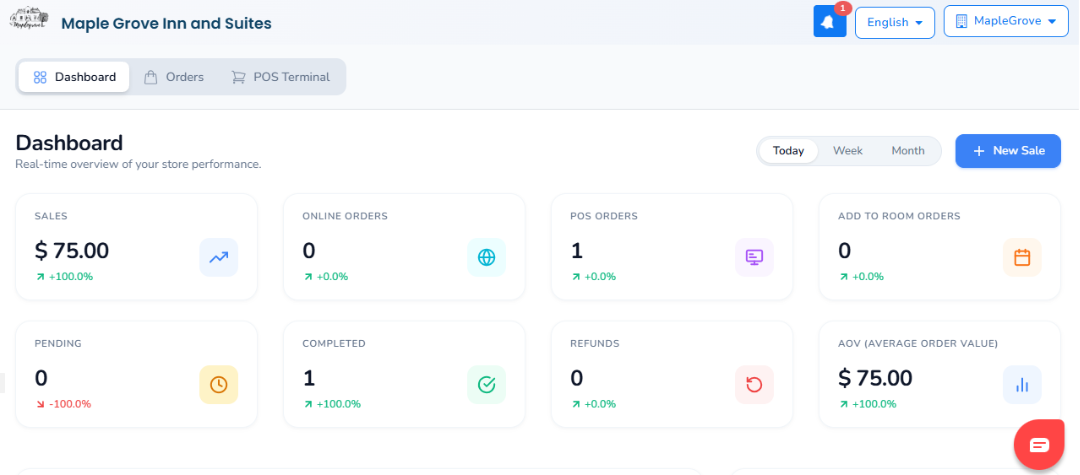 The dashboard also provides the following information:
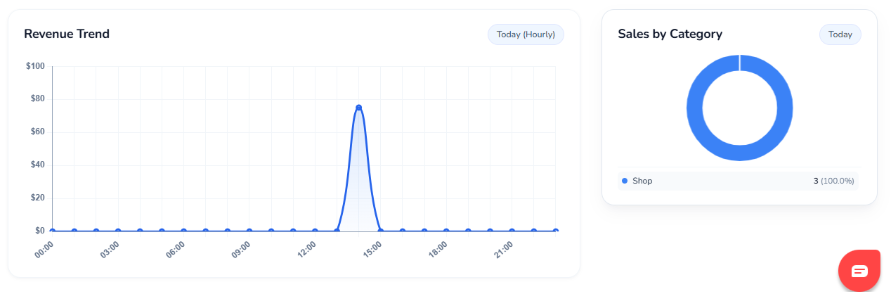
- Hourly Sales: Displays sales activity by hour.
- Sales by Category: Displays sales based on different item categories.
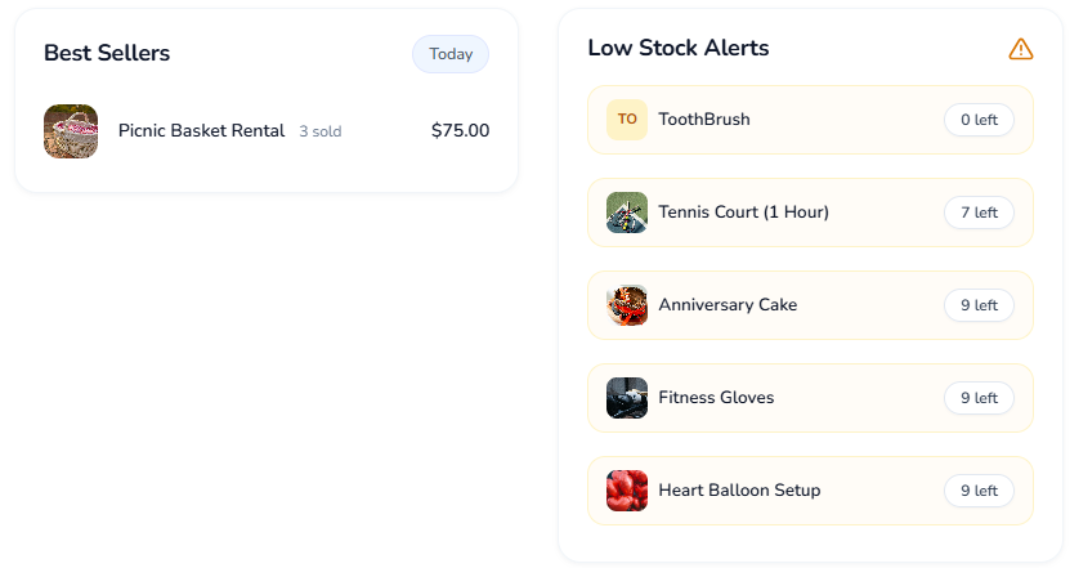
- Low Stock Alerts: Displays the top 5 items with the lowest available stock, helping users identify items that may need to be restocked.
Best Sellers: Displays the items that have the highest sales activity.
Orders Tab
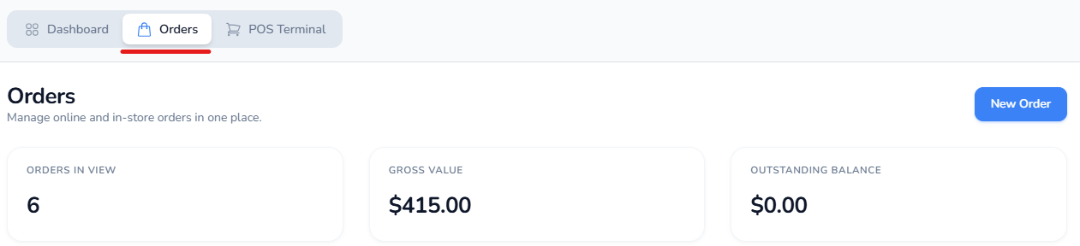
The Orders tab allows users to view and manage all item orders in one place.
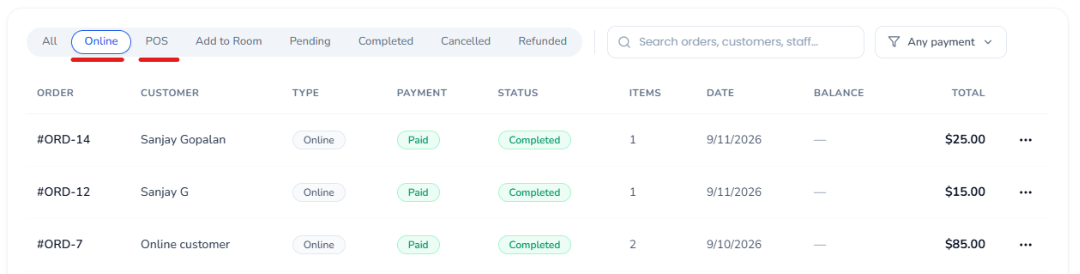
Orders placed through different sources can be viewed from the Orders tab, including:
- POS: Orders placed directly through the POS.
- PMS: Orders placed by checked-in guests through the PMS.
- Online Booking Engine: Orders placed by guests through the Online Booking Engine.
For each order, users can also view the payment status and order status, allowing them to identify whether the order has been paid and track its current status.
This allows users to view all item orders, regardless of where the order was placed.
POS Terminal
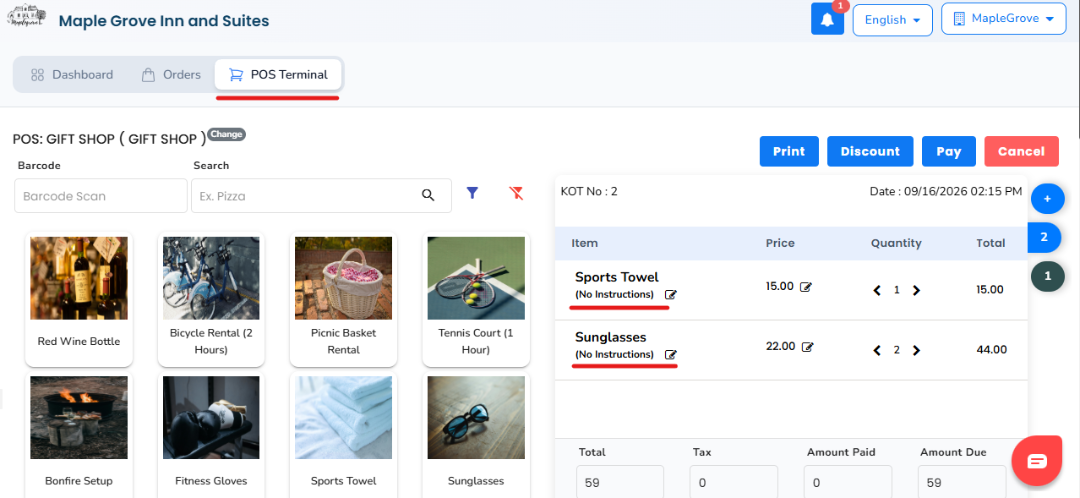
The POS Terminal displays all available items that can be purchased through the POS.
- Browse the available items or use the Search field to find a specific item.
- Select the required item to add it to the order.
- Select the required quantity.
- Review the selected items, price, quantity, and total in the New Order section.
Complete the purchase.
Was this article helpful?
That’s Great!
Thank you for your feedback
Sorry! We couldn't be helpful
Thank you for your feedback
Feedback sent
We appreciate your effort and will try to fix the article