Account Codes
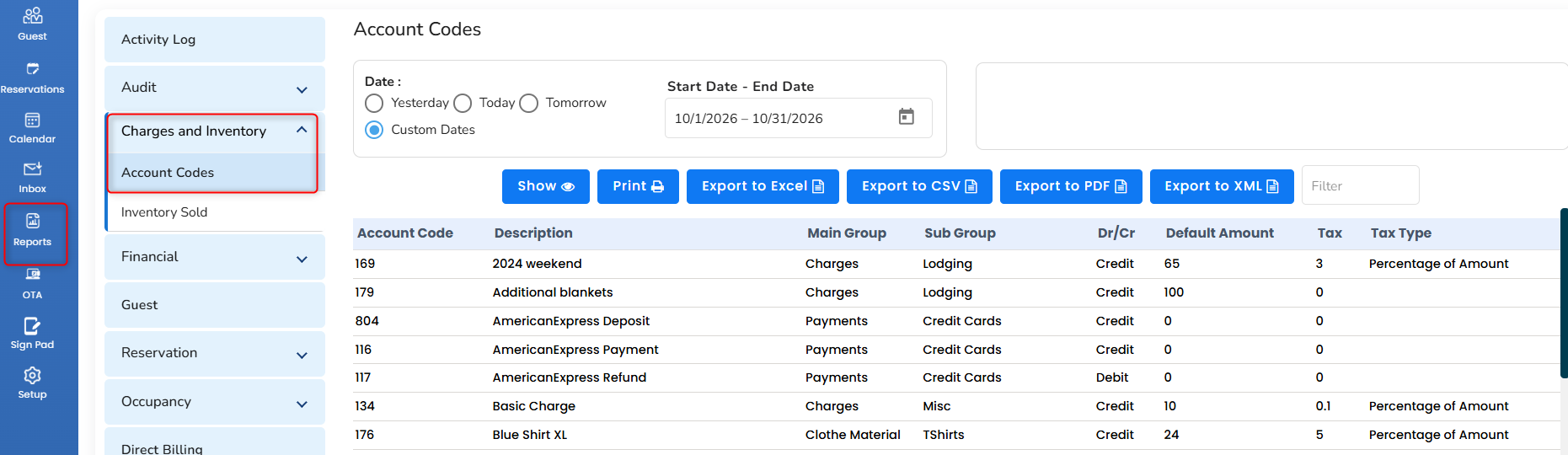
The Account Codes Report displays the complete list of inventory items created in the GraceSoft PMS under:
Setup → Front Office → Accounts → Inventory Items
This report helps the property view and maintain a record of all account items configured in the system.
How to access the Account Codes Report
In the left pane, click the Report icon.
Select Charges and Inventory.
Click Account Codes.
View the report containing the account item details.
Inventory Sold
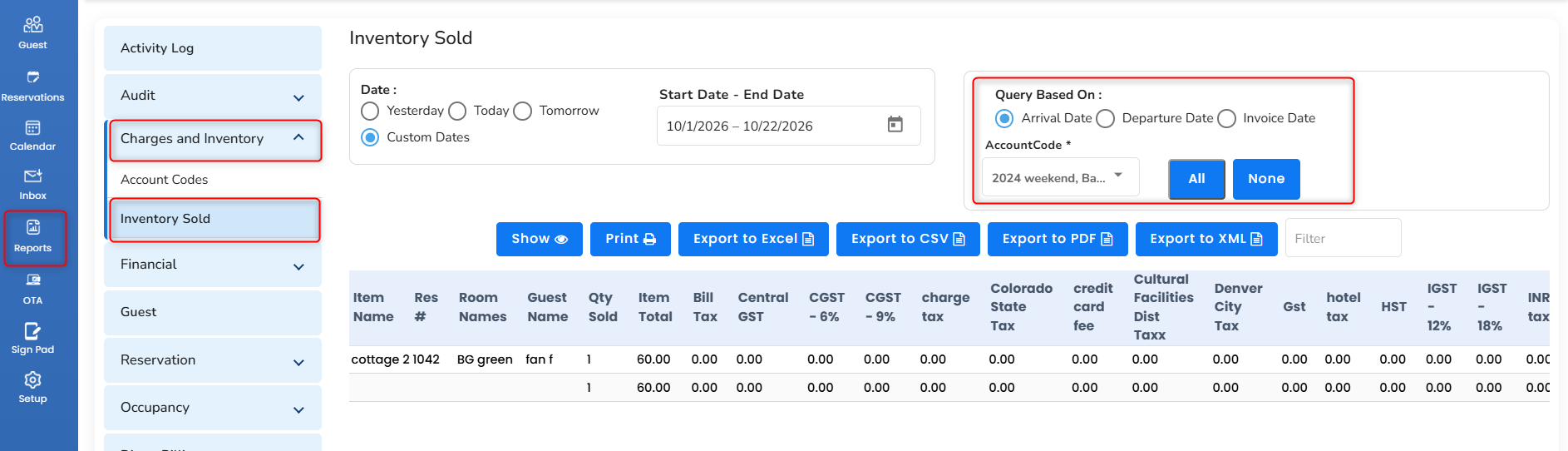
The Inventory Sold Report displays the quantity of inventory items sold during a selected date or date range.
It includes items sold through:
Reservations: Inventory items or additional charges sold as part of a reservation.
Point of Sale (POS) Invoices: Inventory items sold through a point-of-sale invoice.
This report helps the property track item sales and understand how many units of each inventory item were sold during a particular period.
How to access the Inventory Sold Report
In the left pane, click the Report icon.
Choose Charges and Inventory.
Select Inventory Sold.
Define the required date or date range.
Generate the report to review the inventory sales details.
Was this article helpful?
That’s Great!
Thank you for your feedback
Sorry! We couldn't be helpful
Thank you for your feedback
Feedback sent
We appreciate your effort and will try to fix the article