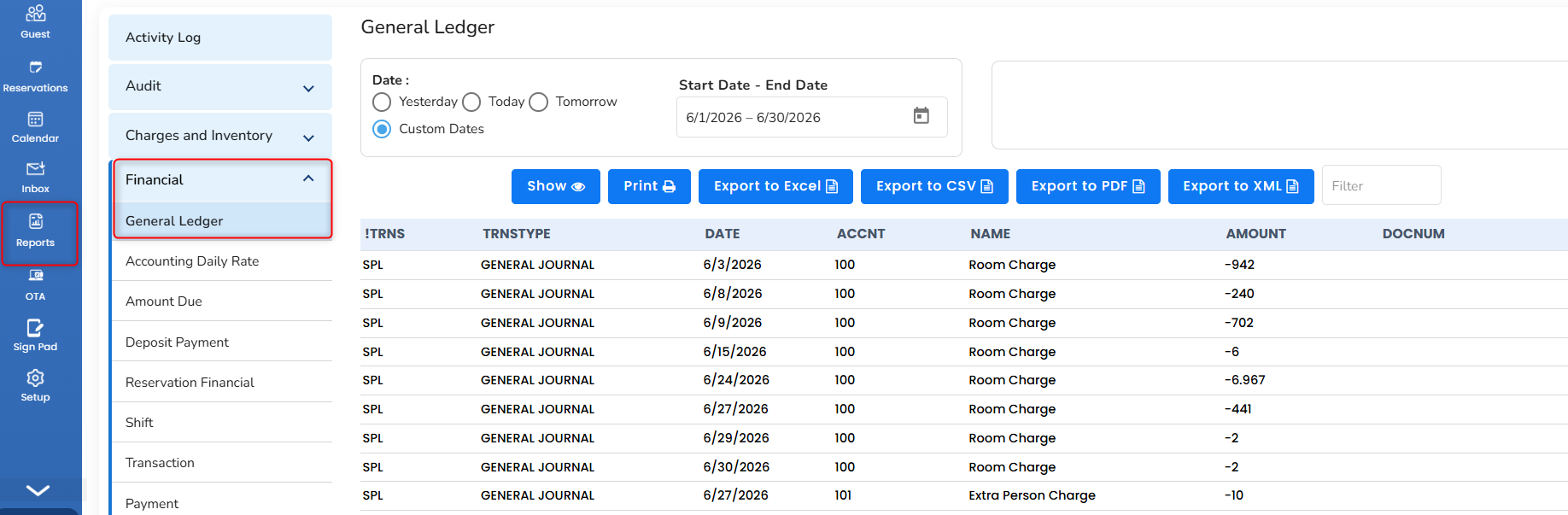
General Ledger
The General Ledger Report displays a list of financial transactions with their descriptions for a selected period.
It is generated based on the invoice date.
The report can be imported into accounting software such as QuickBooks.
To access: Go to Report → Audit → General Ledger.
It helps review financial transactions and maintain accounting records.
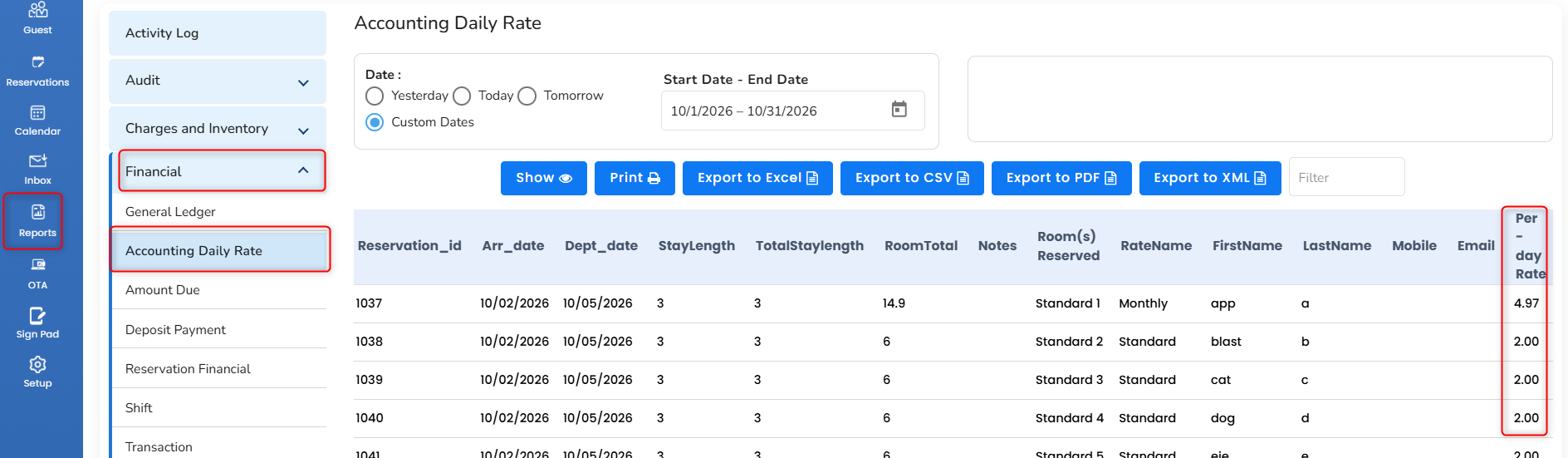
Accounting Daily Rate
It will show the average daily rate for each reservation under the “Per Day Rate” column. The ”Room Total” column will show the room total for the entire reservation.
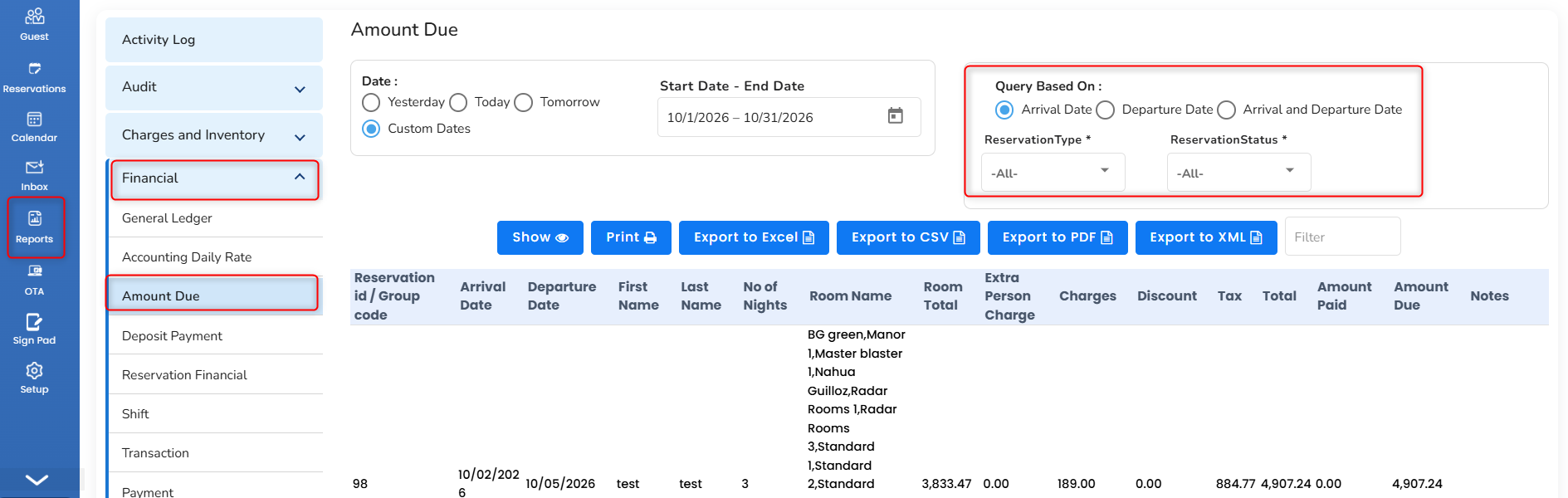
Amount Due
Reservations with a balance due will be displayed. It can be generated based on Arrival, Departure, and both Arrival/Departure reservations using the filters.
- To access it, in the left pane, click on the Report icon.
- Choose Financial and then Amount Due.
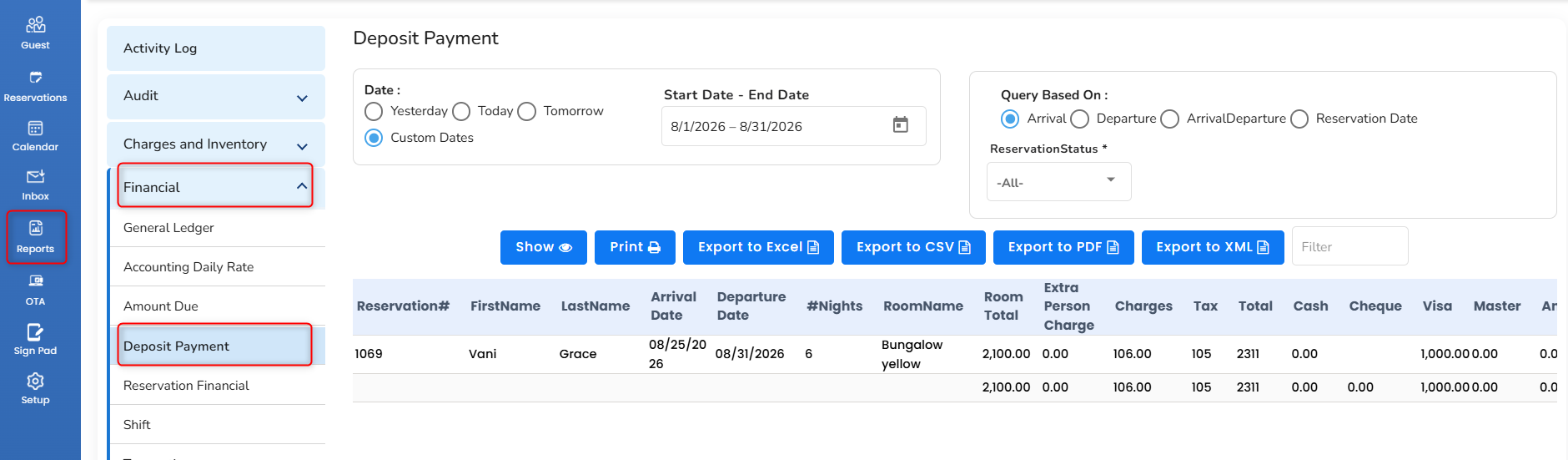
Deposit Payment
The deposit payments made in the reservations like cash deposit, card deposit, and check deposit will be displayed. Each type of deposit will be displayed in the respective columns separately and the deposit type that is not listed in separate columns will be shown in the “Other” column. Regular or Cancelled or All reservations can be filtered using the Reservation status dropdown.
- To access it, in the left pane, click on the Report icon.
- Choose Financial and then Deposit Payment.
Reservation Financial
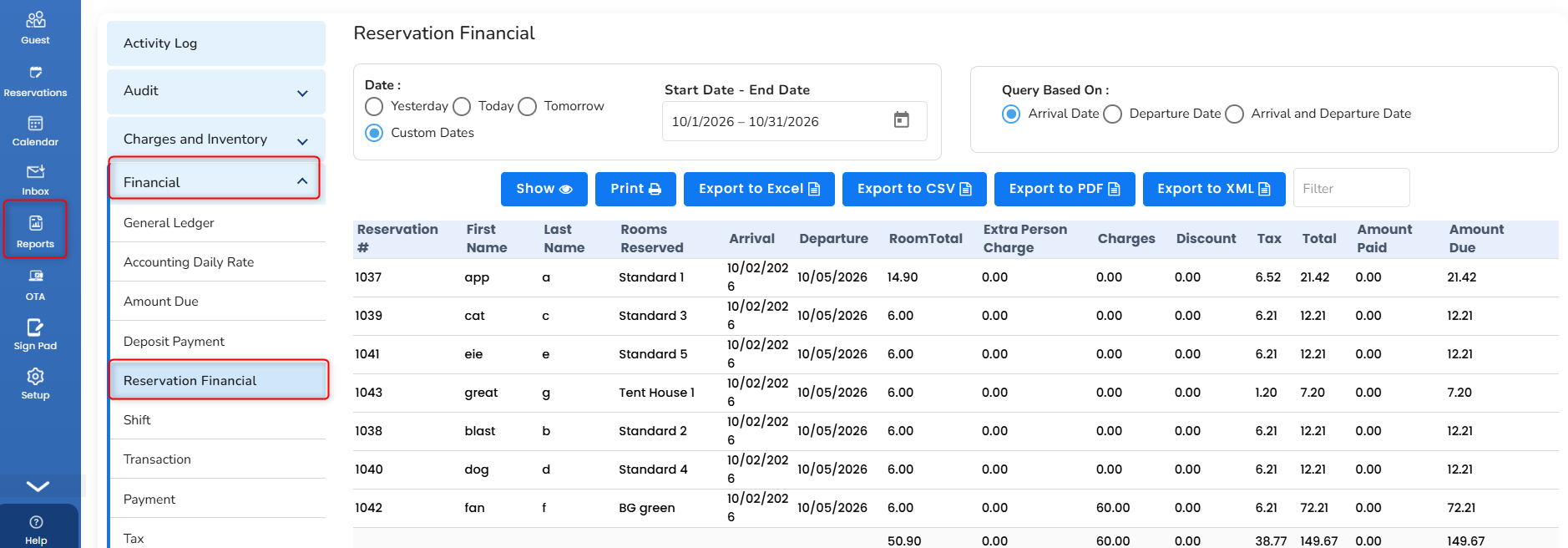
It will show the overall details of the reservations like Room total, Charges, Discount, Tax, Amount Paid, and Amount Due
- To access it, in the left pane, click on the Report icon.
- Choose Financial and then Reservation Financial.
Shift
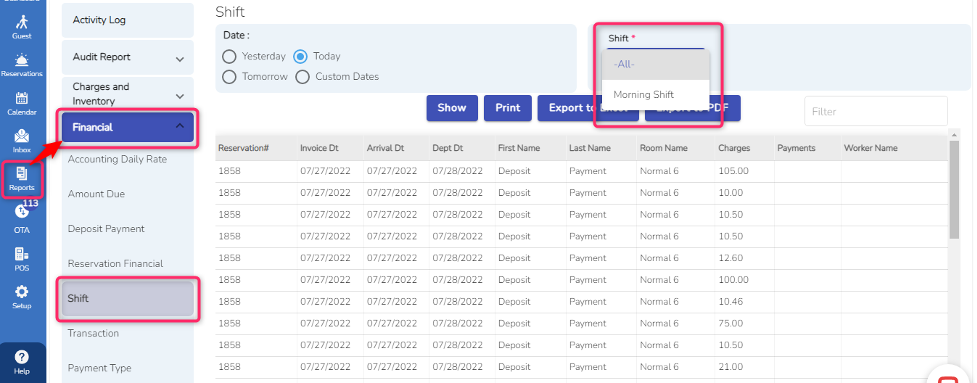
Reservations that are created by the staff during a particular shift can be displayed. Different shift reservation activities on the charges and payments can be viewed by choosing the shift filter dropdown. The report is generated based on the Invoice Date.
- To access it, in the left pane, click on the Report icon.
- Choose Financial and then Shift.
Transaction
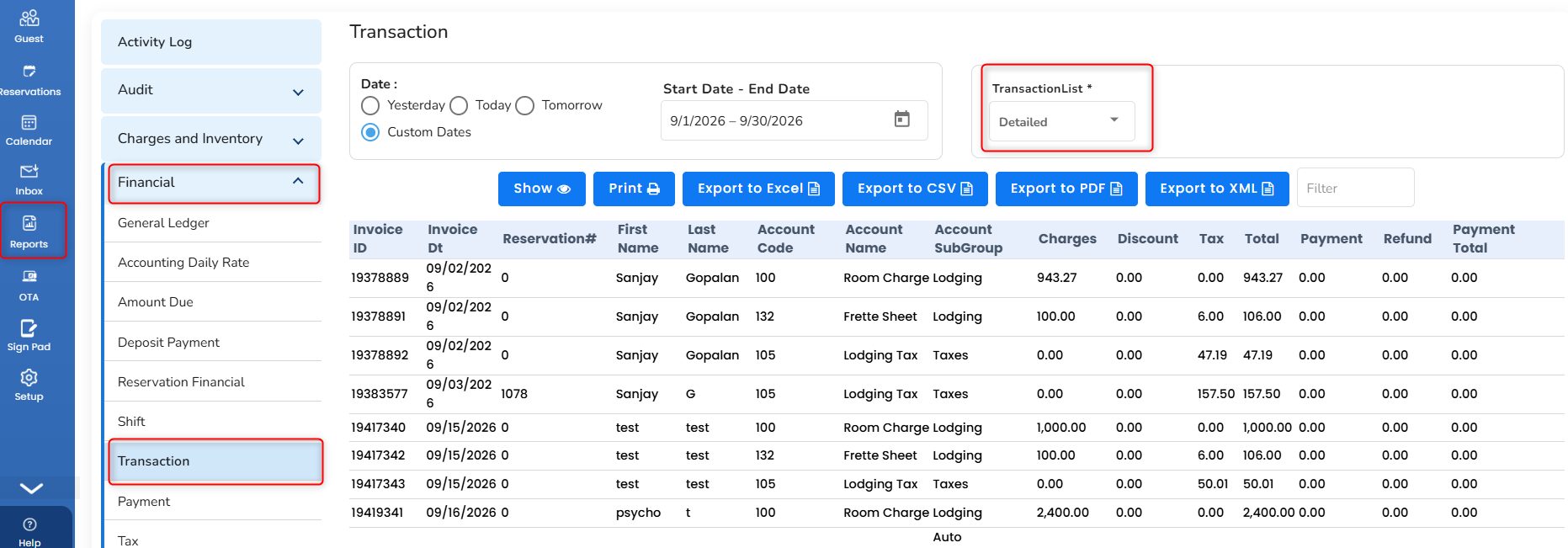
The transactions that are performed on the billing screen like room charges, tax, discounts, payments, and refunds will be shown. The report is generated based on the invoice date. Two different views can be generated. One will be the “detailed”, which will show each account item transaction in each line and the other will be a “grouped”, which shows each account item as a consolidated.
- To access it, in the left pane, click on the Report icon.
- Choose Financial and then Transaction.
Payment
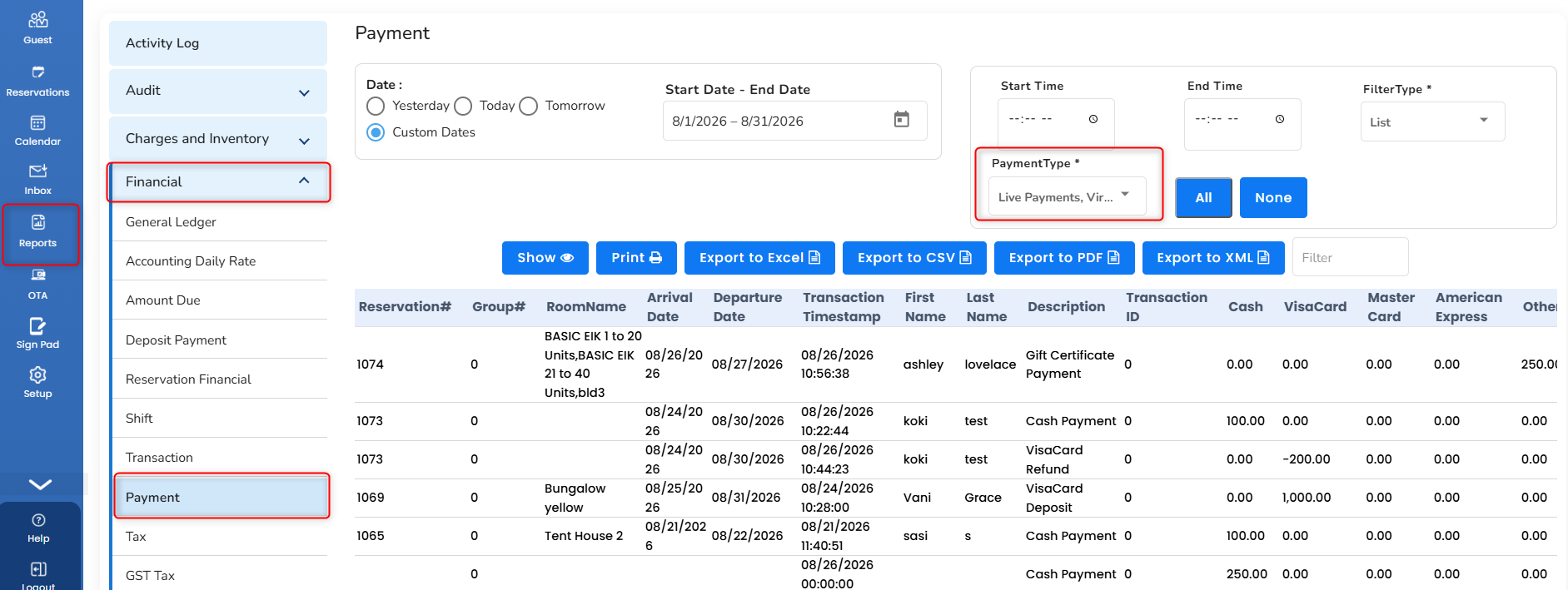
All the payment and refund transactions recorded on the billing screen will be shown as an individual payment type category. If you process payments through Easy InnKeeping, choose the payment type as “Live Payments” to view live credit card transactions.
To see a summary of payment type totals for each day, choose “Grouped” in the dropdown. This report is generated by the transaction date.
- To access it, in the left pane, click on the Report icon.
- Choose Financial and then Payment.
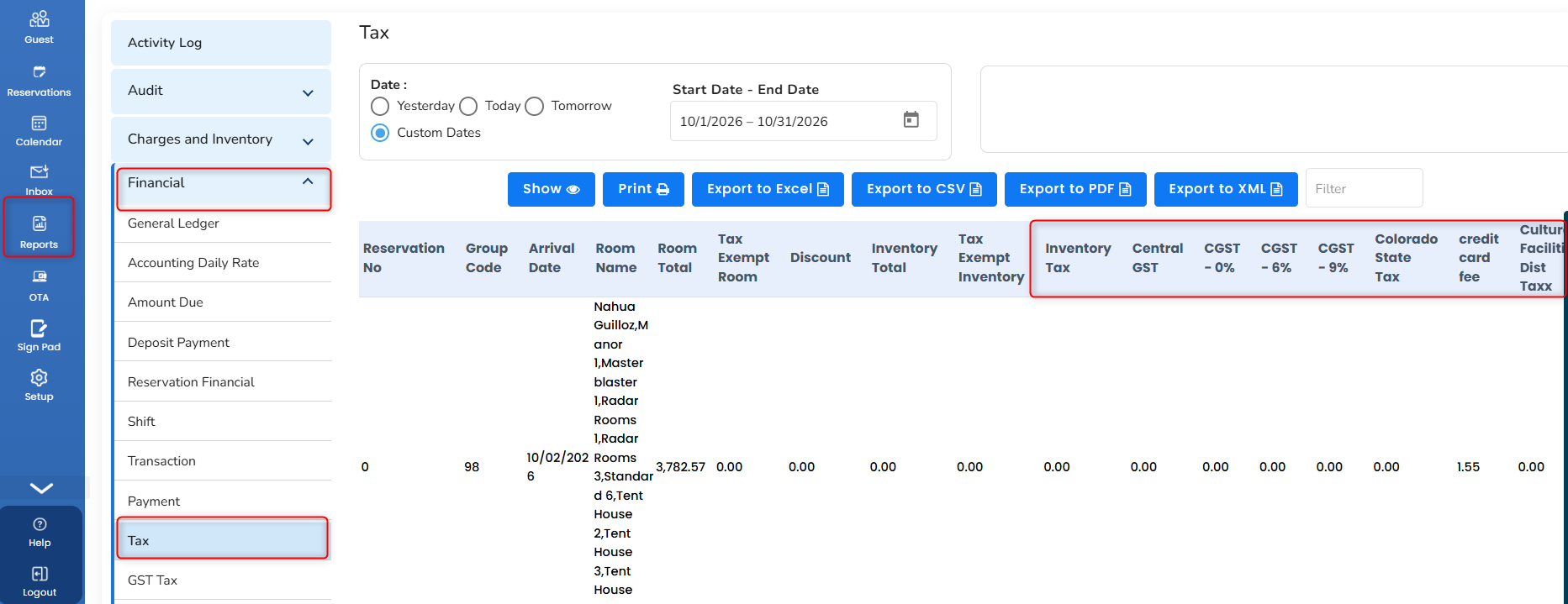
Tax
The Tax Report is used to report taxes payable for lodging and inventory sales. Please note that the revenues reported in the Tax Report are on a per-night basis.
- To access it, in the left pane, click on the Report icon.
- Choose Financial and then Tax.
Was this article helpful?
That’s Great!
Thank you for your feedback
Sorry! We couldn't be helpful
Thank you for your feedback
Feedback sent
We appreciate your effort and will try to fix the article