This document explains how to connect your KeyWin6 account, map rooms, and configure reservation letters to automatically send key numbers to guests.
Connect KeyWin Account
To integrate your KeyWin account:
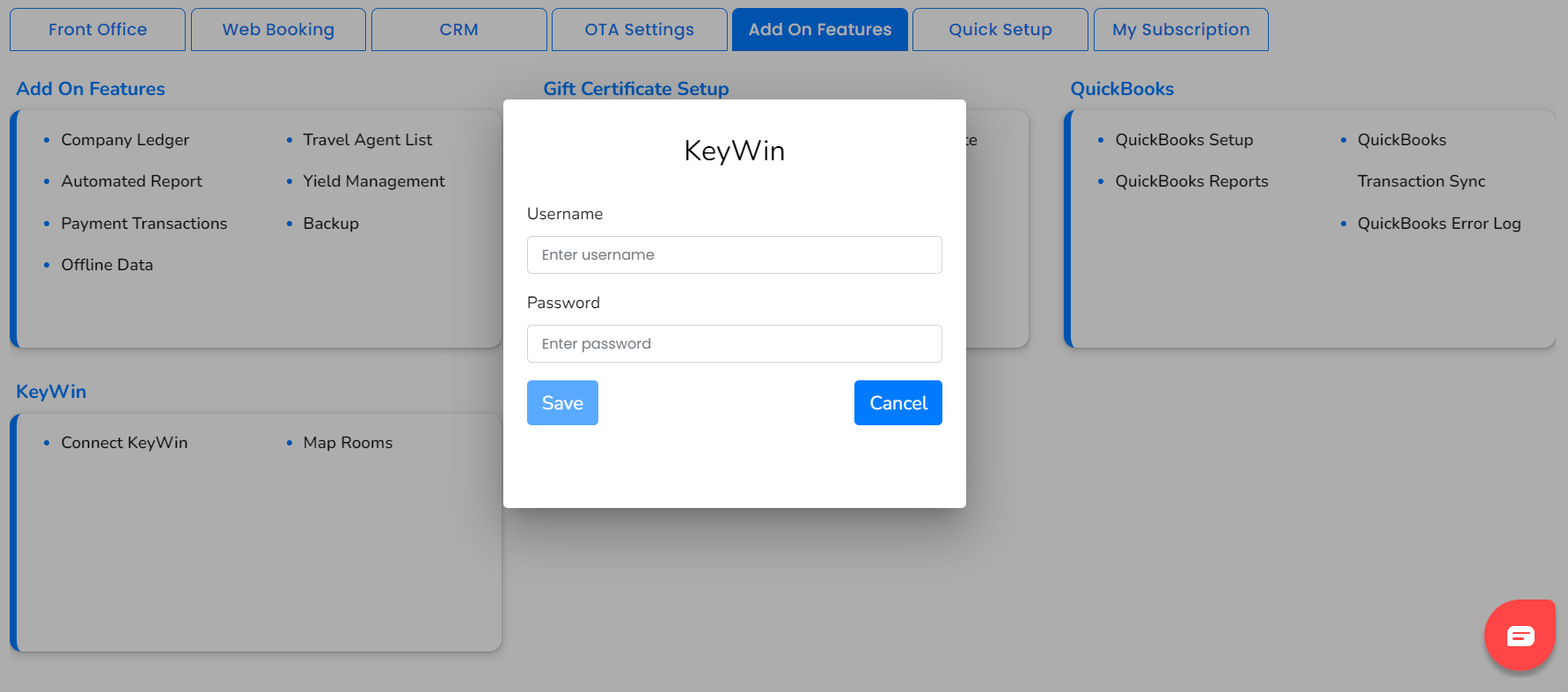
Go to Setup
Click on Add-on Features
Locate the KeyWin section
Click on Connect KeyWin
Enter your KeyWin6 Username
Enter your KeyWin6 Password
Click Save / Connect
If credentials are valid, the connection will be established successfully.
⚠️ After successful connection, close this page and proceed to room mapping.
Map Rooms to KeyWin Keys
Once KeyWin is connected:
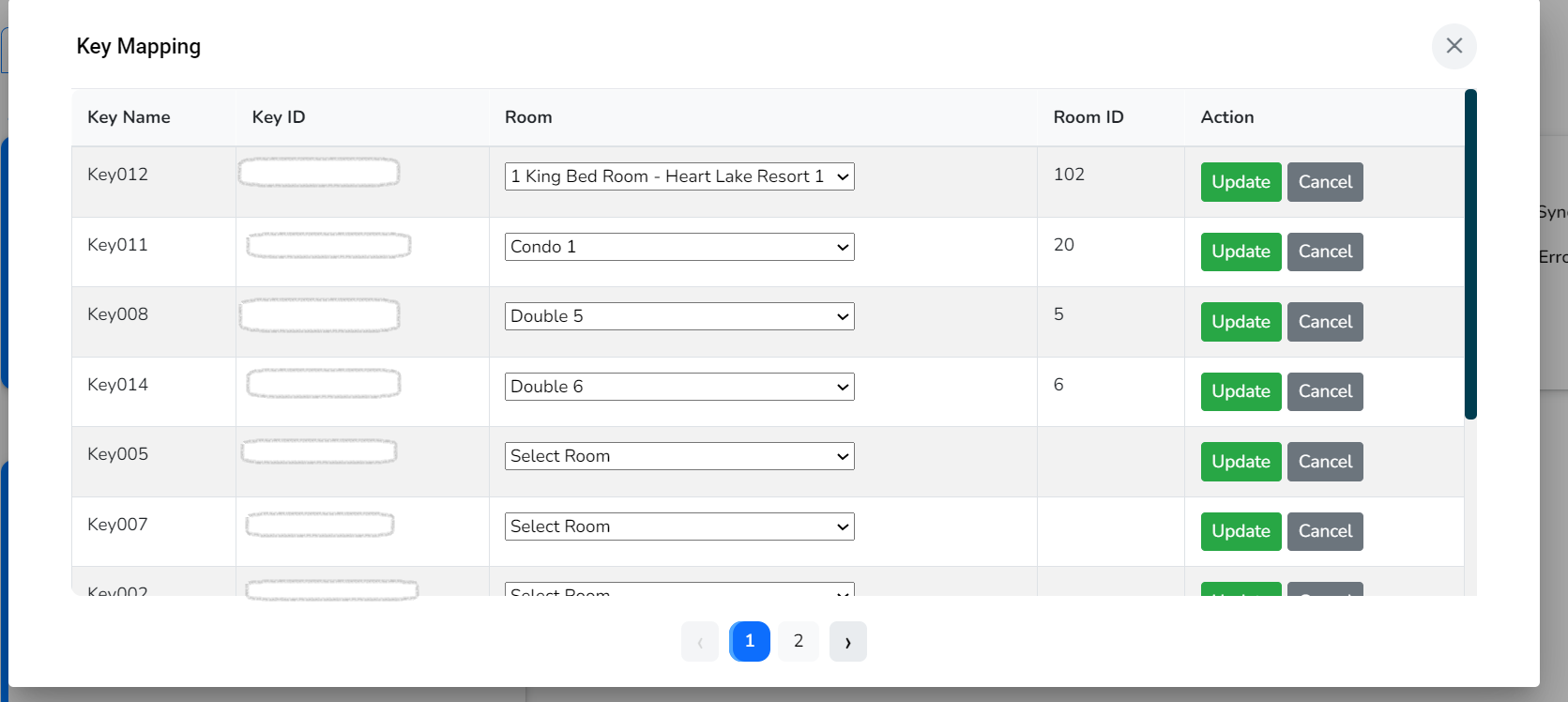
On the Add On Features
Click on Map Rooms
The system will load all available keys from KeyWin
For each key:
Select the corresponding room from PMS
Match it to the correct KeyWin key
Click Update
Repeat until all rooms are mapped
✅ Only mapped rooms will generate key numbers during reservations.
Configure Reservation Letter (Add Key Tag)
To send key numbers automatically to guests:
Go to Front Office
Click Reservation Letters
Open any existing letter (or create a new one)
Place the cursor where you want the key number to appear
Insert the following merge tag:
<<#Reservation.KeyNumber#>>
Or select it from:
Merge Tags → Reservation → KeyNumber
Click Save
How It Works
Create a reservation for a room that is mapped in KeyWin.
Once the reservation is confirmed:
The system generates a KeyWin key number.
The key number is automatically stored.
When sending the reservation letter, the merge tag will populate the generated key number.
You can review the generated key number under the History Tab for internal reference.
Important Notes
Keys are generated only for mapped rooms.
If a room is not mapped, no key number will be generated.
Ensure KeyWin credentials remain valid.
Always test by creating a sample reservation after configuration.
End-to-End Flow Summary
Connect KeyWin
Map Rooms
Add KeyNumber tag in Reservation Letter
Create Reservation
Send or Schedule Letter to Guest
Verify Key Number in History Tab
Was this article helpful?
That’s Great!
Thank you for your feedback
Sorry! We couldn't be helpful
Thank you for your feedback
Feedback sent
We appreciate your effort and will try to fix the article