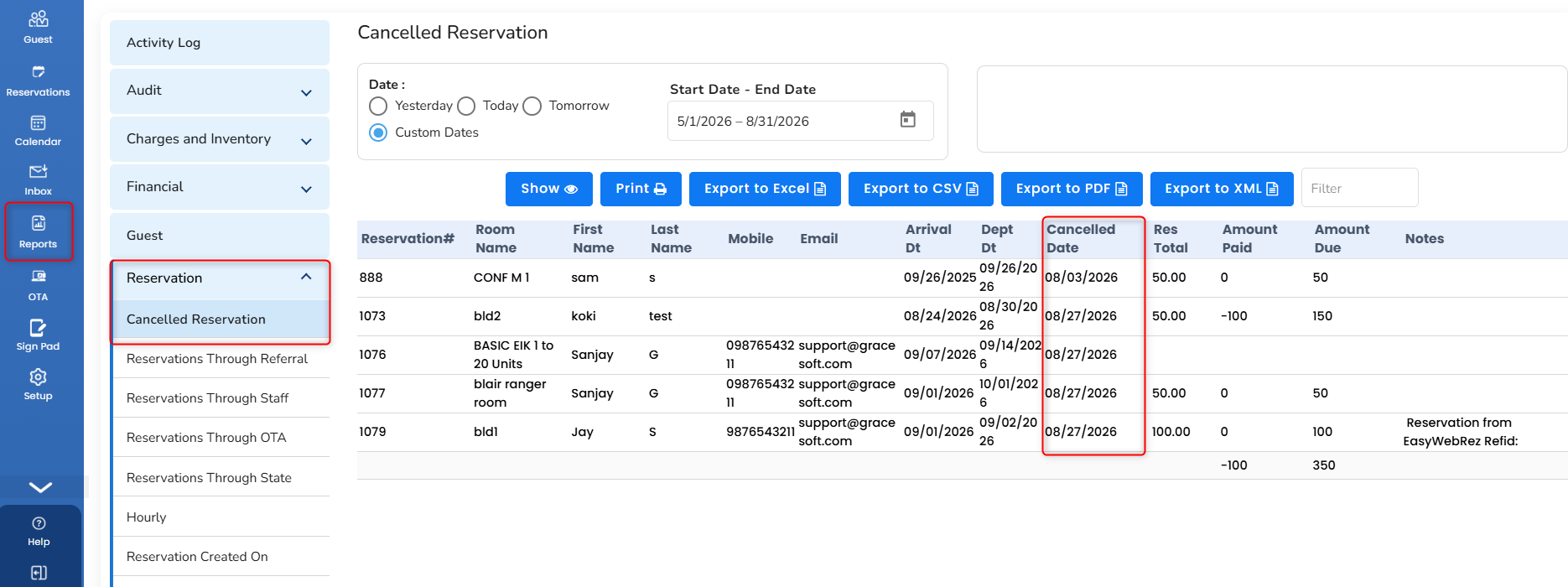
Cancelled Reservation
It shows the cancelled reservation data based on the cancelled date of reservation.
- To access it, in the left pane, click on the Report icon.
- Choose Reservation and then Cancelled Reservation.
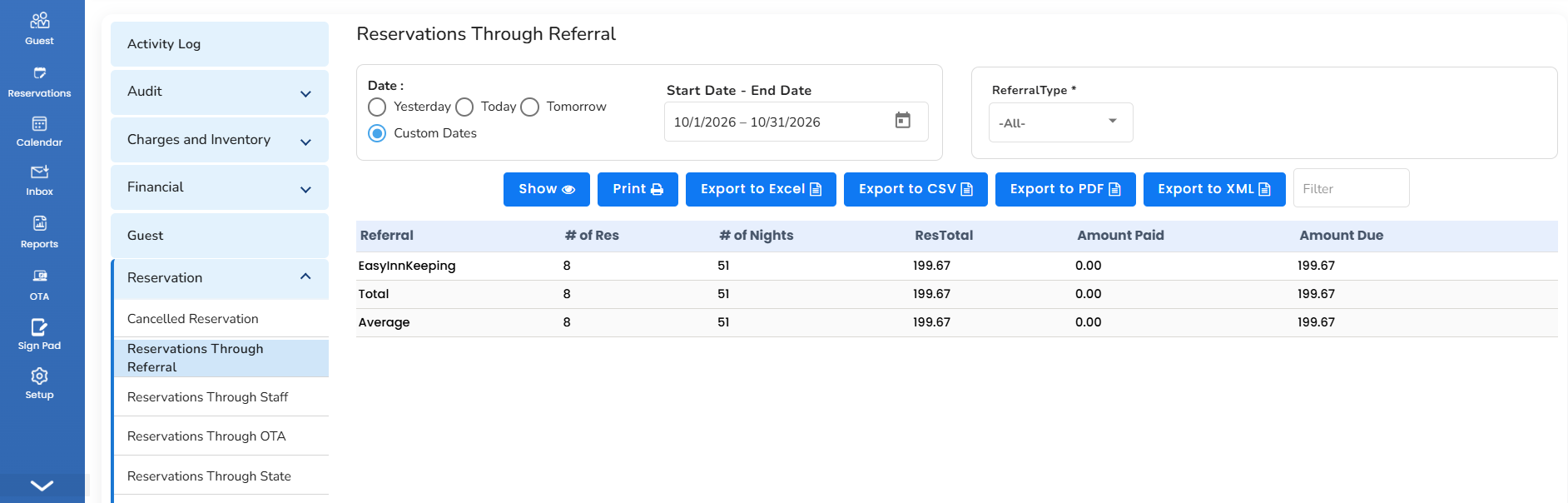
Reservations Through Referral
The referrals that are added to the reservations can be shown. By default, the referrals for OTA (Booking.Com, Expedia, Google, Airbnb, and so on) and Online Booking Engine (EasyWebRez) will be added to the reservation when a reservation gets downloaded to the Easy Innkeeping.
Custom referrals can also be created under Setup >> Front Office >> Advanced >> Other Setting >> Referral and it should be assigned on the reservation screen under Reservation >> More Info tab.
- To access it, in the left pane, click on the Report icon.
- Choose Reservation and then Reservations through Referral.
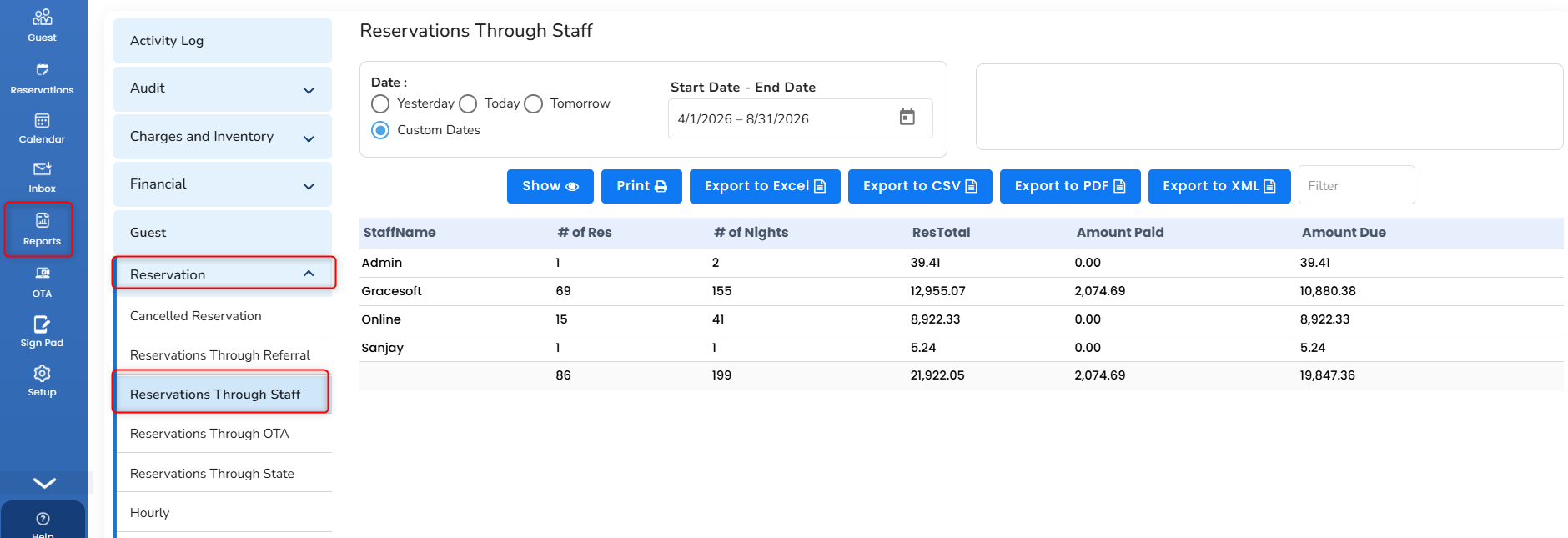
Reservations Through Staff
Tracks income generated by each staff person, based on their login.
- To access it, in the left pane, click on the Report icon.
- Choose Reservation and then Reservations through Staff.
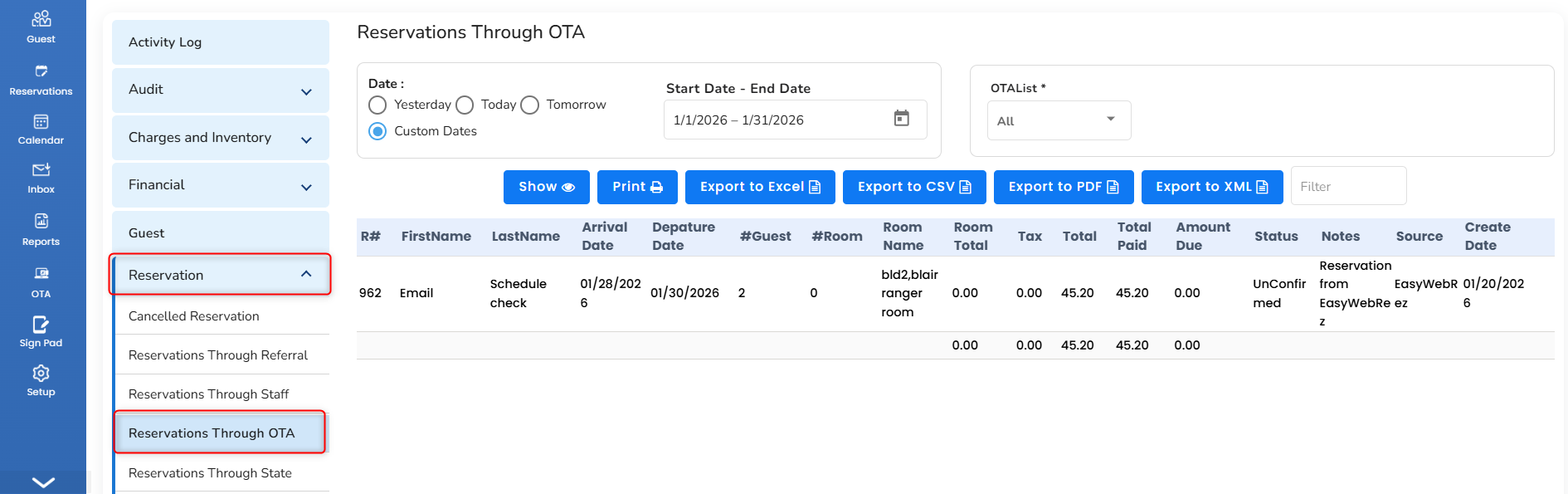
Reservation through OTA
It retrieves the data based on the OTA platform like online booking, booking.com or Expedia
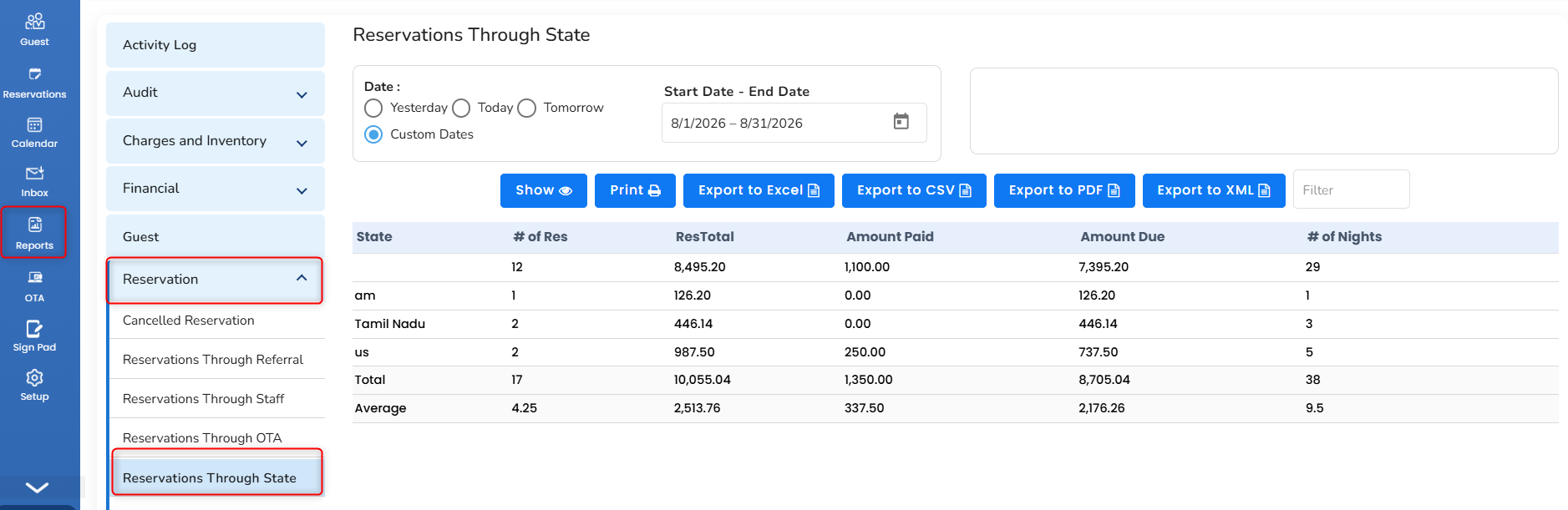
Reservation through State
It retrieves the data based on state wise reservation
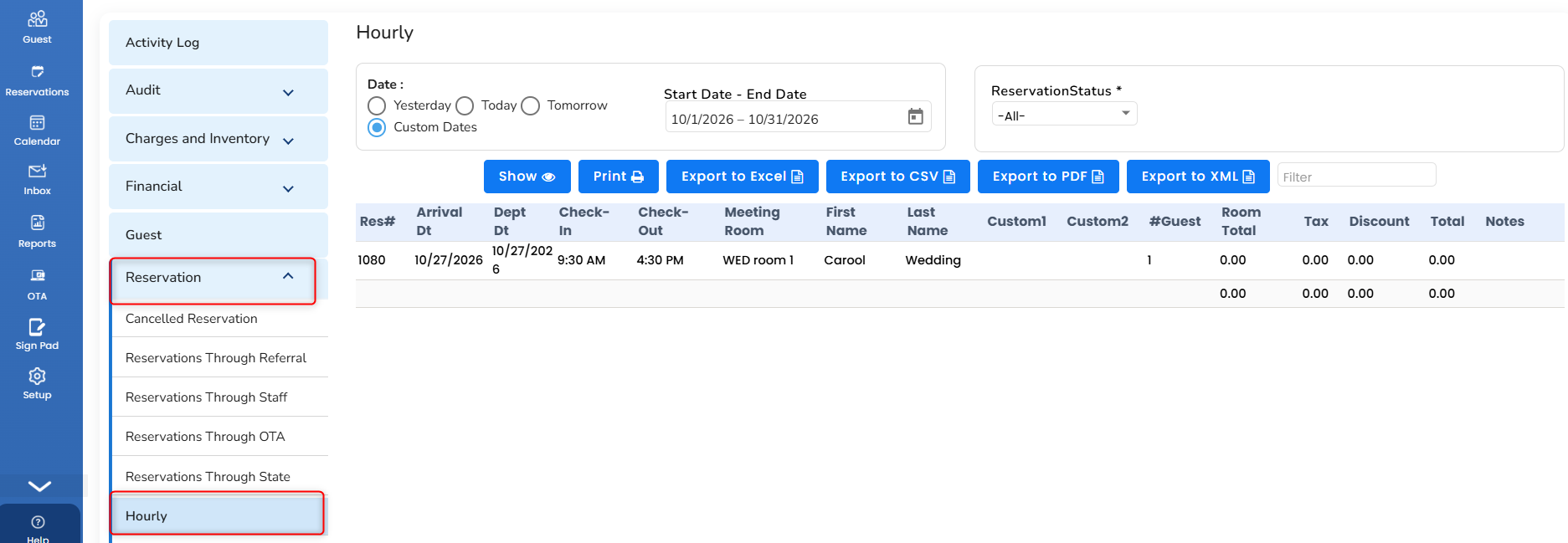
Hourly Reservation
It retrieves the hourly reservation data.
Go to Reports>>Reservation>>Hourly
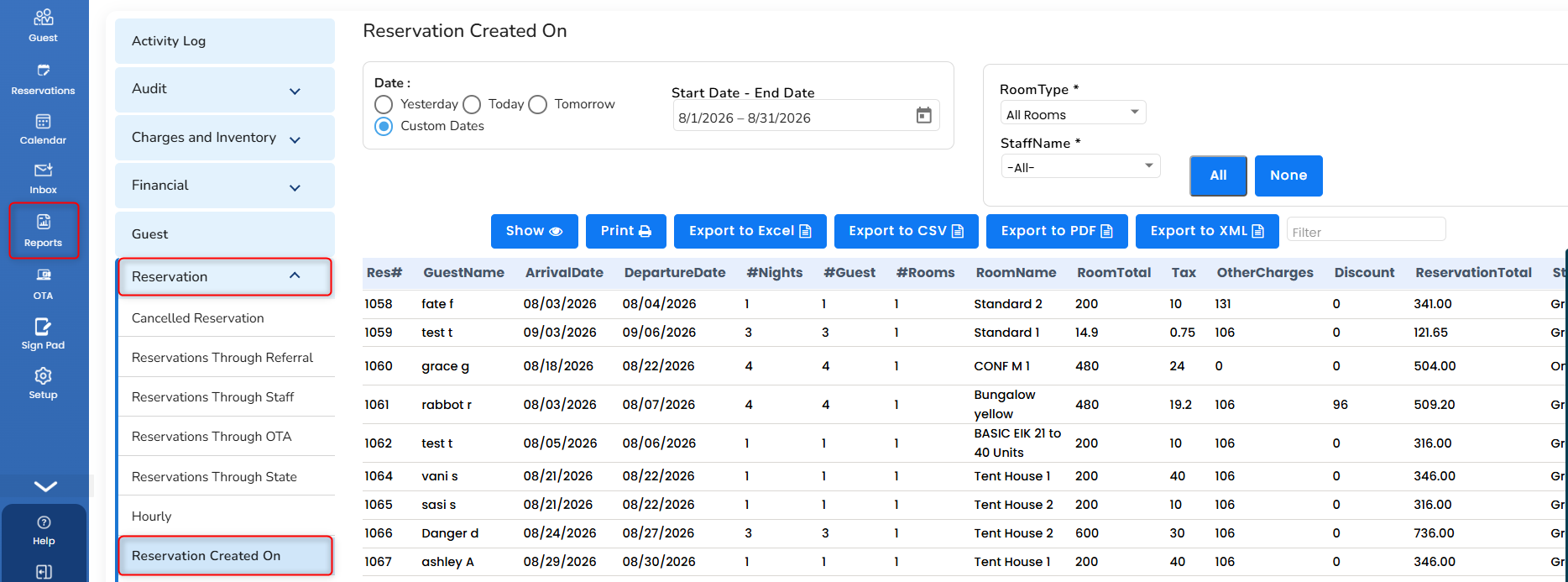
The report is generated based on the date the reservation is created. It is used to view how many reservations were booked in a period.
- To access it, in the left pane, click on the Report icon.
- Choose Reservation and then Reservation Created On.
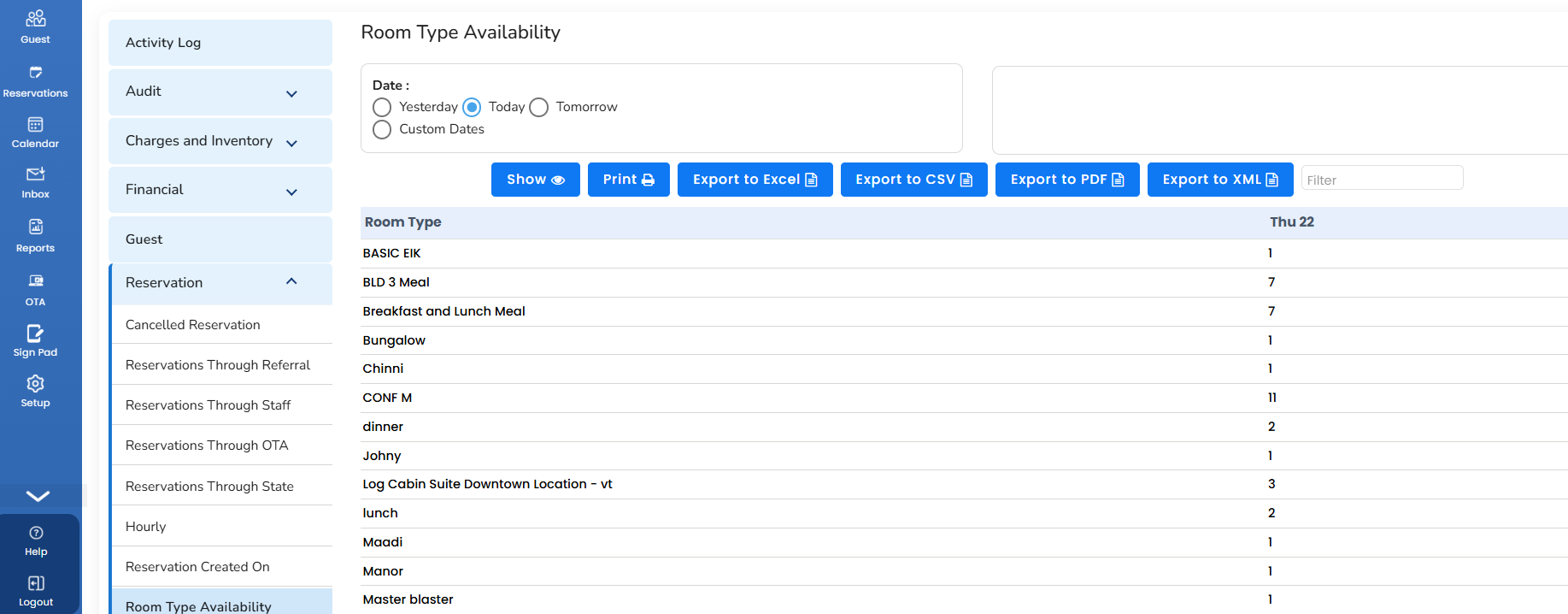
Room Type Availability
Real-time availability of all the room types can be shown.
- To access it, in the left pane, click on the Report icon.
- Choose Reservation and then Room Type Availability.
Check-In and Check Out
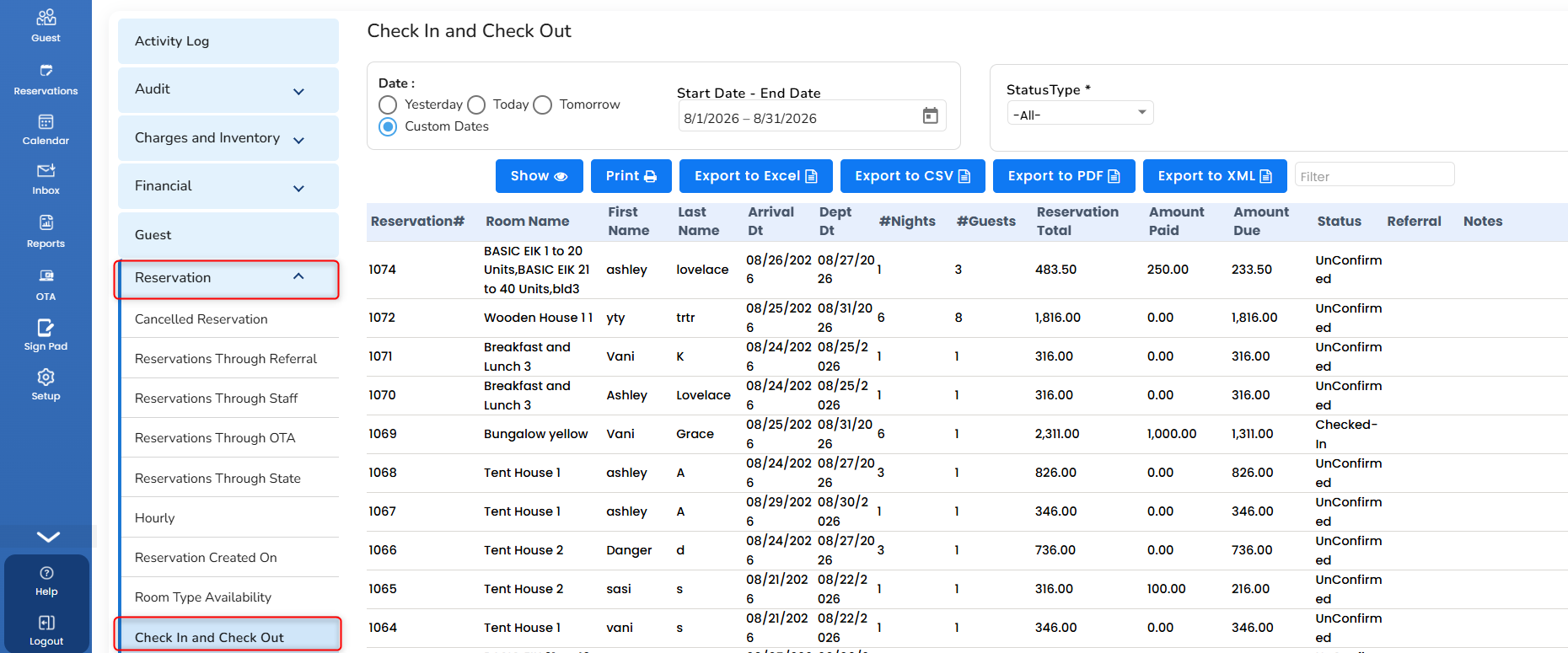
Reservations for those who are going to check in and check out for the given time frame will be shown. The “StatusType” can be used to see Check In and Check Out separately or use “All” to show both the status.
- To access it, in the left pane, click on the Report icon.
- Choose Reservation and then Check In and Check Out
Checked In and Stay Over
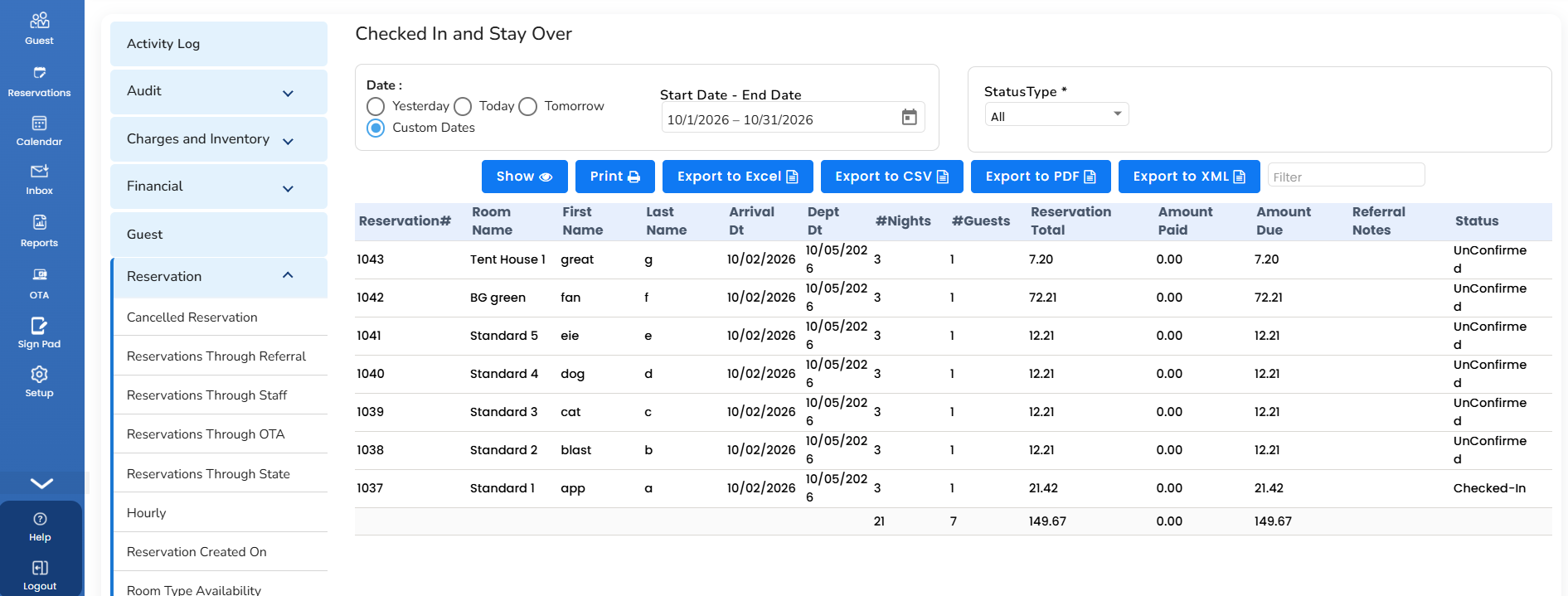
Reservations with the Status changed to Checked In will be shown. The Checked In status will be determined on the reservation screen. This helps to see how many arrivals on a particular day have Checked In successfully. The Stay Over will show the reservations that are already Checked In and staying on the property.
- To access it, in the left pane, click on the Report icon.
- Choose Reservations and then Checked In and Stay Over.
Was this article helpful?
That’s Great!
Thank you for your feedback
Sorry! We couldn't be helpful
Thank you for your feedback
Feedback sent
We appreciate your effort and will try to fix the article