Easy InnKeeping PMS now supports Dashboard Access Rights, allowing administrators to control which dashboard sections are accessible to users based on their assigned access levels.
This feature helps properties manage user permissions and restrict access to sensitive dashboard information, such as revenue, occupancy, and reservation statistics.
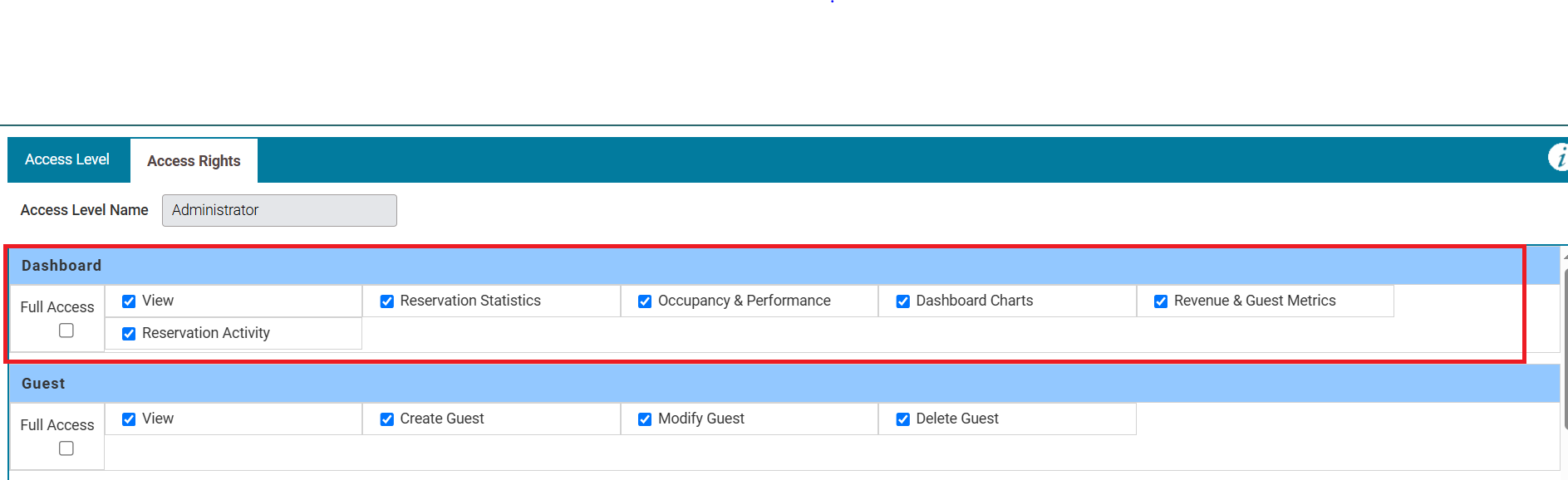
How to Configure Dashboard Access Rights
Step 1: Open Access Level Settings
Log in to Easy InnKeeping PMS using an administrator account.
Navigate to the Setup -> Access Level settings.
Select an existing access level or create a new one.
Open the Access Rights tab.
Step 2: Configure Dashboard Permissions
Under the Access Rights tab, locate the Dashboard section.
The following permissions are available:
| Permission | Description |
|---|---|
| Full Access | Selects all available Dashboard permissions. |
| View | Allows users to access the Dashboard page. |
| Reservation Statistics | Controls visibility of reservation statistics on the Dashboard. |
| Occupancy & Performance | Controls access to occupancy and performance information. |
| Dashboard Charts | Controls visibility of Dashboard charts and graphical information. |
| Revenue & Guest Metrics | Controls access to revenue-related information and guest metrics. |
| Reservation Activity | Controls visibility of reservation activity information. |
Step 3: Enable or Disable Permissions
Select the checkbox next to each Dashboard feature you want users to access.
Uncheck the permissions you want to restrict.
To enable all Dashboard permissions, select Full Access.
Save the changes to the access level.
How Dashboard Permissions Work
Dashboard information is displayed based on the permissions configured for the user's assigned access level.
For example:
Front Desk Staff: Enable View, Reservation Statistics, and Reservation Activity.
Property Manager: Enable View, Reservation Statistics, Occupancy & Performance, Dashboard Charts, and Revenue & Guest Metrics.
Administrator: Enable Full Access to allow access to all Dashboard sections.
These are example permission configurations. Administrators can customize access based on their property's operational requirements.
Important Notes
Dashboard permissions are managed separately for each access level.
Users can access only the Dashboard sections enabled for their assigned access level.
Disabling a specific Dashboard permission restricts access to that section.
The View permission should be enabled for users who need access to the Dashboard.
Administrators can update these permissions whenever access requirements change.
Benefits
The Dashboard Access Rights feature provides better control over information visibility, helping properties:
Restrict sensitive revenue and performance information.
Provide role-based Dashboard access.
Simplify the Dashboard by showing only relevant information.
Improve access management and operational security.
For additional assistance with configuring Dashboard Access Rights, please contact GraceSoft Support.
Was this article helpful?
That’s Great!
Thank you for your feedback
Sorry! We couldn't be helpful
Thank you for your feedback
Feedback sent
We appreciate your effort and will try to fix the article